- 1. On boarding for Parent
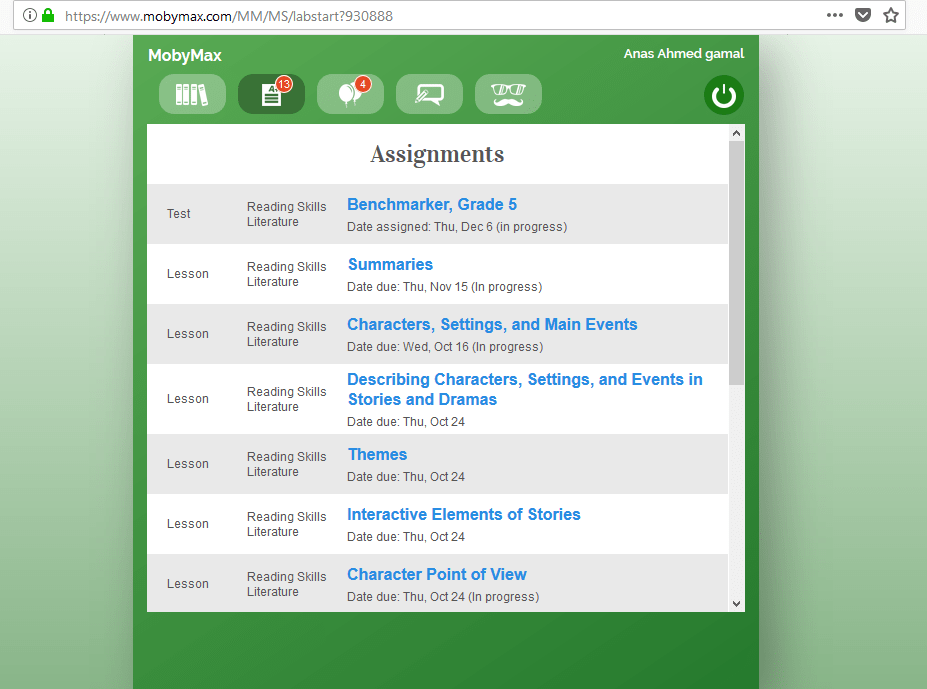
- 15. How To Log in To Mobymax ?21.10.19
1-After you log in to student portal , this what you will see.
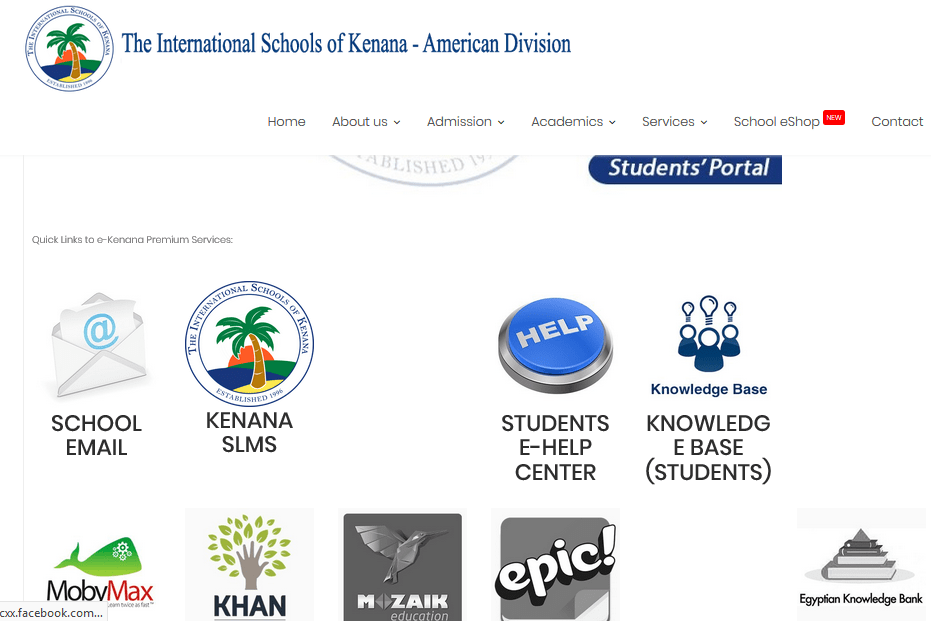
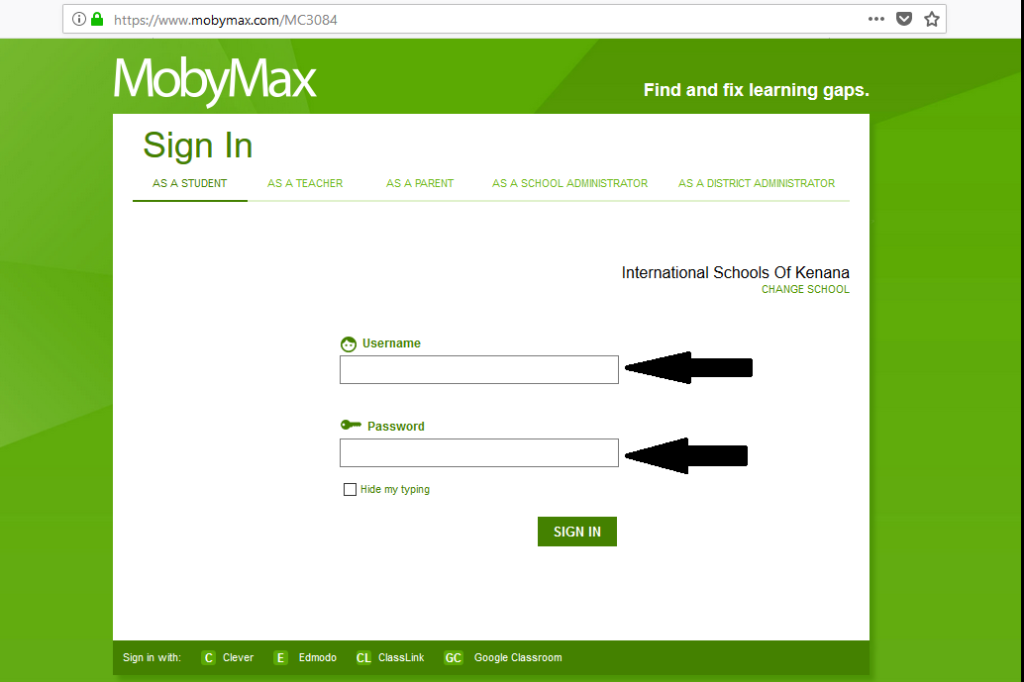
2-Click on mobymax ,this what you will see.
-Type your given password & user name then click sign in.
3- After sign in to mobymax ,this what you will see.
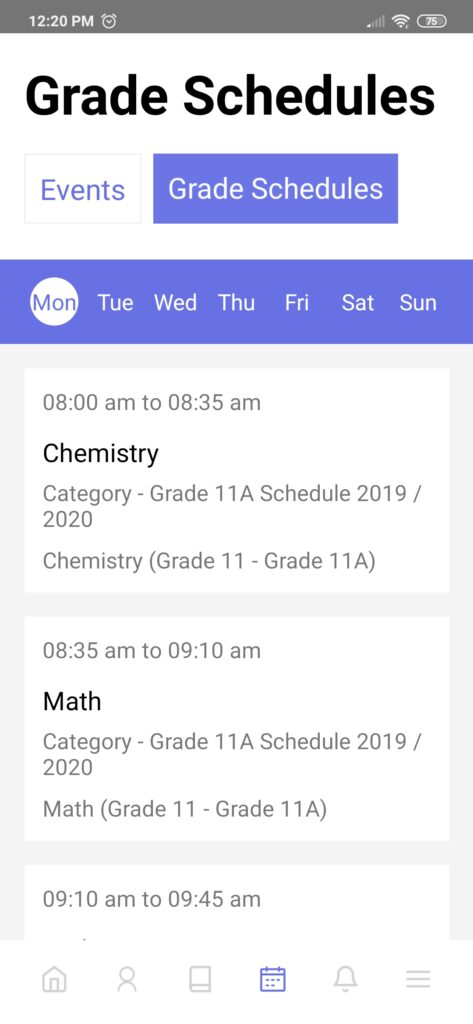
- 16. How To Access Students` Class Schedule (Time Table)09.02.20
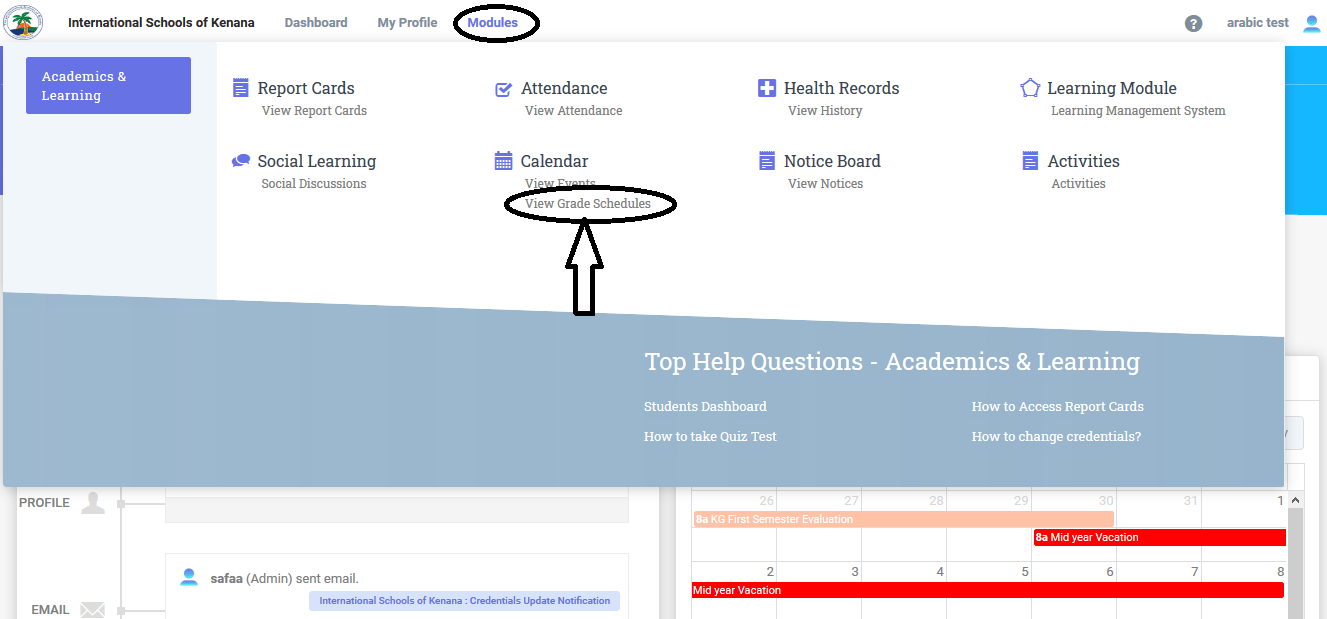
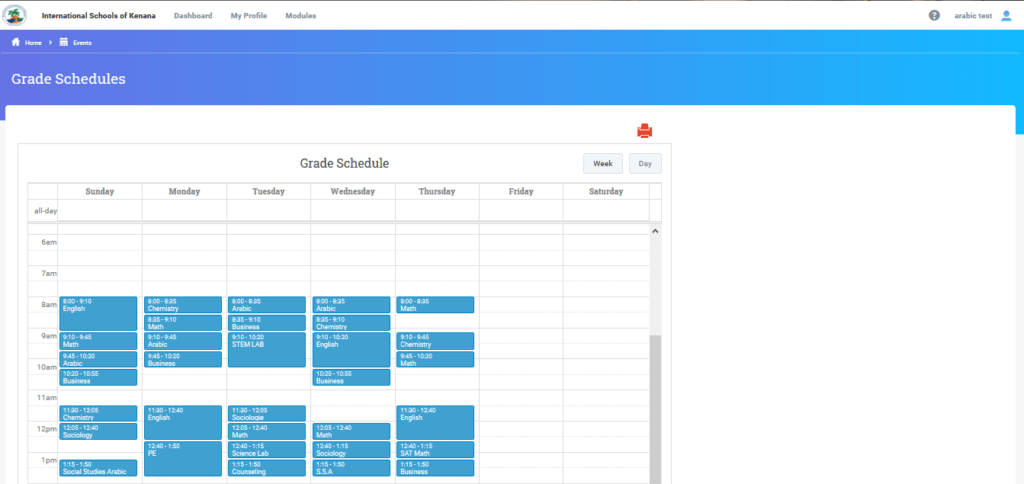
1-Using the website.
-Click On Module —->Academics & Learning—->View Grade Schedules as you can see below.
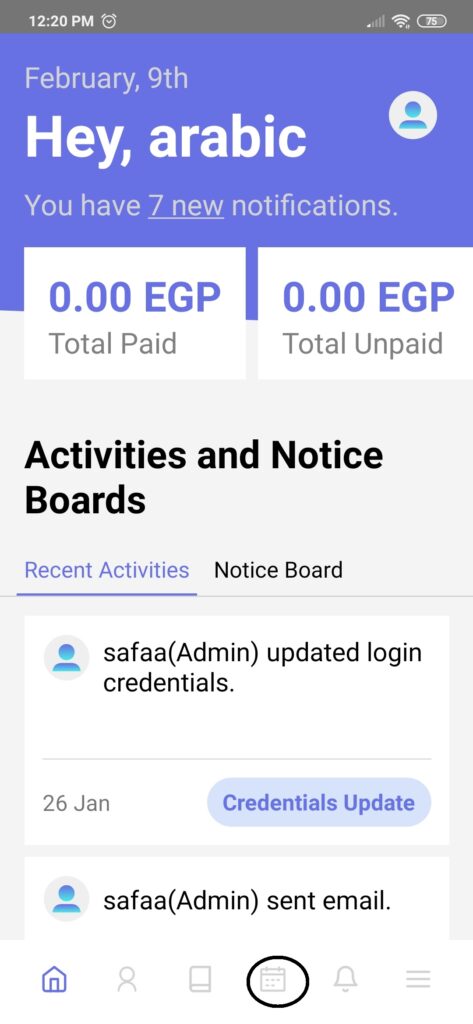
2-Using the "Classe365" Mobile application.
-Click On Calendar Icon —-> Grade Schedules as you can see below.
- 17. How To Send Private Message To Your Teacher Via e-Kenana SLMS?20.02.20
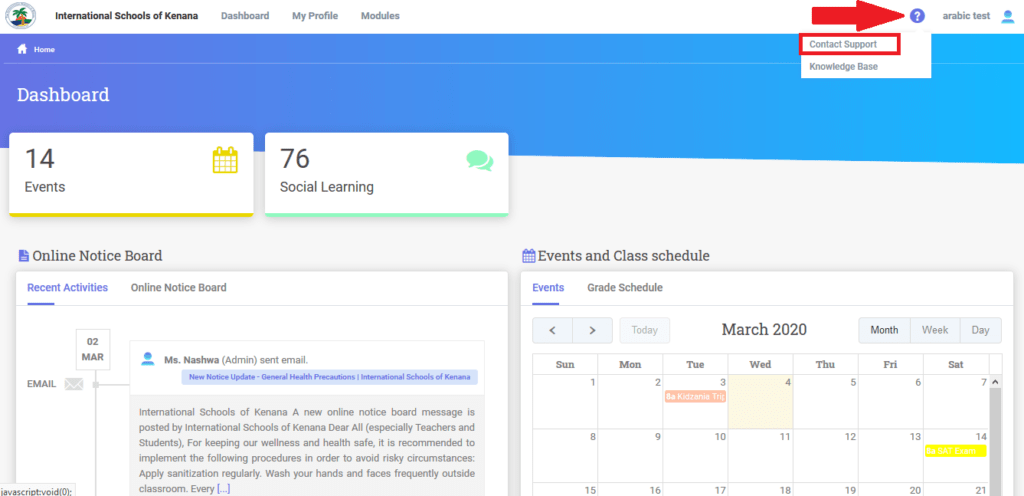
-Open Your Account on eKenana SLMS :
-Click the Help Icon --- Contact Support.
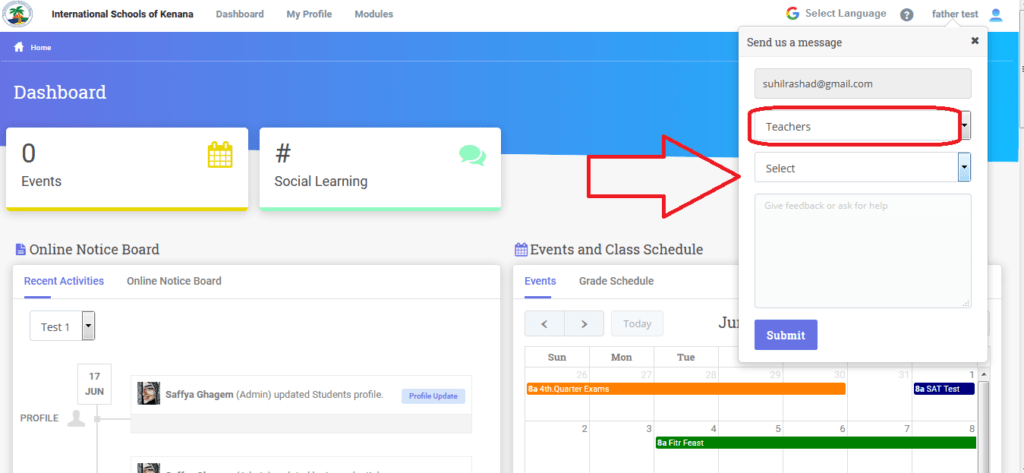
-Select Teachers --- Select the Teacher you Want to Send to Him Private Message --- Write your own Message---Click Submit.
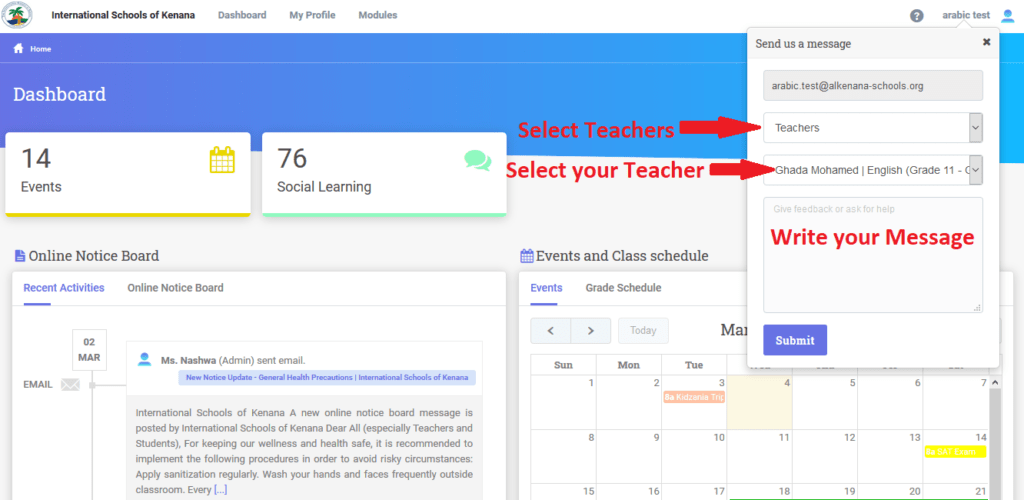
The Teacher Will Answer you Privately On SLMS.
- 18. Follow This Steps When You Forget Password24.02.20
- Open eKenana SLMS login page or follow this link :
http://slms.alkenana-schools.org/
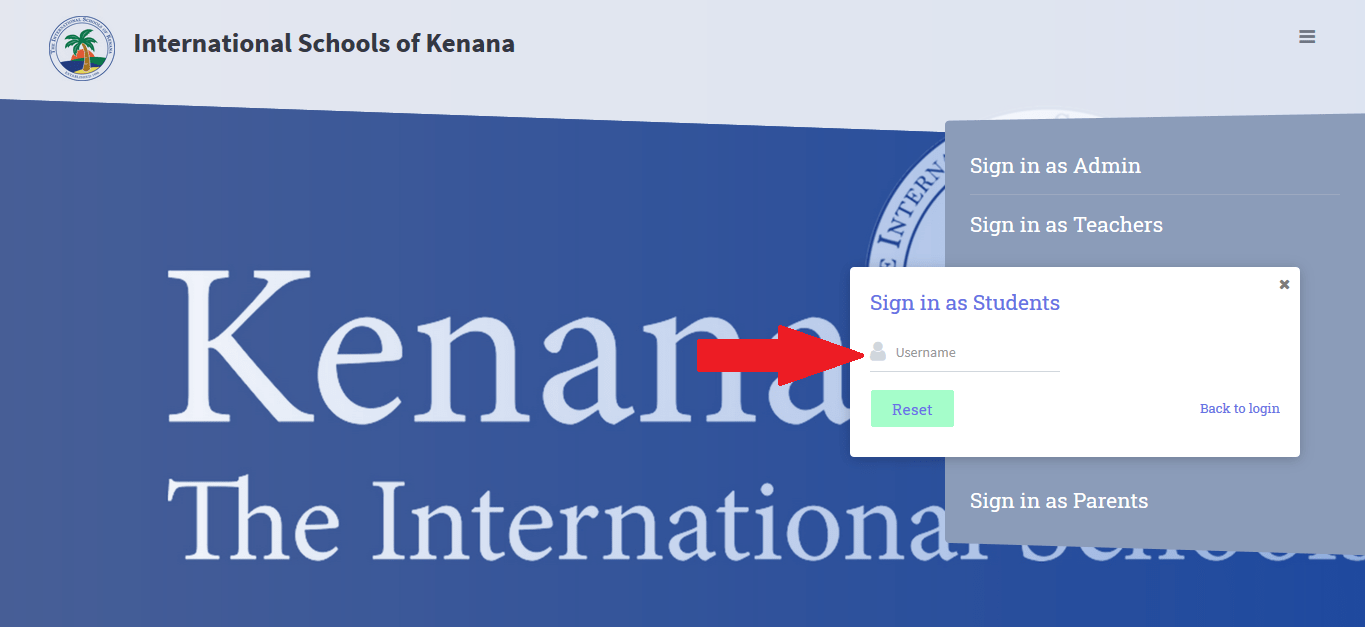
1- Click Forget Password?.
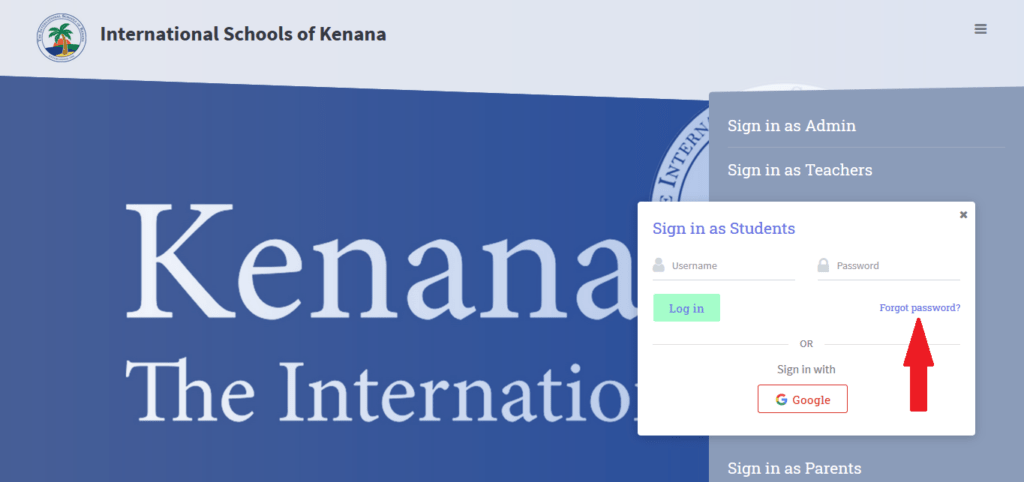
2-Write Your User Name,Then Click Rest.
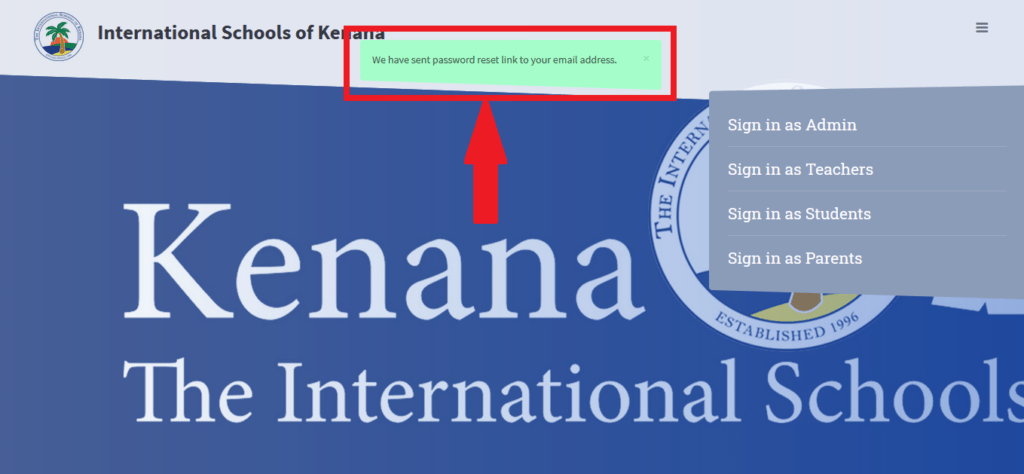
3-The Rest Link Will Be Sent To Your School Mail.
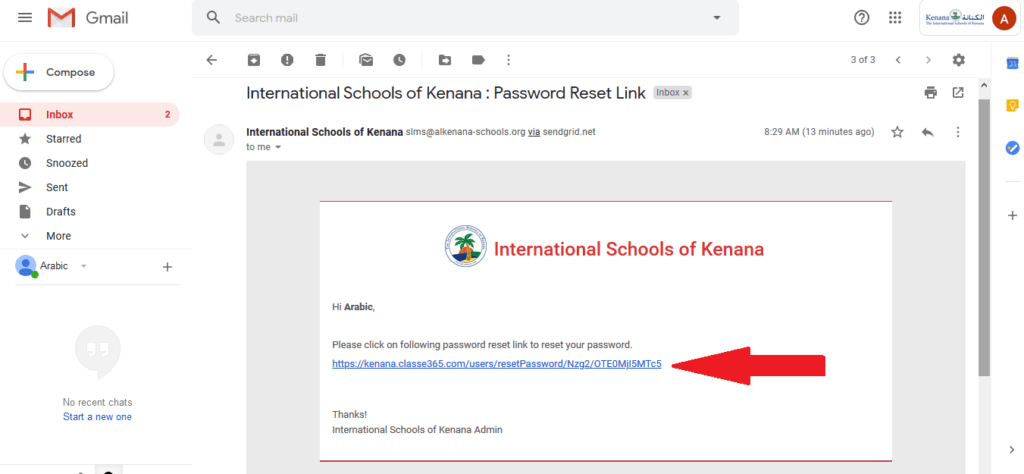
4-Open Your Mail And Follow The link.
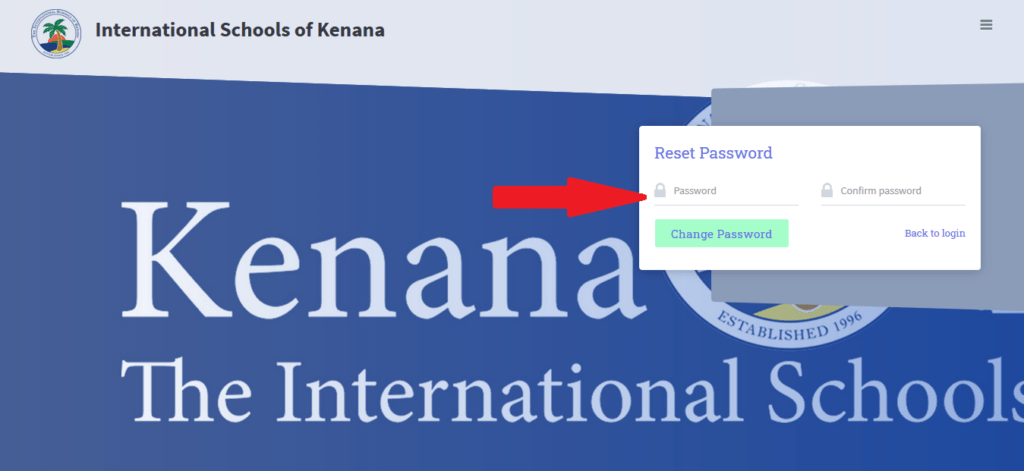
5- Write Your New Password and Click Change.
- 19. how TO USE ZOOM.US ?19.03.20
-First:
-Check student Discussion on SLMS for each subject and join the meeting in the exact same date and time that the teacher has mentioned .
-Copy the Meeting ID and the Meeting Password to Join the meeting.
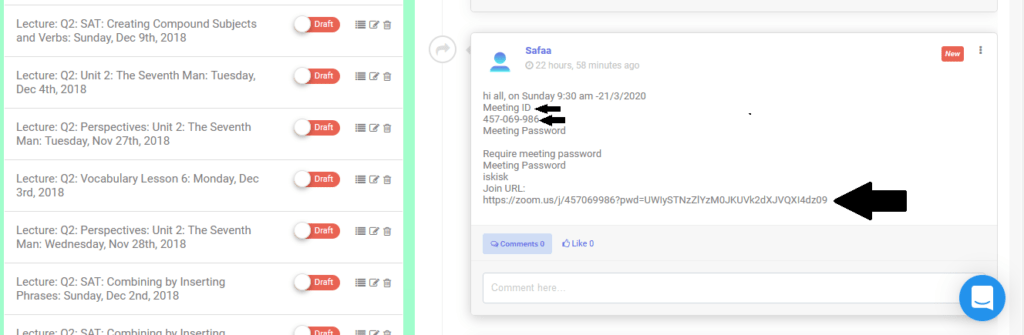
1-Using PC.
-Go to https://zoom.us/
-Then Click on “SIGN IN”.
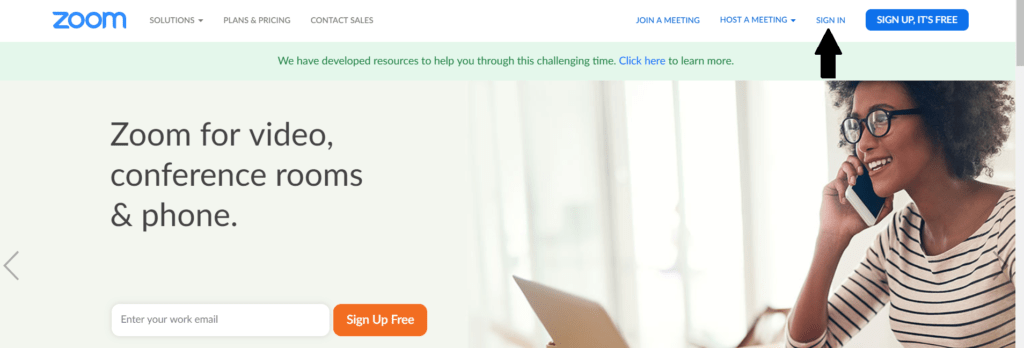
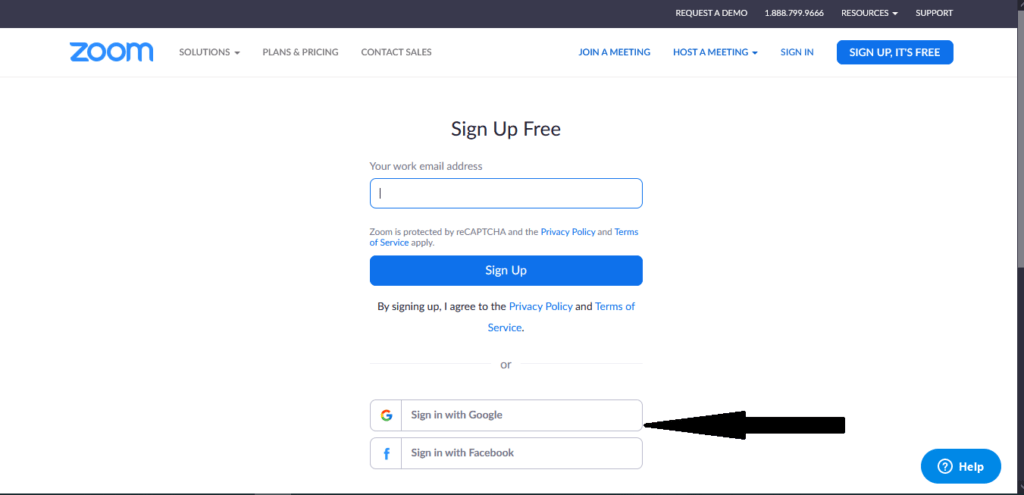
-Make sure that you open on your browser with your school mail ” @alkenana-schools.org”
-Click on "Join A Meeting".
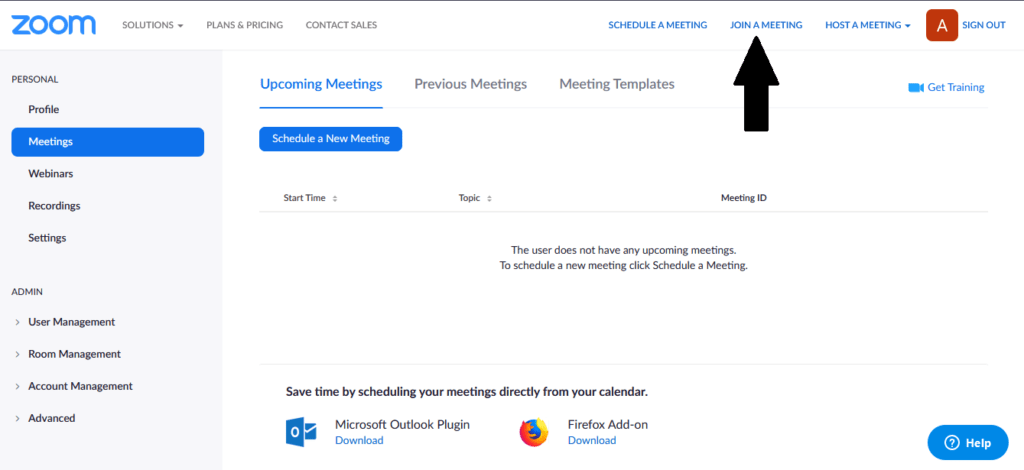
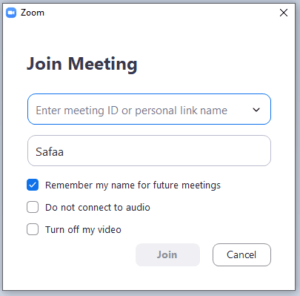
-Write the "ID Meeting" then click on "join".
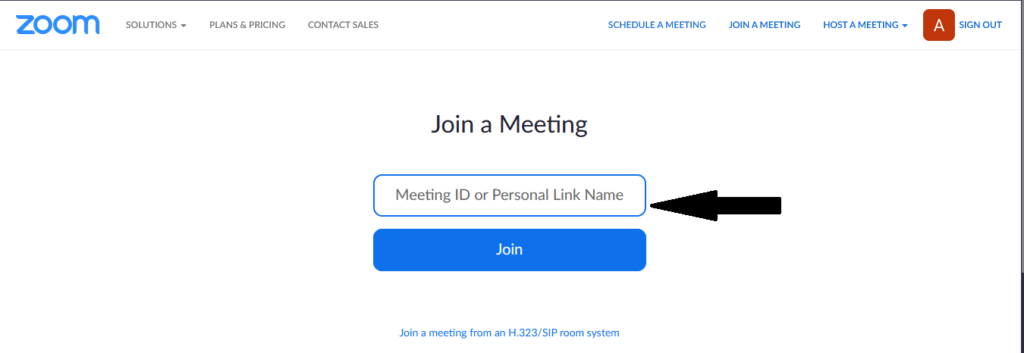
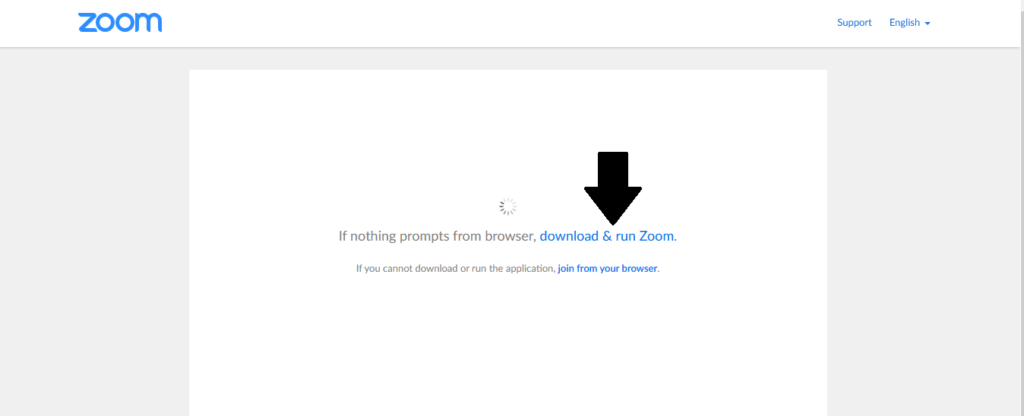
-The browser will ask to download zoom file, Download it then click it to set it up.
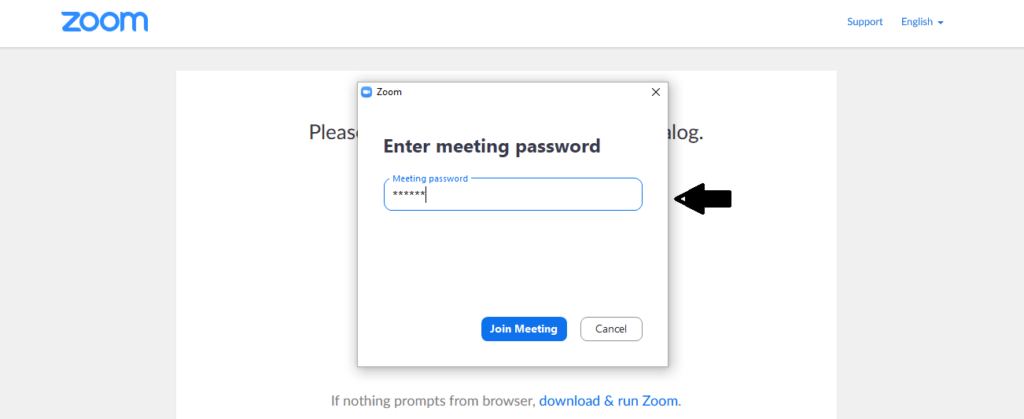
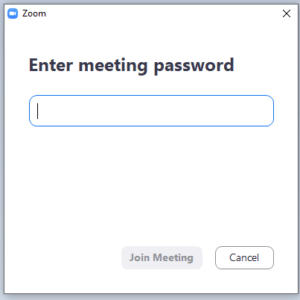
-Enter the "meeting Password" that your teacher shared with you on SLMS "iskisk" then "Join Meeting".
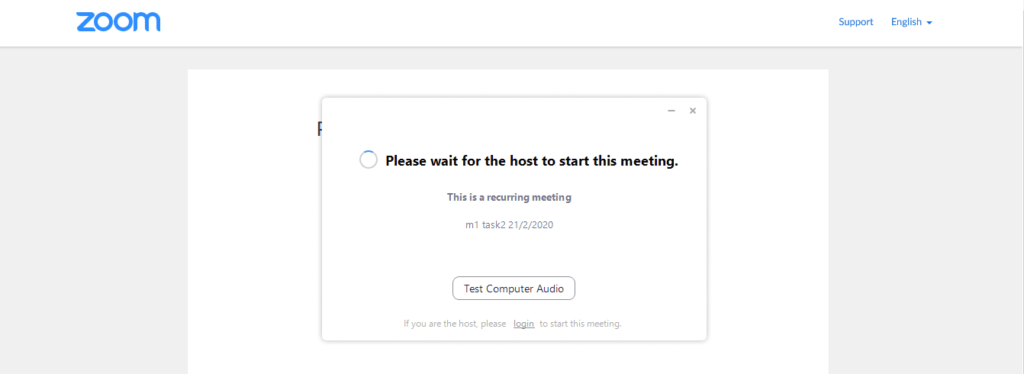
-Now you are in the meeting & waiting for your teacher.
-Once the teacher starts the meeting you will see his shared screen ,If you need something from your teacher ,you can click "Raise Hand" from Participants icon,Or if you need to chat with the teacher click "Chat icon".
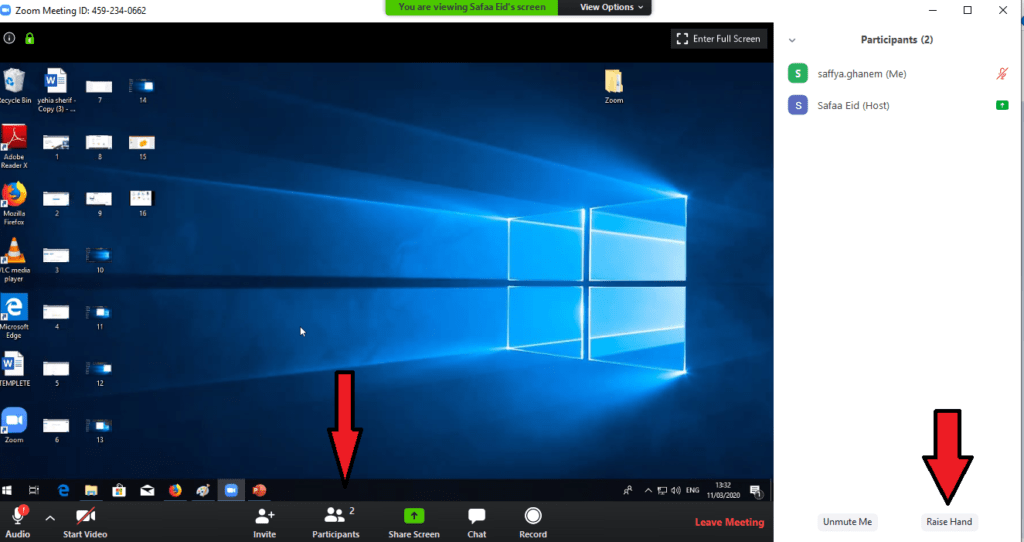
-Note if you want to use the (URL ) link directly that your teacher shared with you on SLMS , Copy and paste the link in new tab.
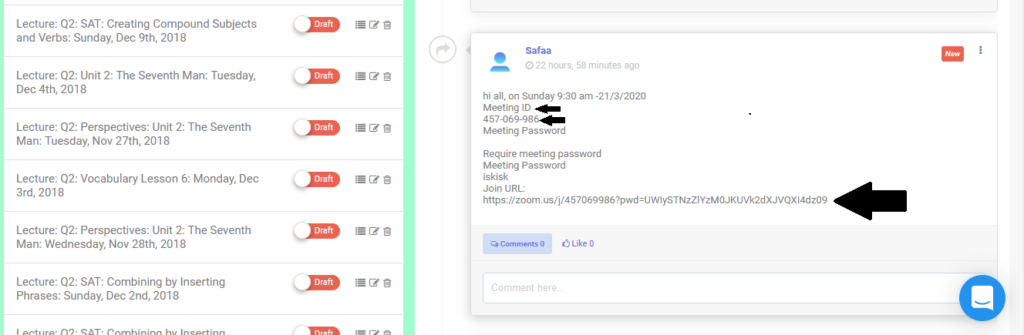
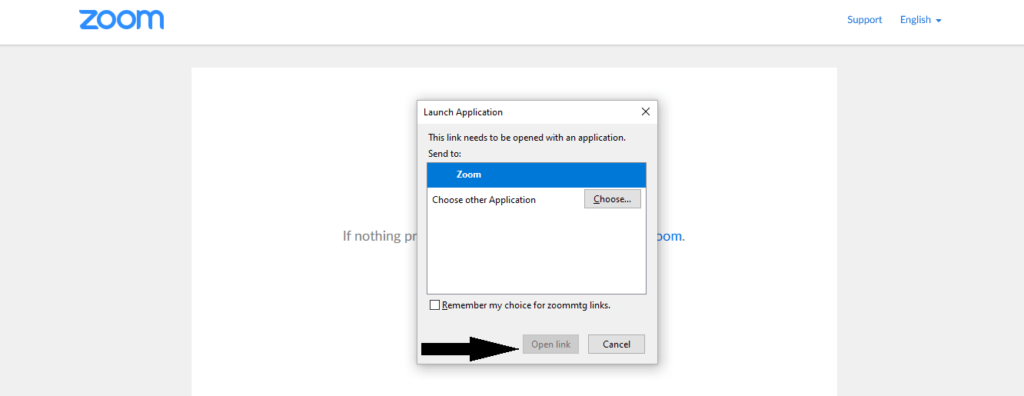
-Then click "open link" to join the meeting and follow the same steps.
-NOTE: WHEN THE MEETING FINISHES THE TEACHER WILL PROVIDE YOU WITH A RECORDED VIDEO LINK OF THE SESSION ON SLMS.
-Next time you want to join a meeting just open zoom program directly from your start menu and click "join meeting" then write the "Meeting ID" and "Meeting password".
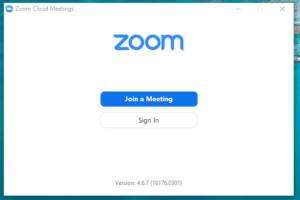
-Write the password "iskisk" then click "Join Meeting".
2-USING THE “ZOOM APP”.
Download the App from

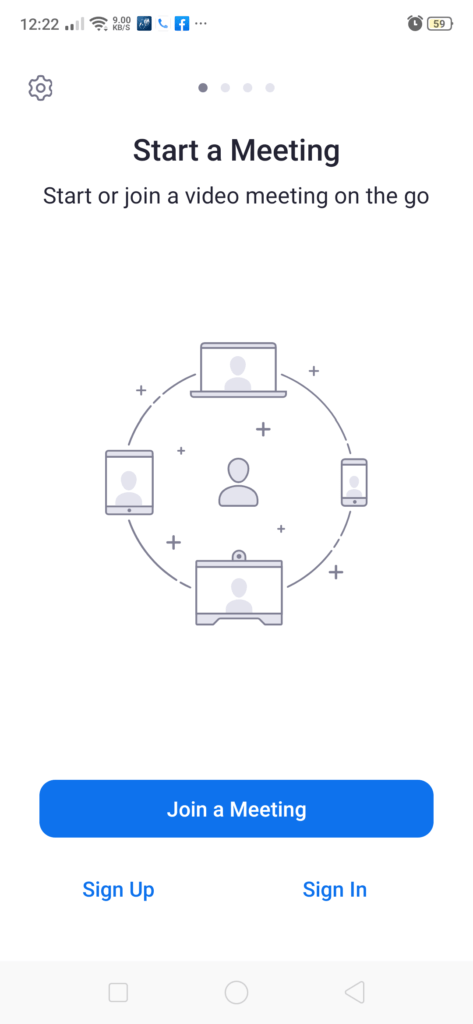
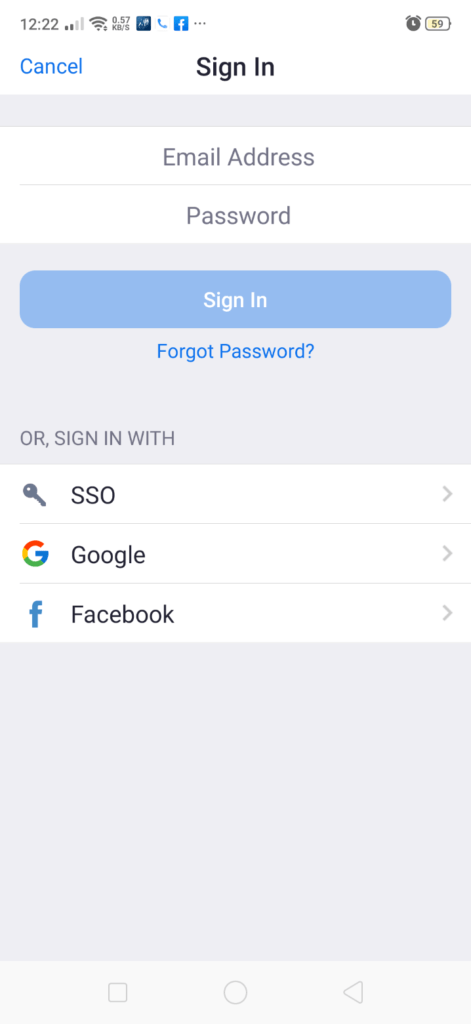
-Click on "sign in"
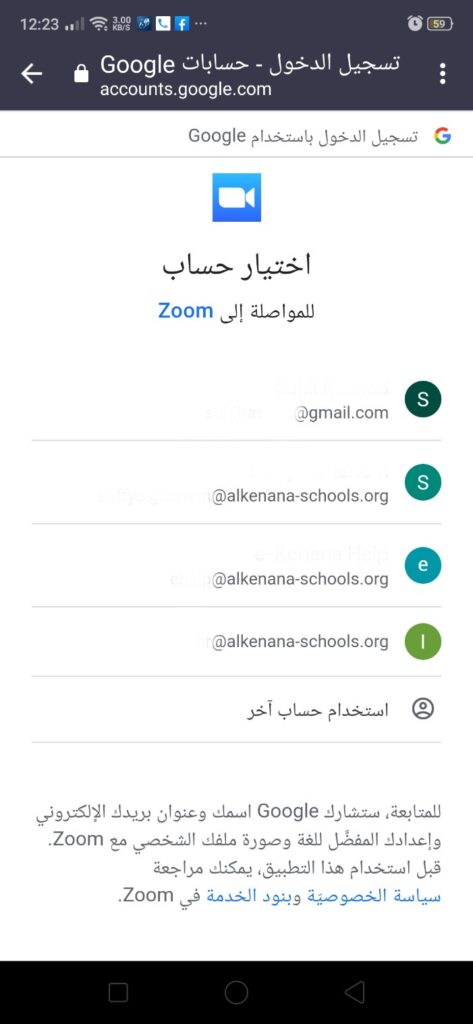
-Click on "sign in" using google with (student school E-mail).
-Choose your school E-mail and click it.
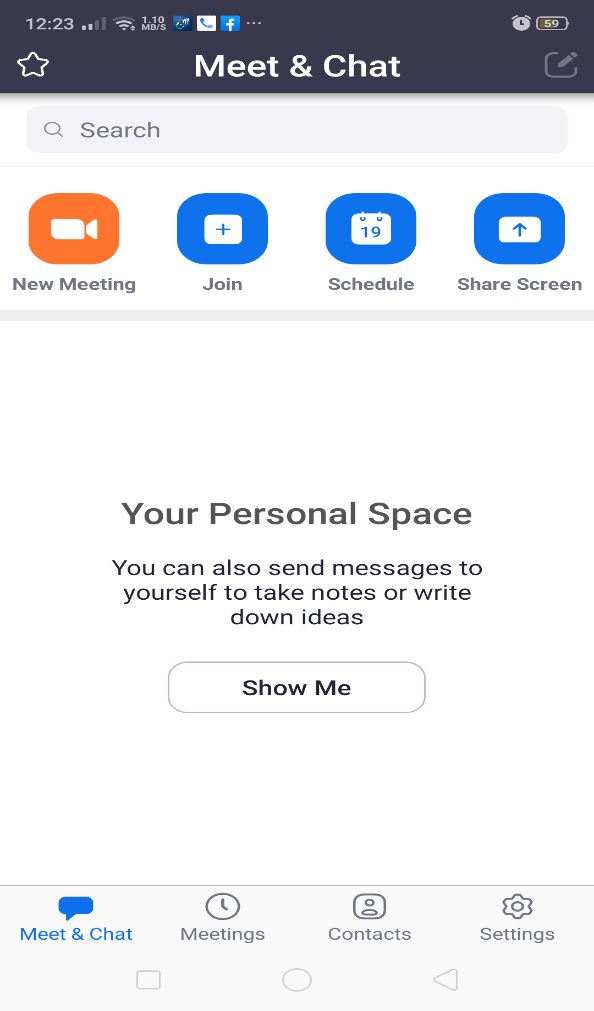
-Click on " join" icon.
-Write the "Meeting ID" .
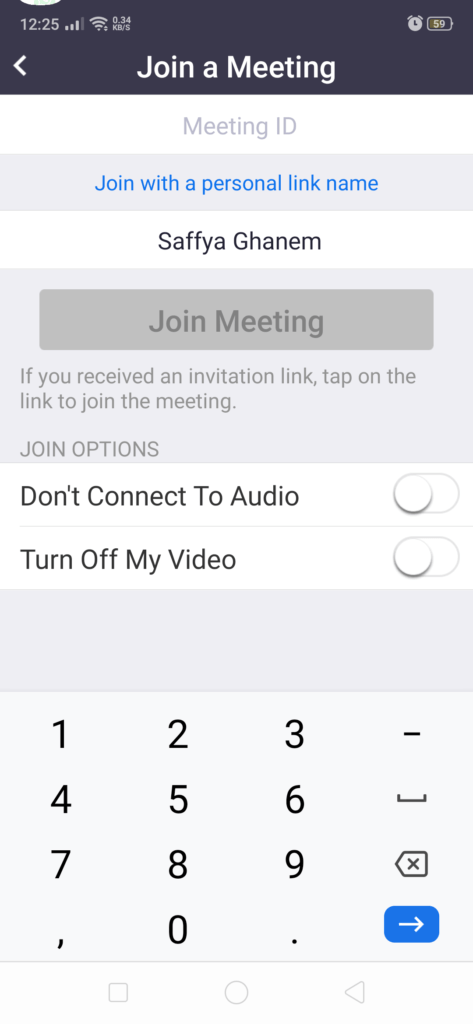
-Write the Meeting Password "iskisk".
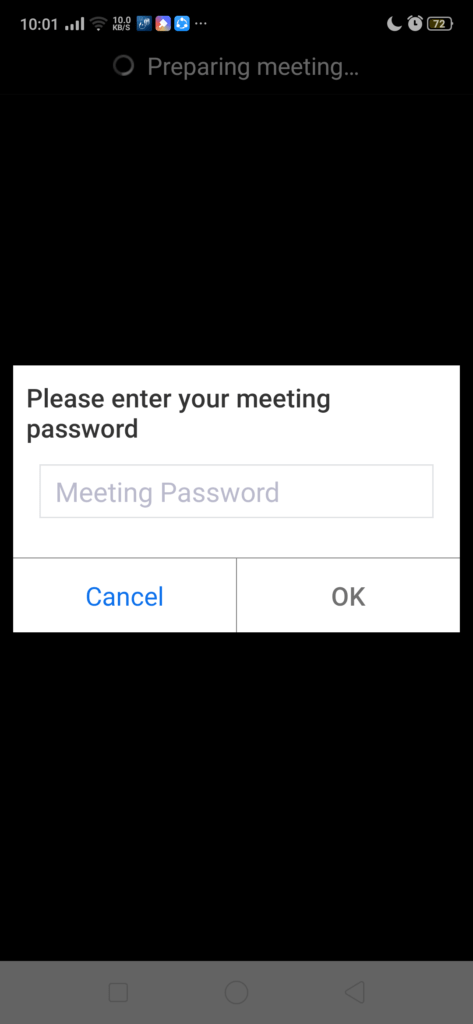
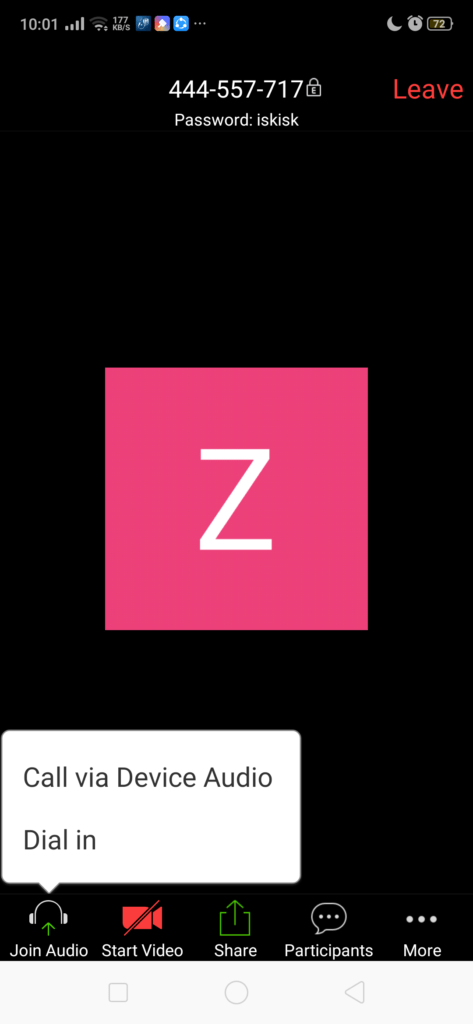
-Now you have reached the meeting.
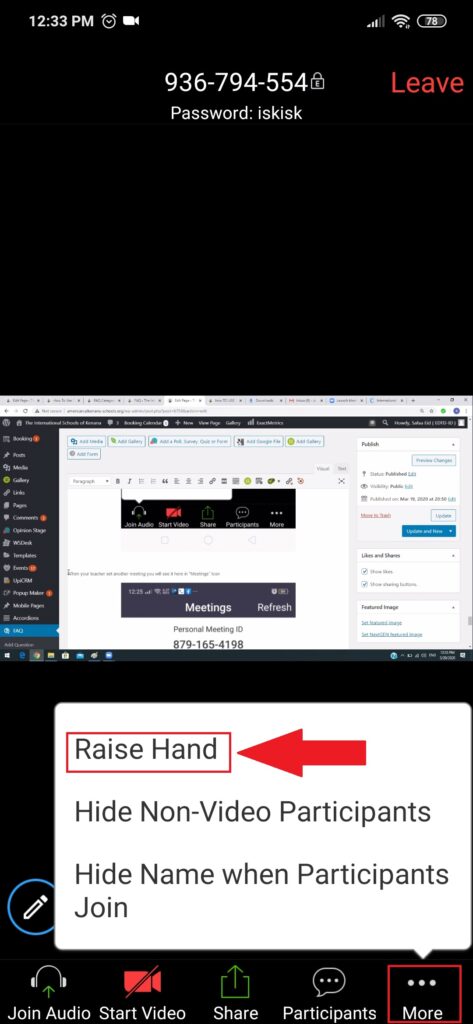
-If you need something from your teacher you can click raise hand from "More icon".
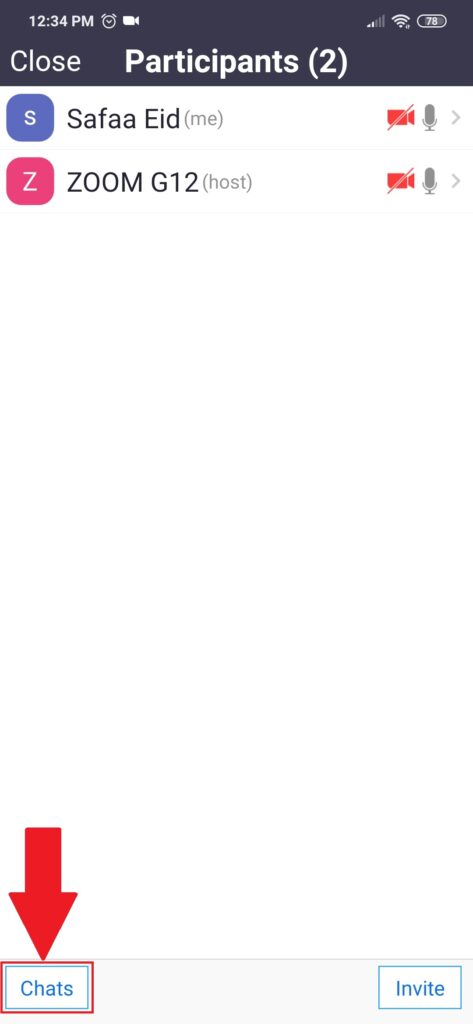
-Or you can chat with your teacher --click "Participants" then "Chat".
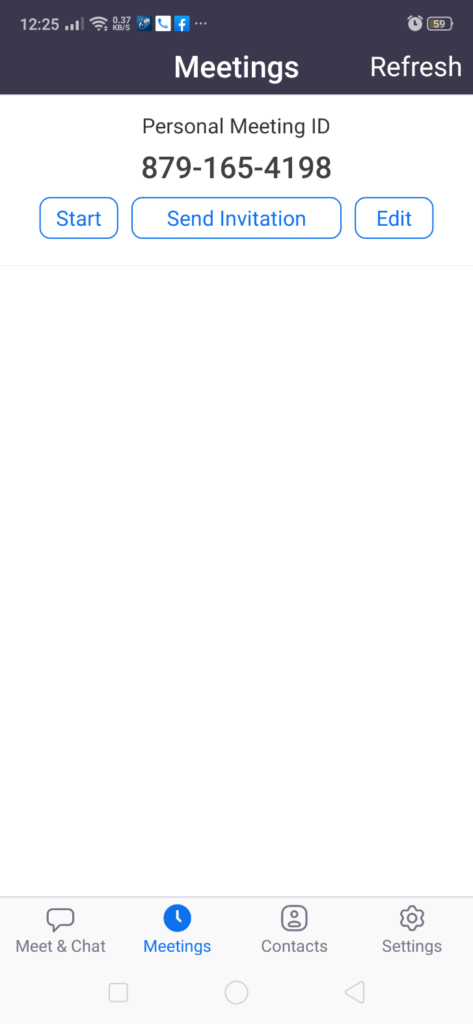
-When your teacher set another meeting you will see it here in "Meetings" Icon.
- 20. How to reach the Quiz on slms ?21.03.20
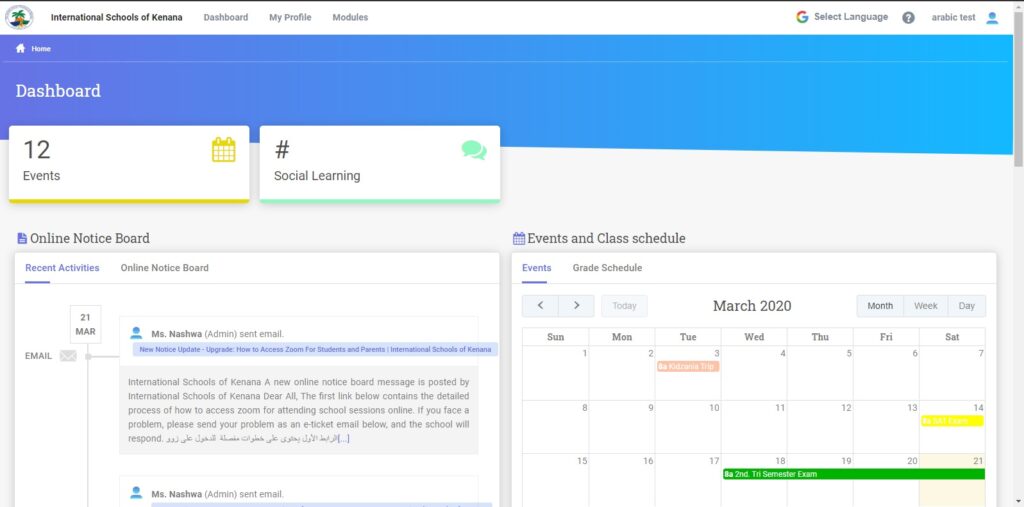
-First log in to your SLMS account .
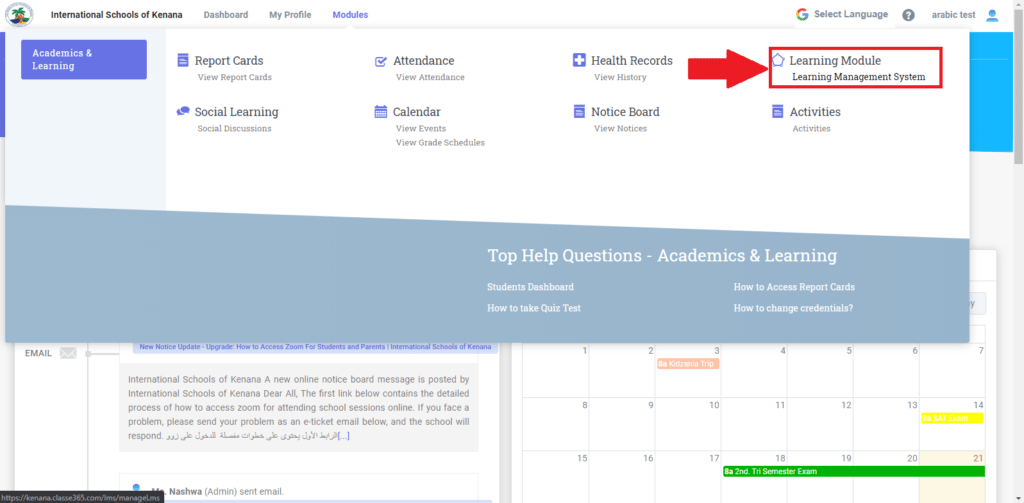
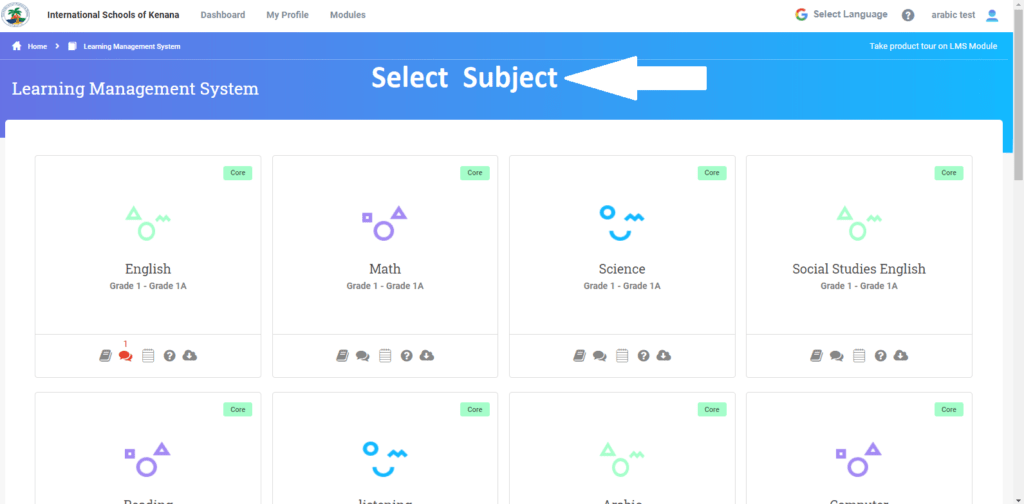
-Go to Modules > Learning Management System > Select Subject > Quiz > Start Quiz.
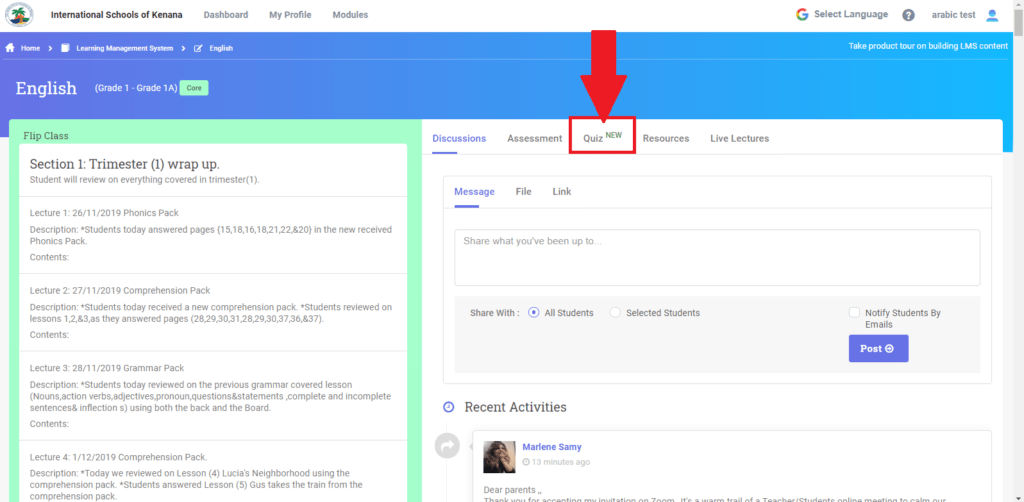
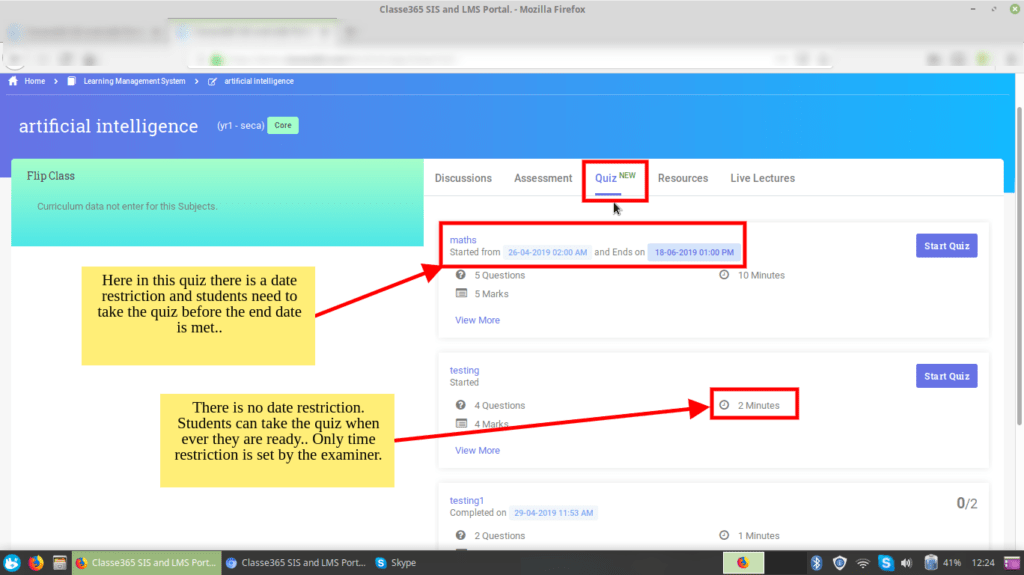
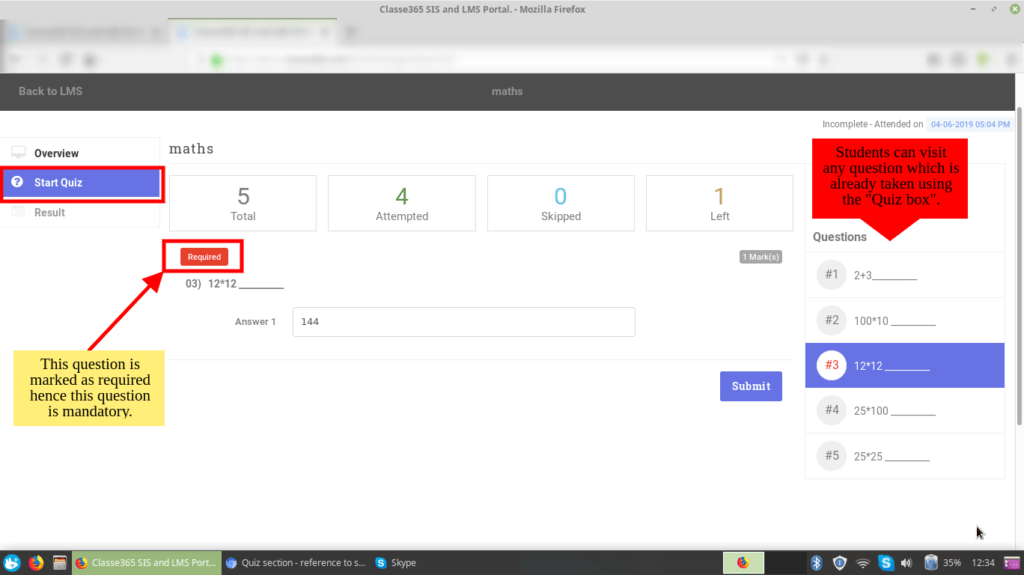
Good Luck!
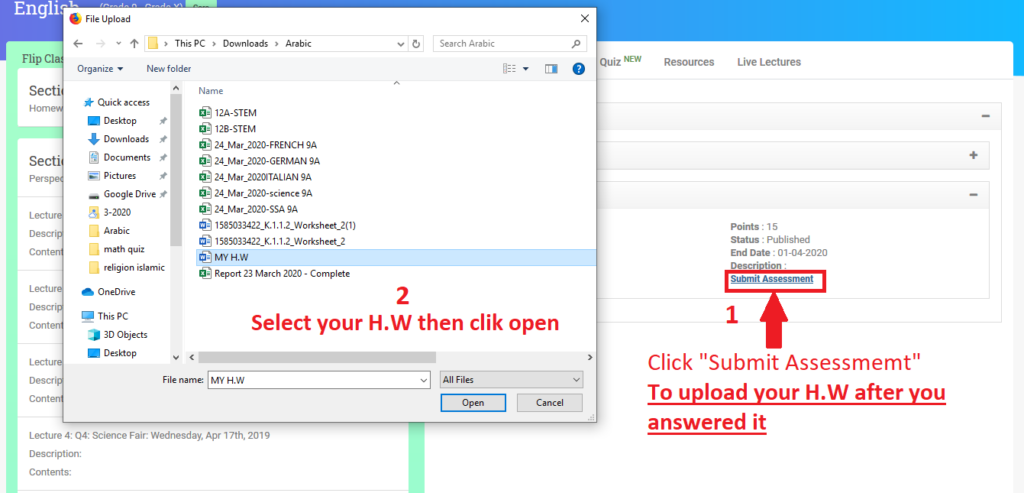
- 21. HOW TO DOWNLOAD AND SUBMIT ATTACHED H.W?25.03.20
1-Using PC
-OPEN YOUR ACCOUNT ON SLMS.
-GO TO ACADEMICS & LEARNING THEN LEARNING MANAGEMENT SYSTEM.
-FOLLOW THE STEPS:
-Click "Assessment" then open the H.W THEN DOWNLOAD THE H.W
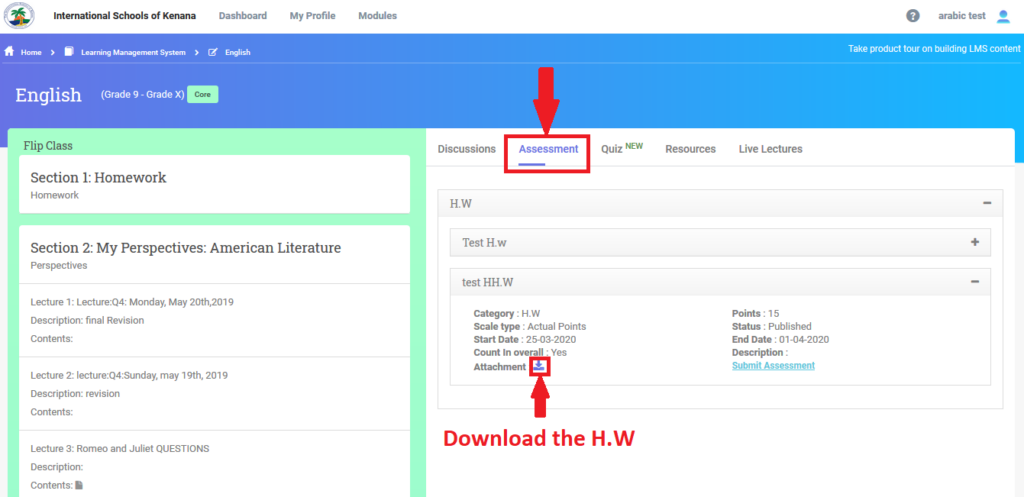
-answer the h.w then click submit assessment (to upload your H.W).
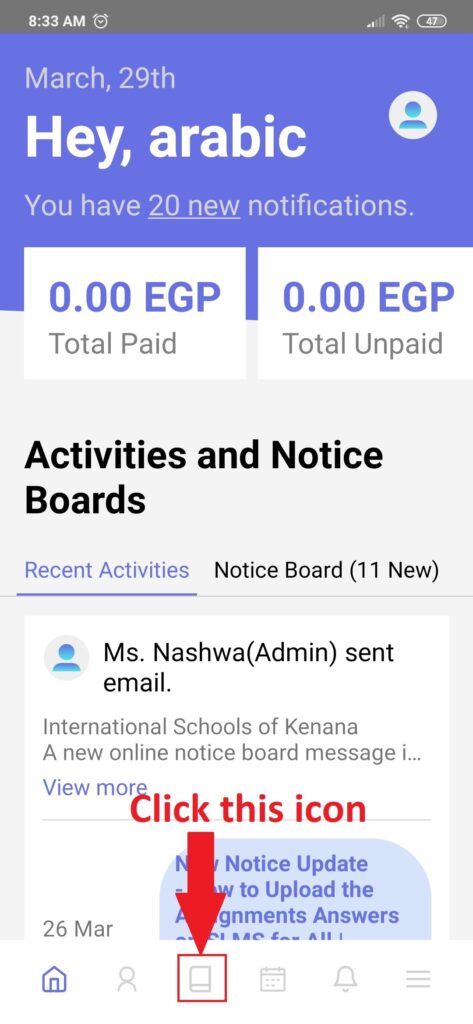
2-Using Classe365 Application.
-Open the application and follow the steps.
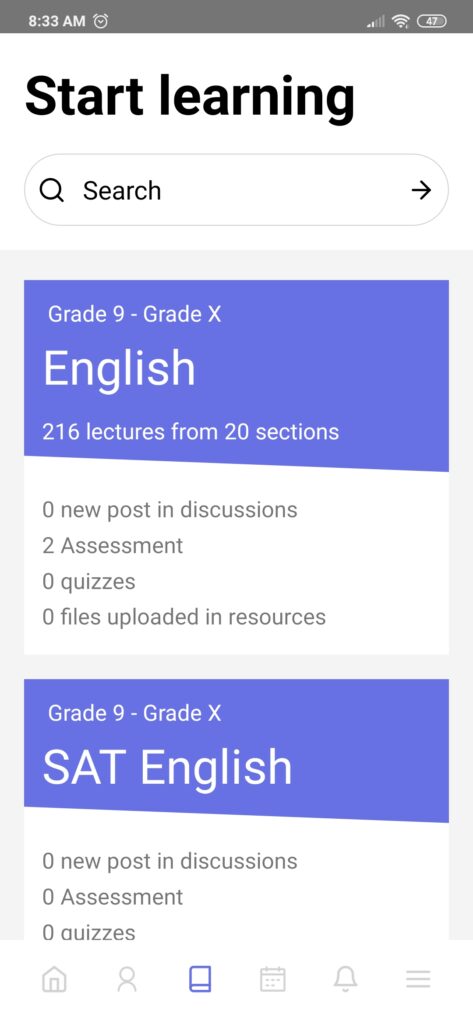
-Select a subject.
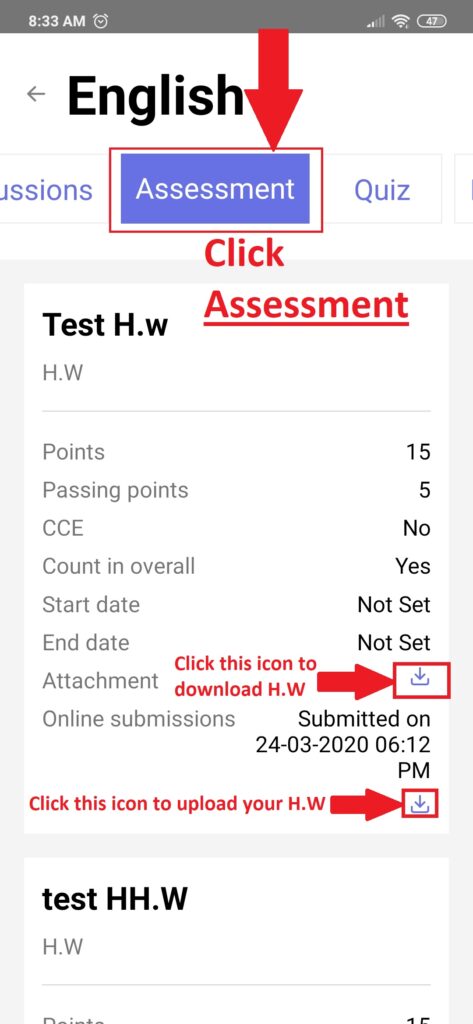
-Click "Assessment" , follow the instructions
- 22. How To Log In To Kenana`s Mail?30.08.20
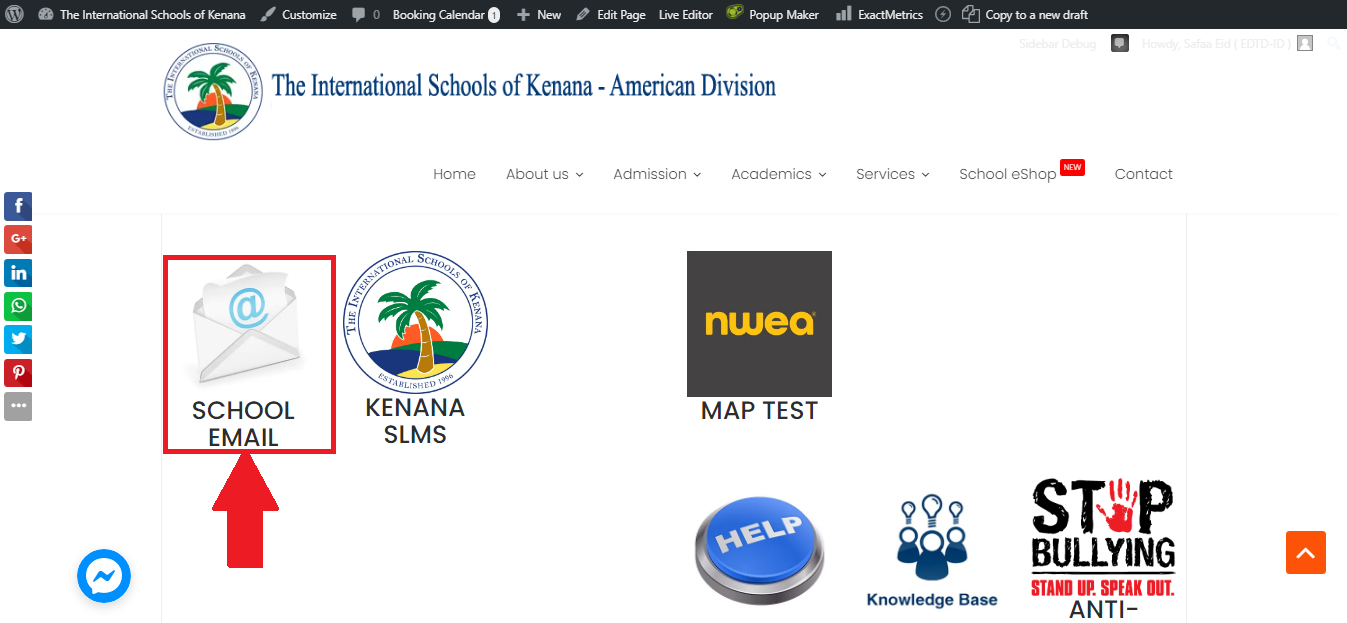
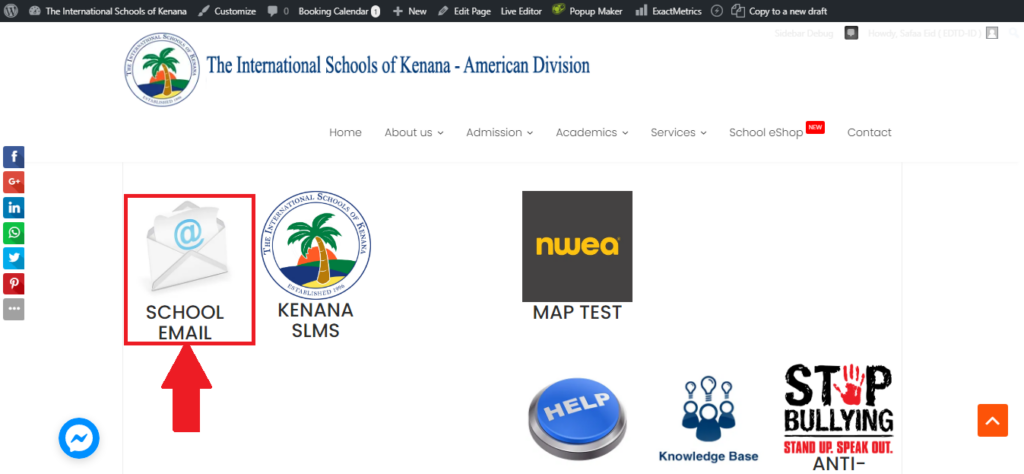
-Once you get to the Student portal you will see this, click on “School Email”.
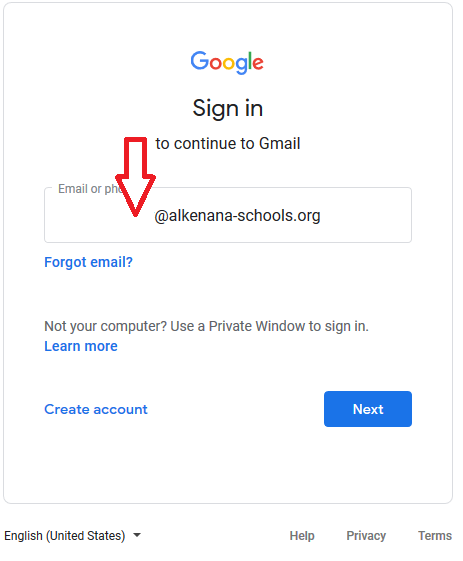
-Write your mail that has been given to you by the EDTD-ID team member,then click next.
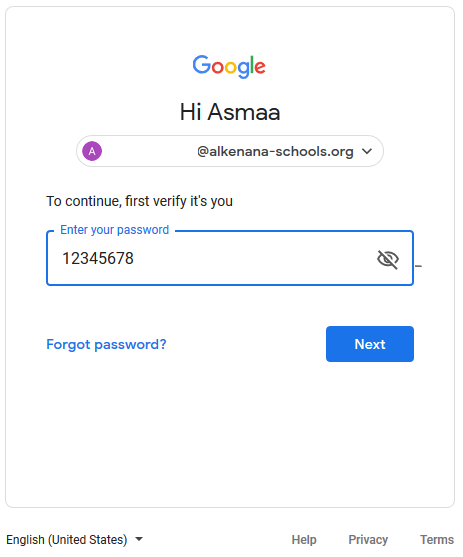
-Use the initial password "12345678",then click next.
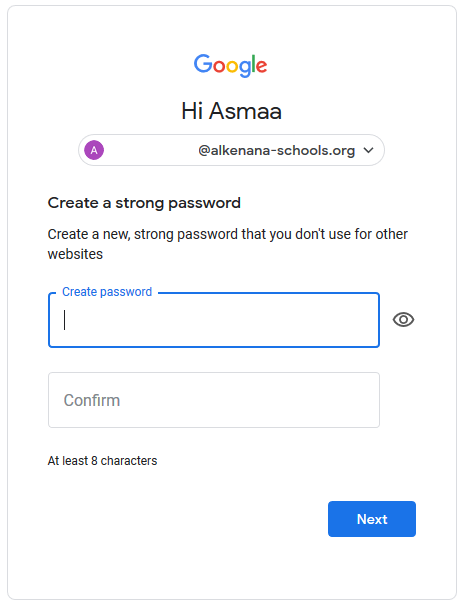
-You will be asked to create your own password and confirm it,then click next.
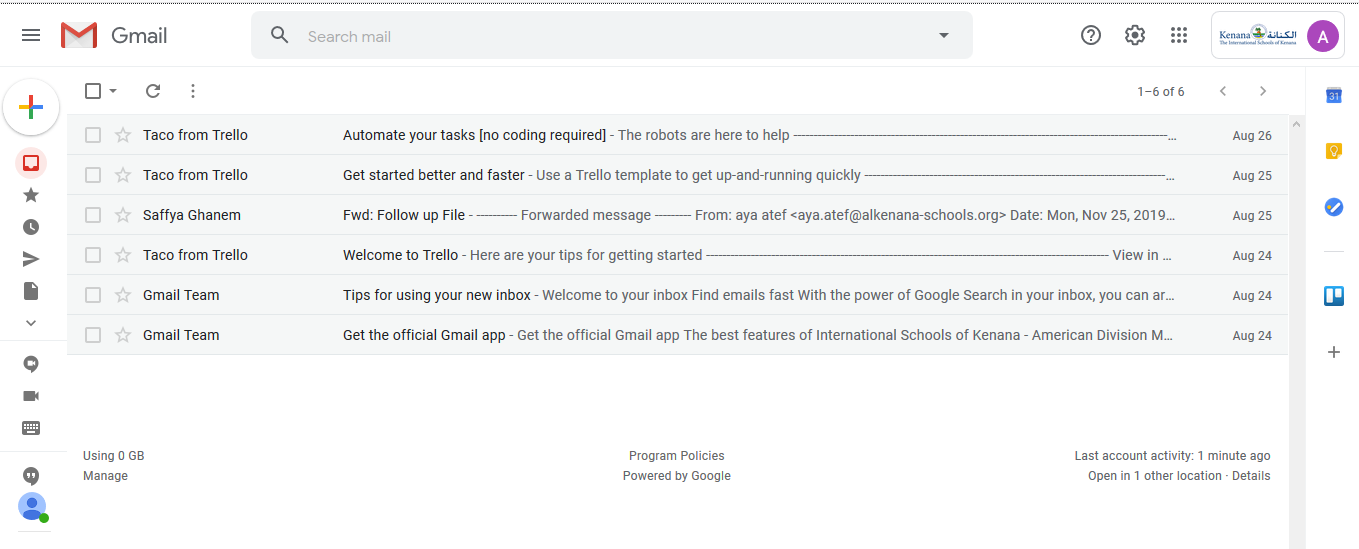
-Here your mail is opened and you are ready to go.
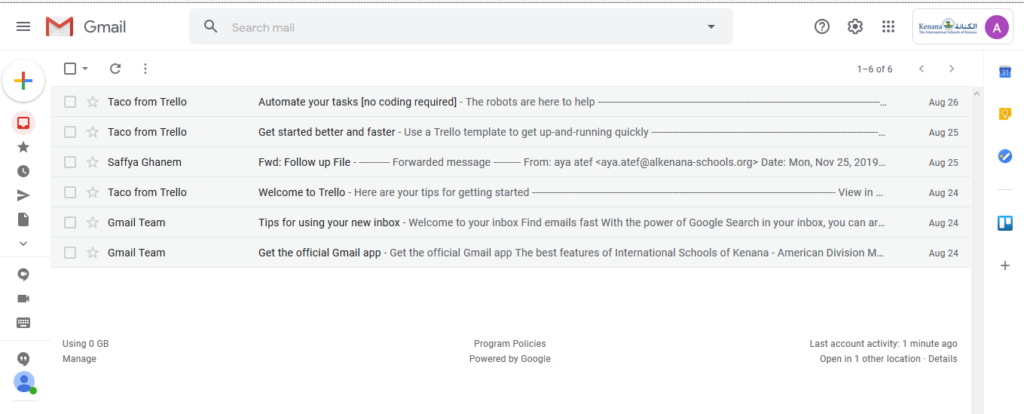
P.S keep checking your school mail for any notifications from the school.
- 23. How To Get Help ?01.09.20
-Once you get to the student portal click the help icon.
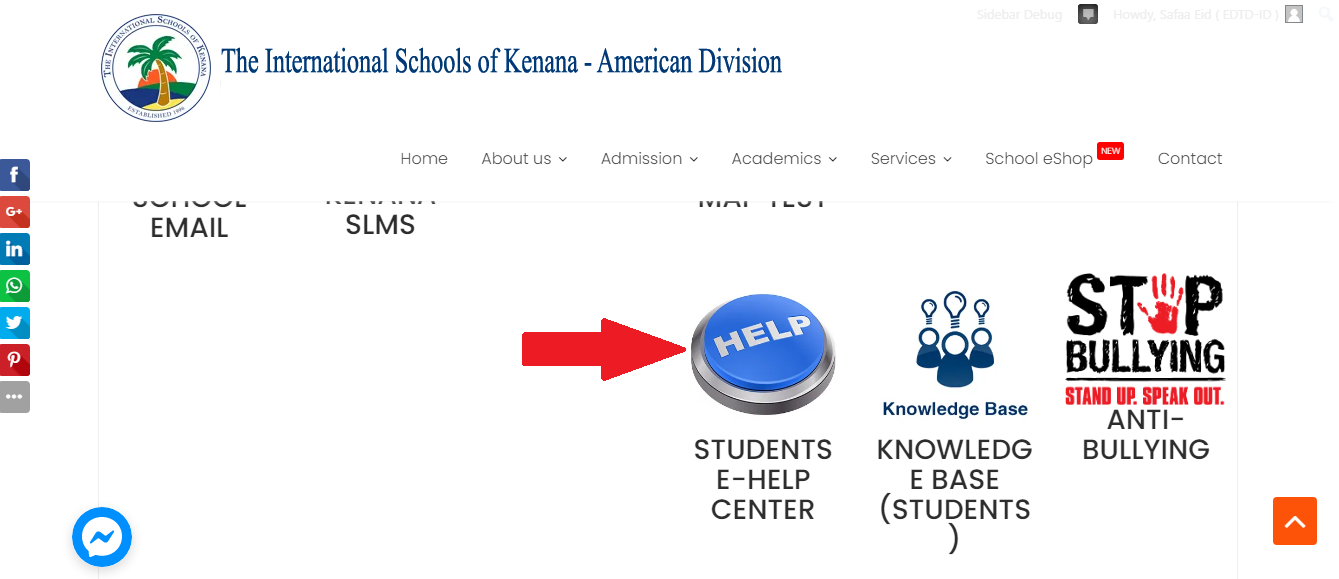
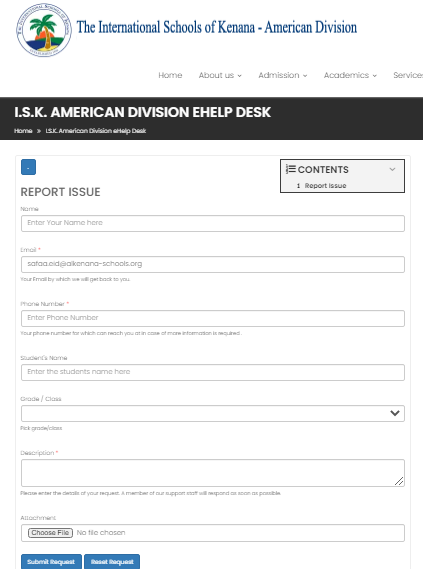
-Fill the form then click "submit request" and our team will contact you.
- 24. How To Attach Multiple Pictures in Same Word File13.01.21
-First Method: using Pc
-Capture the photos of your answered assignment.
-These photos must be saved on the PC.
-Then open a word file.
-Click "Insert".
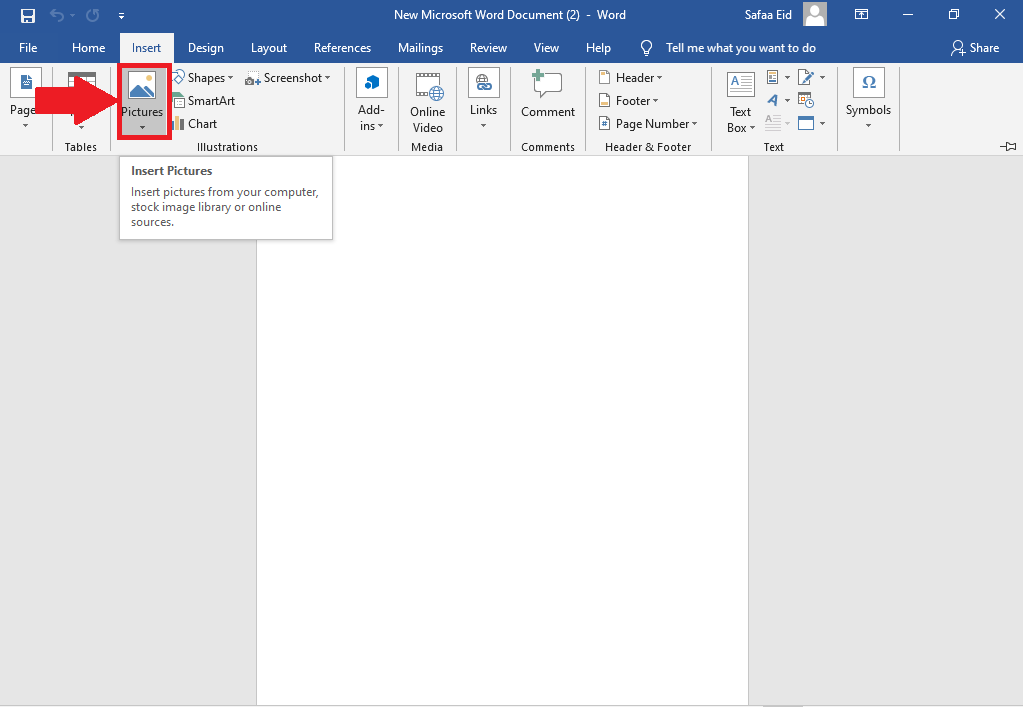
-Select "This device".
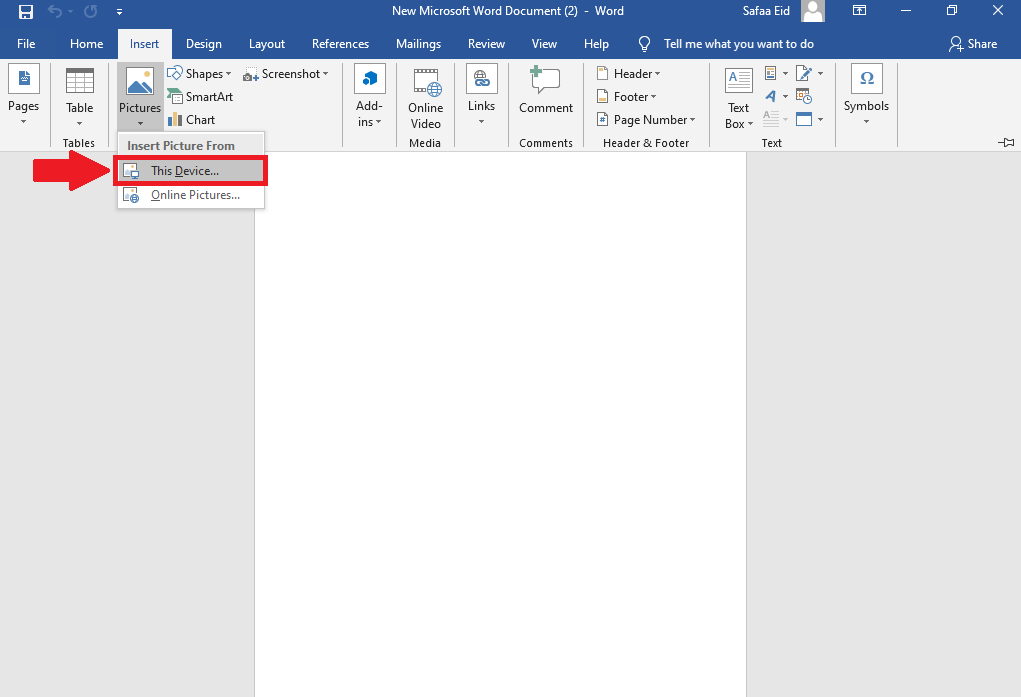
-Select more than one picture then click "Insert".
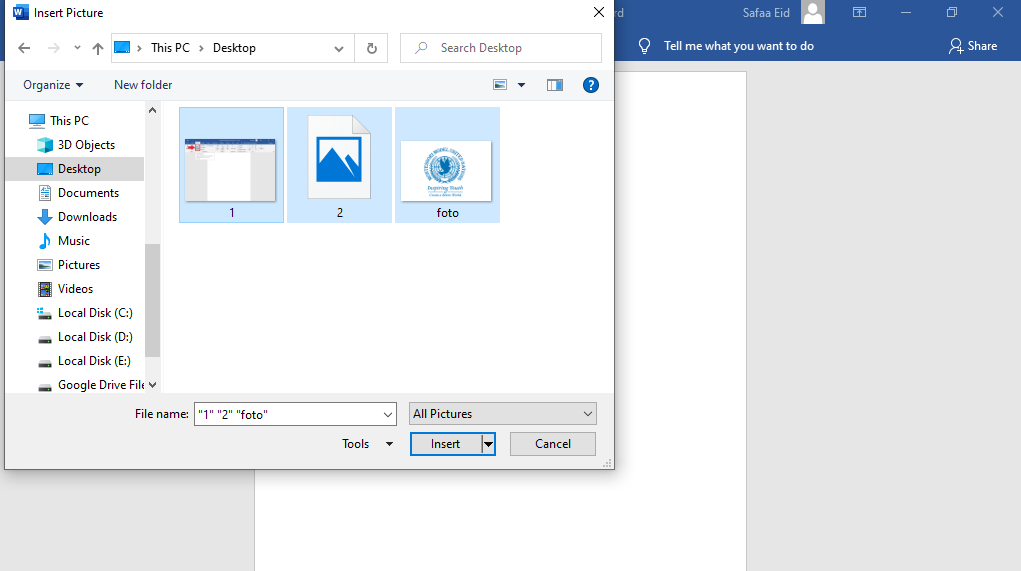
-The pictured / images inserted will be appear in the word document.
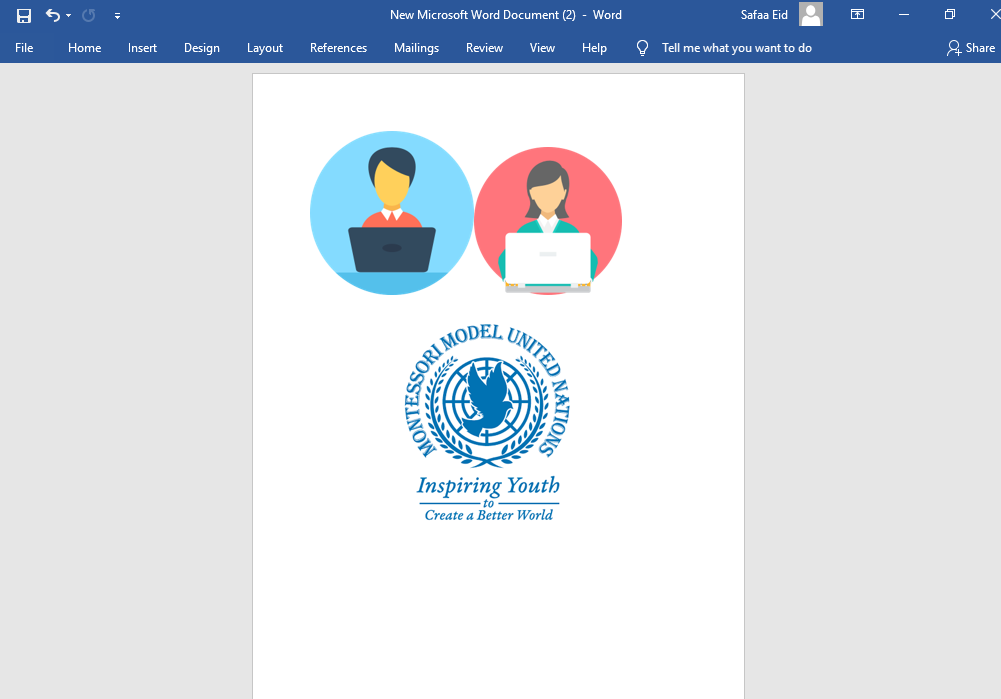
-Don`t forget to save your word.
-Second Method: using smart device
1-Open your "App Store" or "Play Store" >>search for "google docs" and install it.
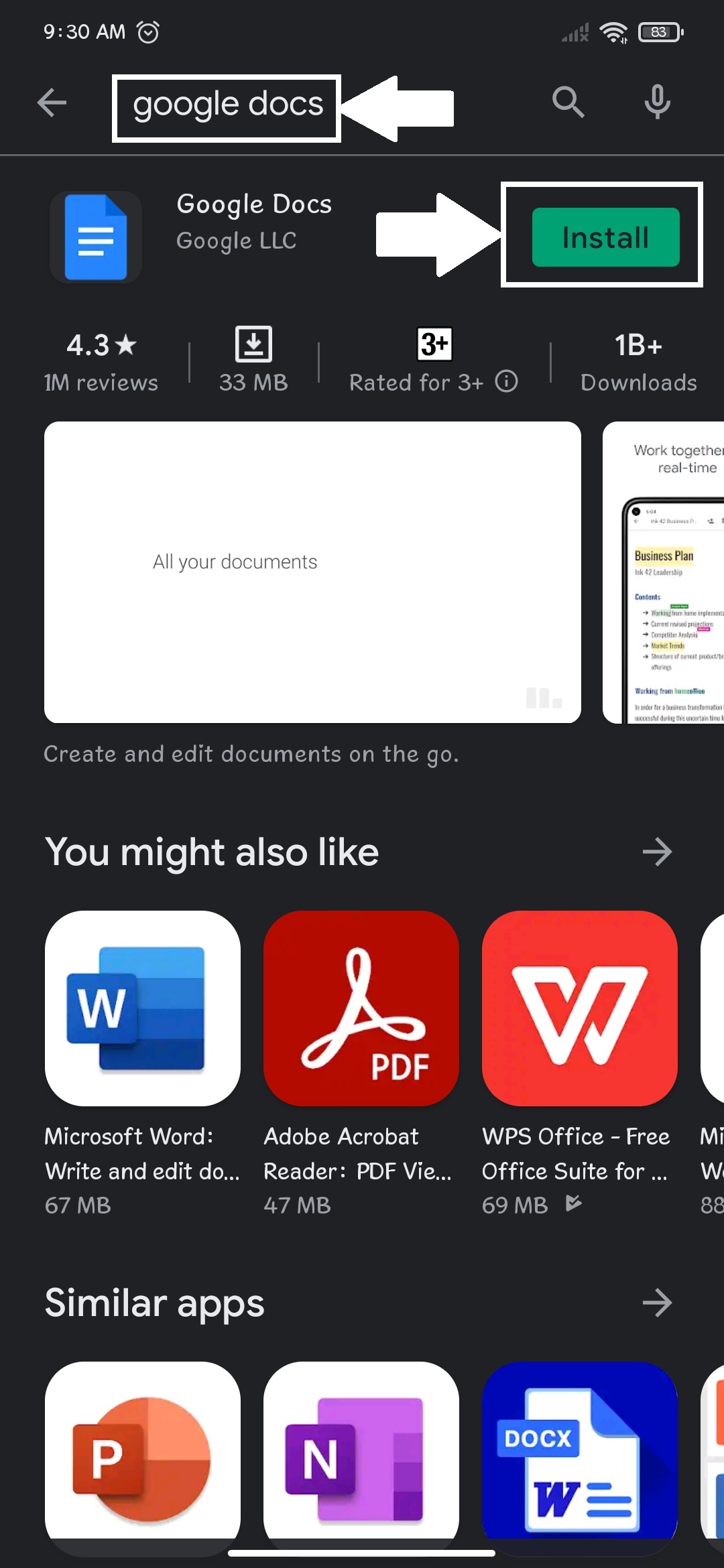
2-Open the Docs app.
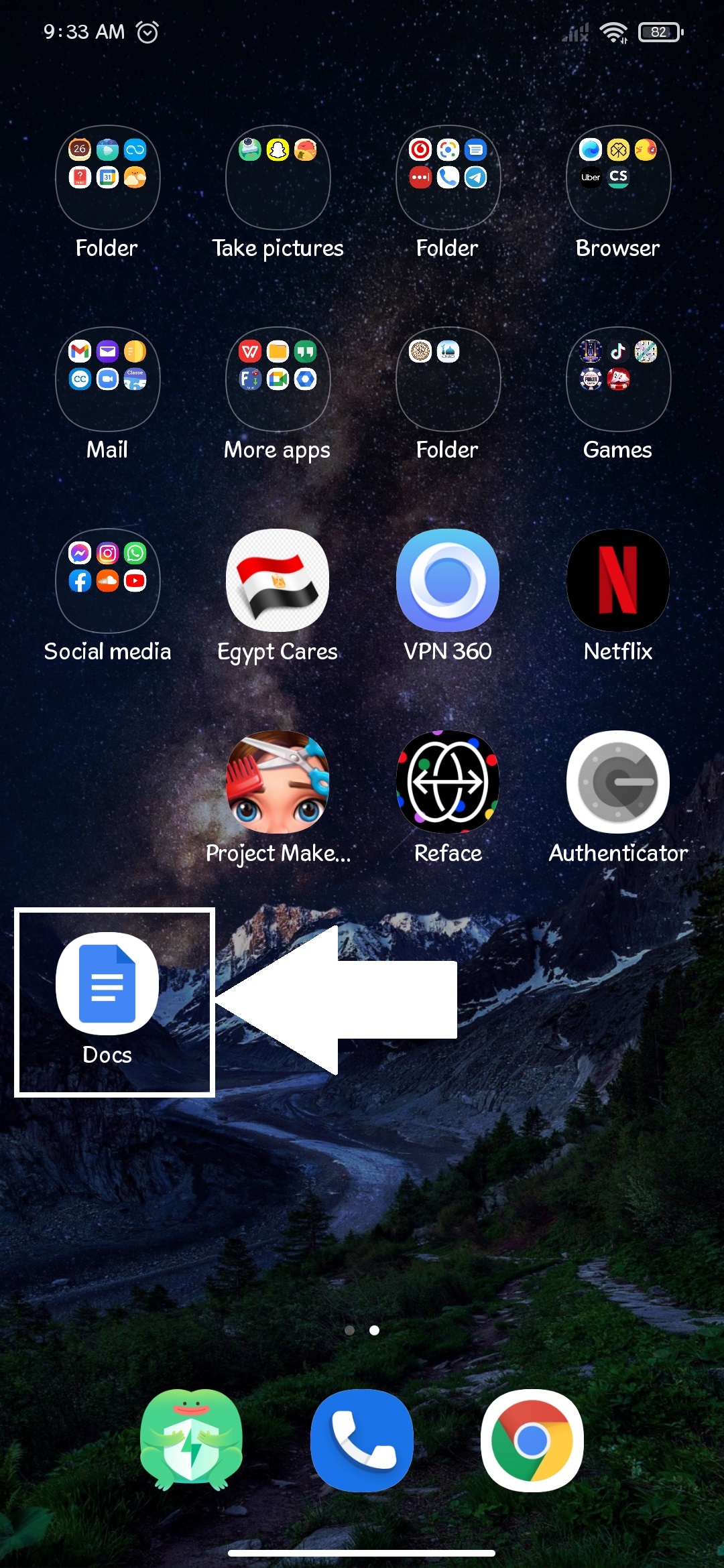
3-Click the icon shown below.
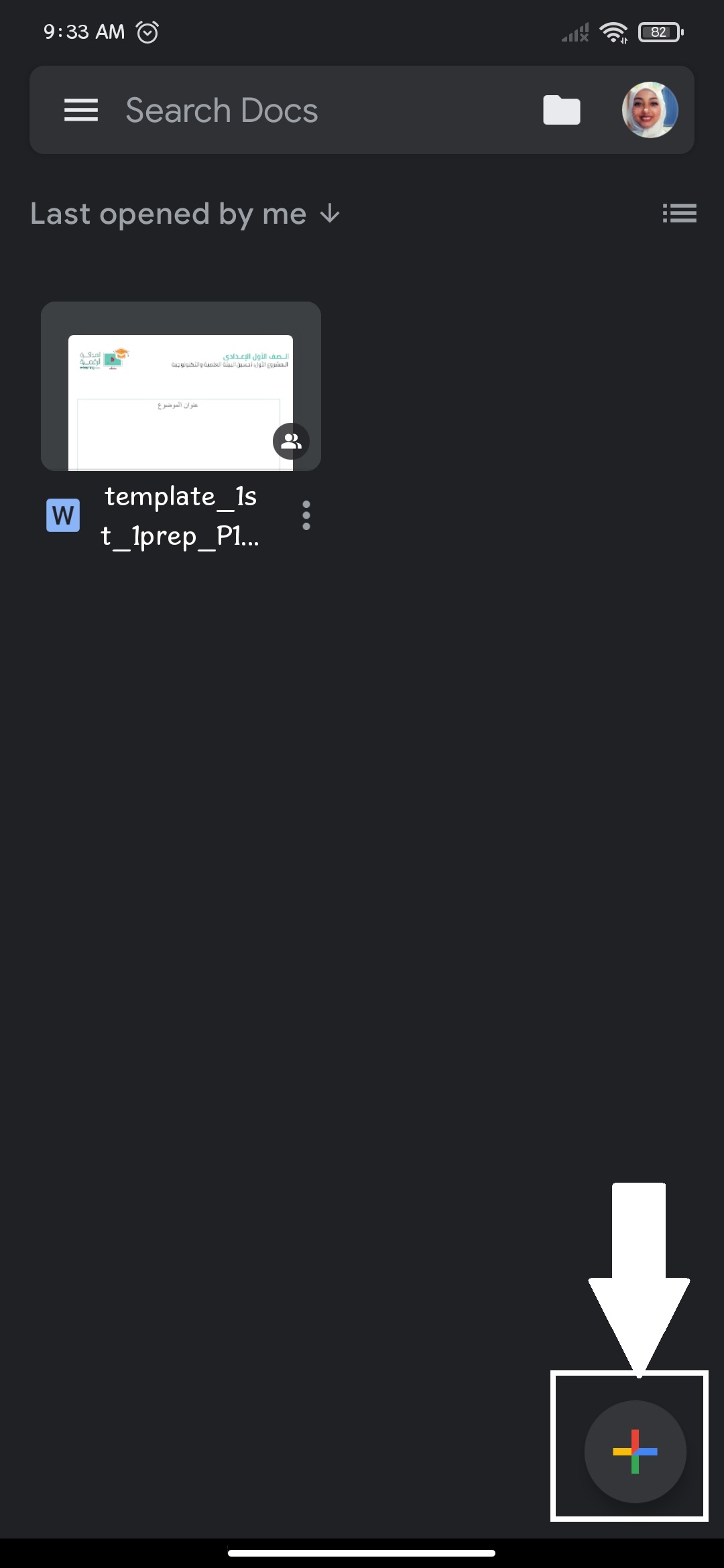
4-Select "New document".
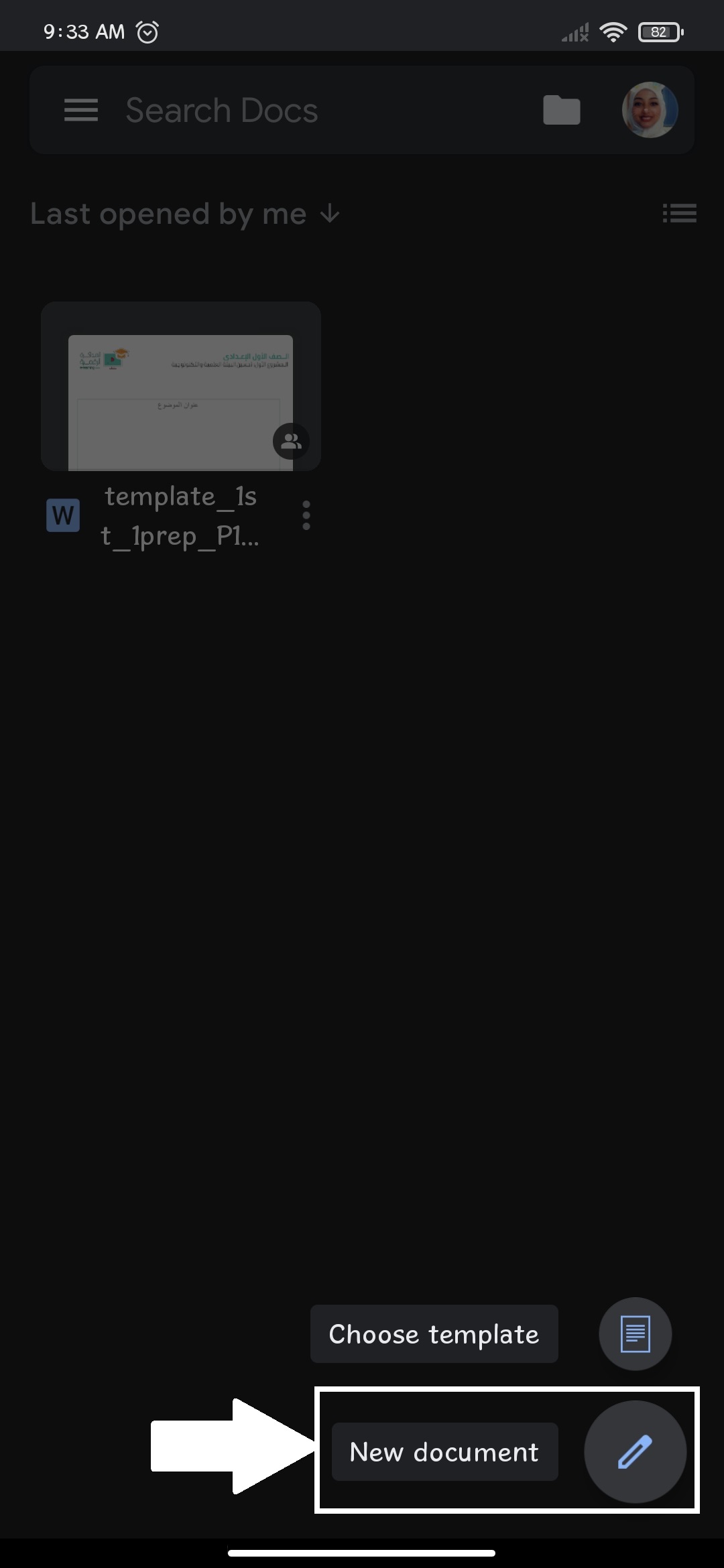
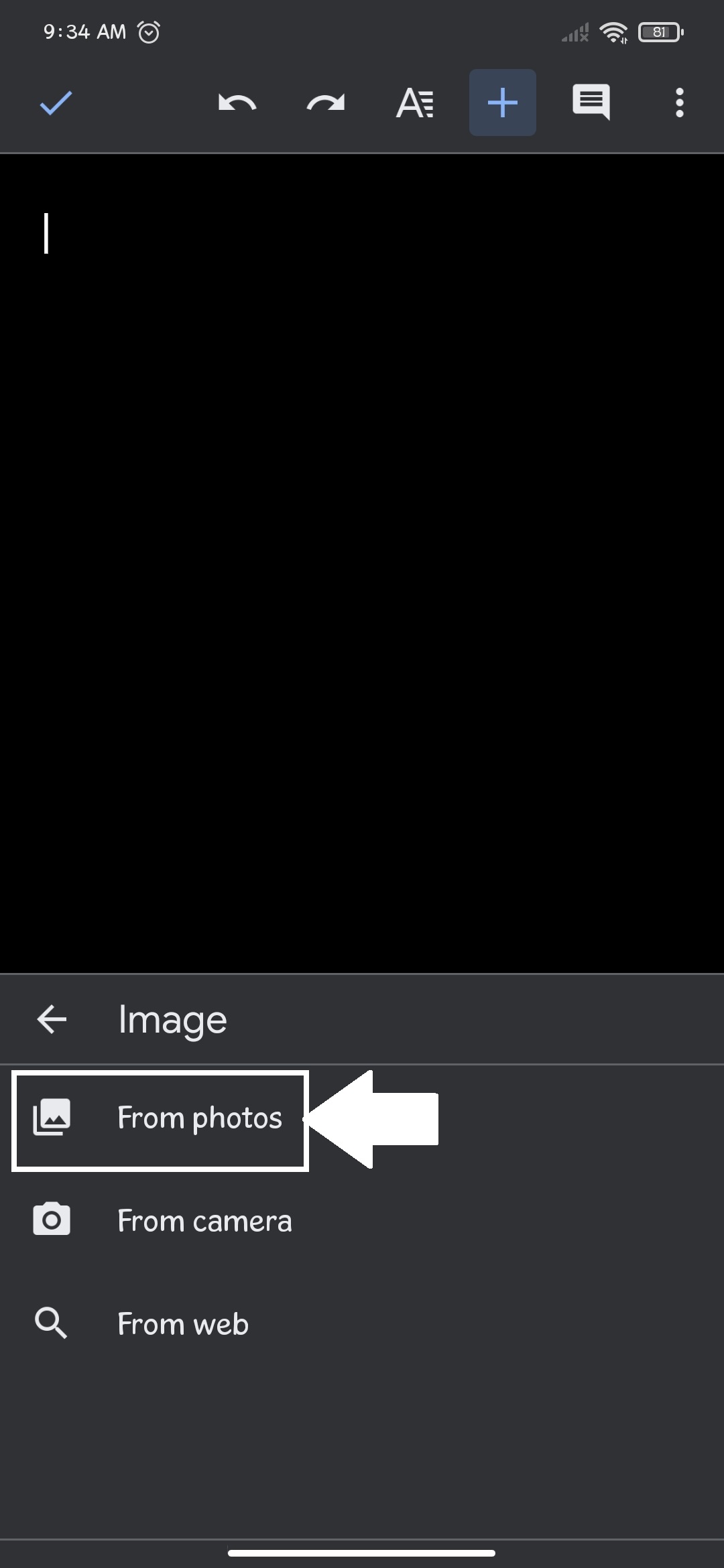
5-Click the "+" icon then select "Images".
6-Select "From photos"
7-Select the picture.
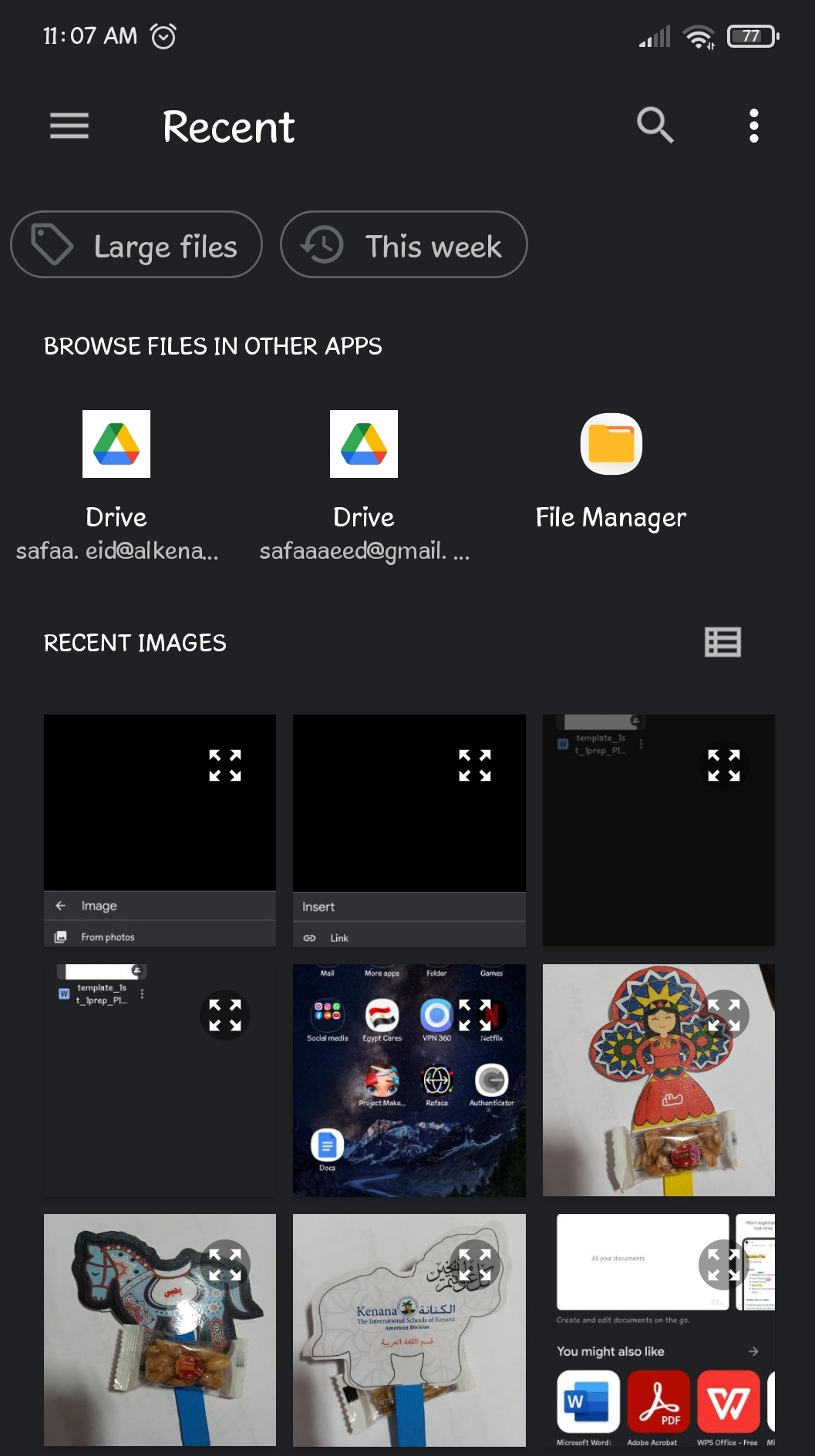
-P.S You can repeat step number 6 & 7 to add multiple Pictures.
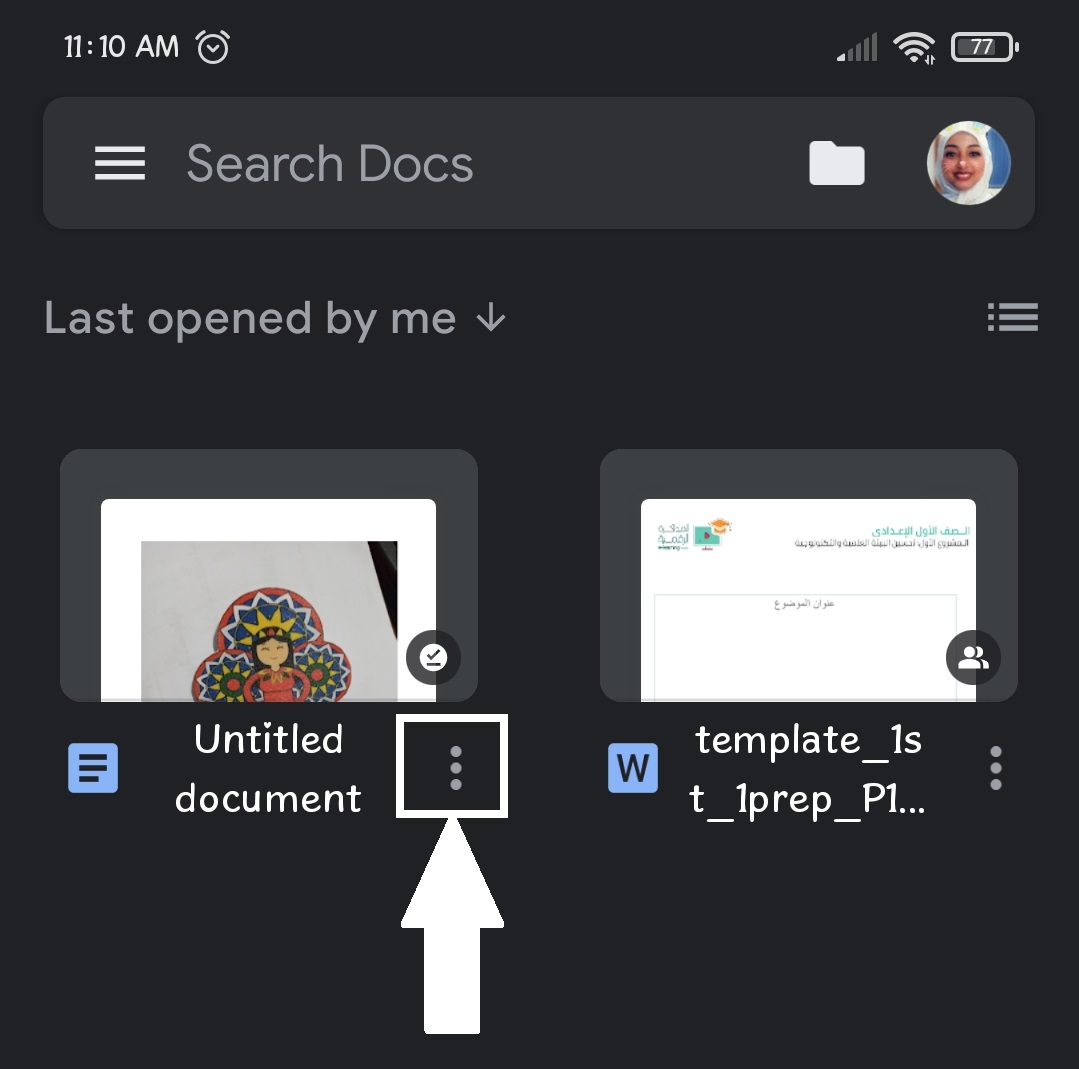
8-After you inserted the pictures in the file go back to the file then select the three dots shown below.
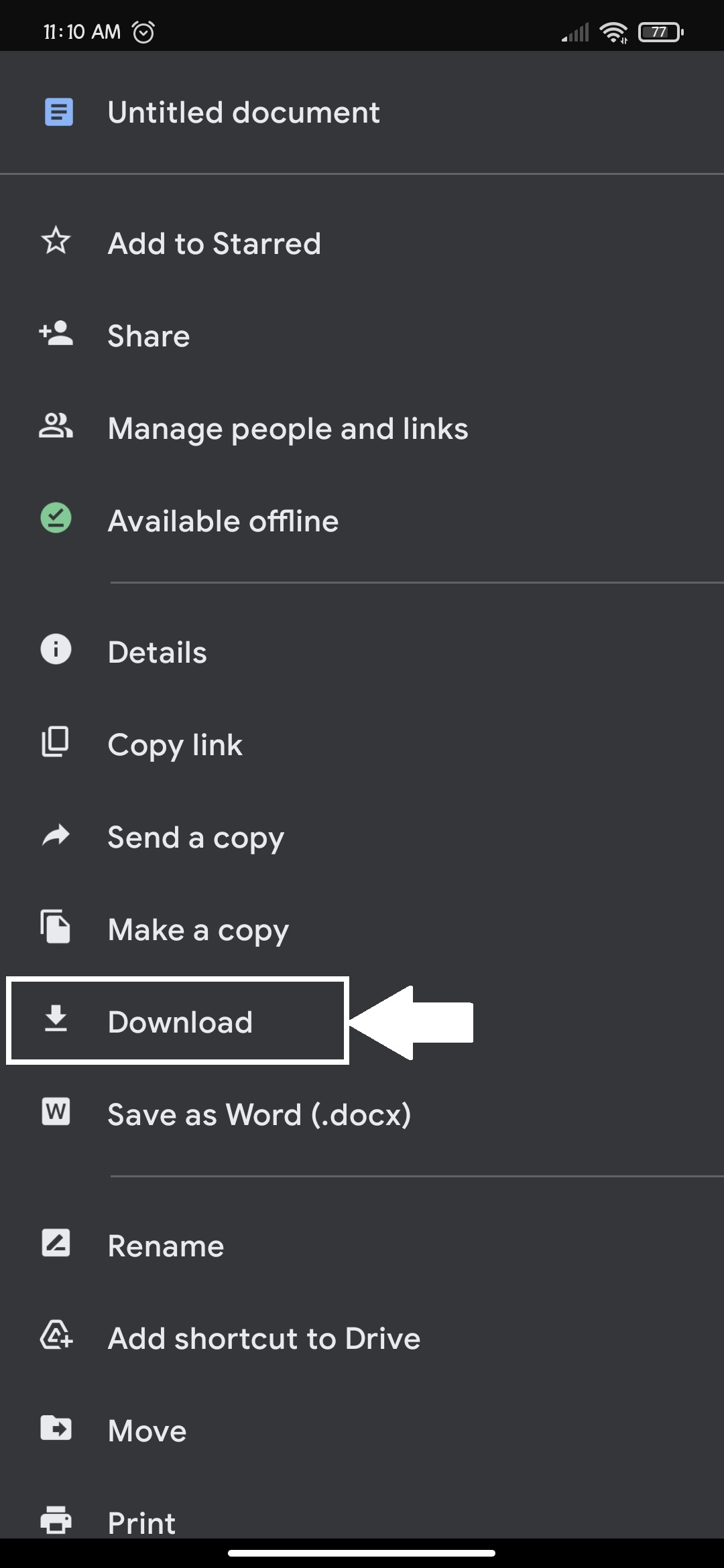
9-Select "Download".
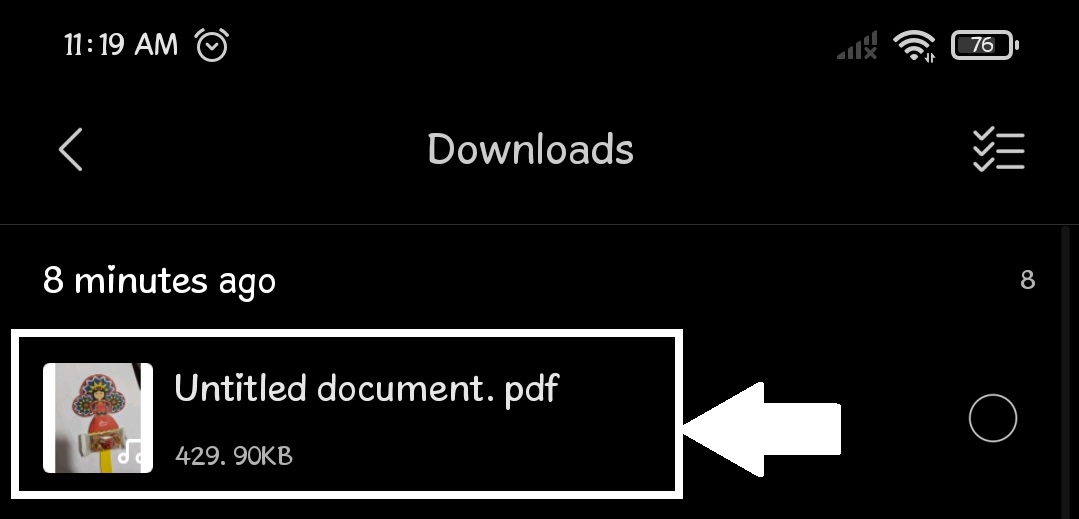
10-Here a pdf file with picture has been downloaded you will find it in the downloads folder.
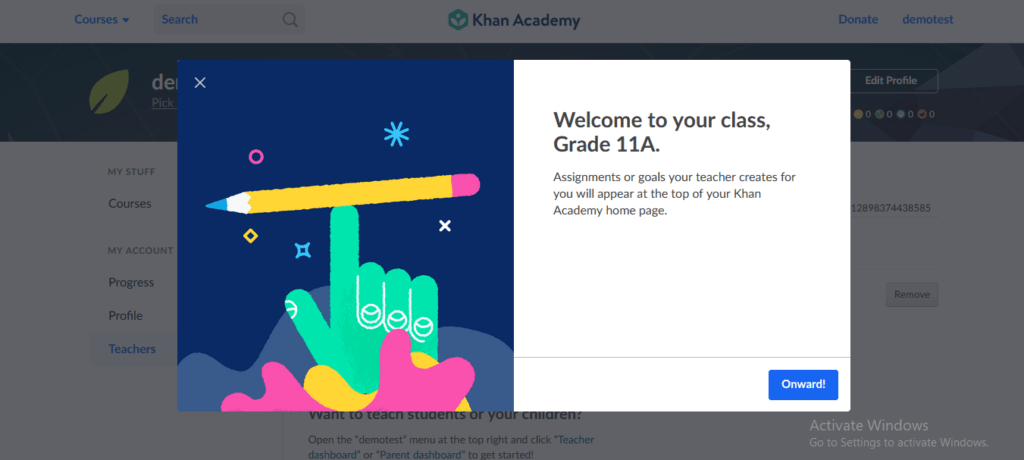
- 25. How to join your teacher`s Khan Academy class03.10.19
1-Go to khanacademy.org/join
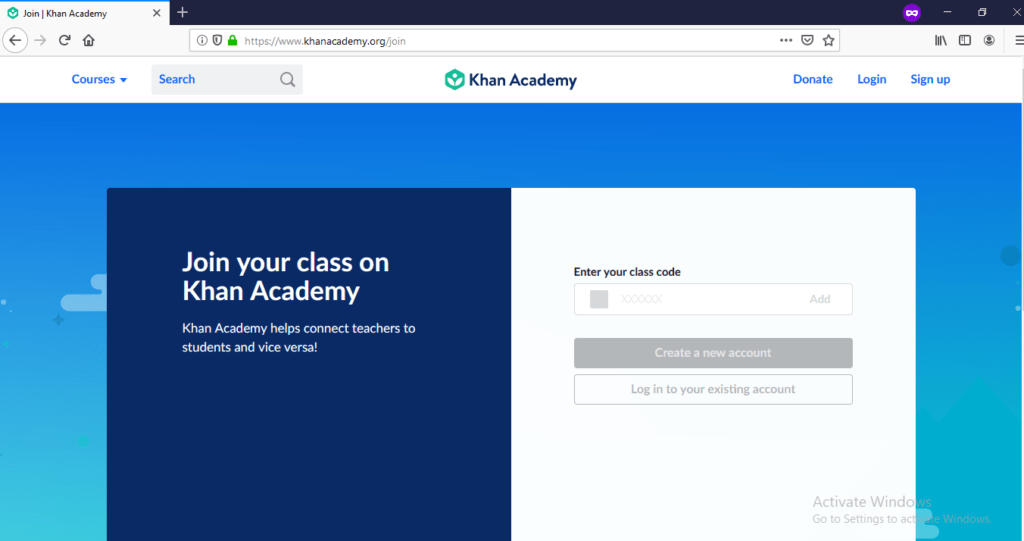
2-Enter your class code and press "Add".
Class code : ـــــــــــــــــــــــــــــــــــــــــــــــــــــــــــــــــ
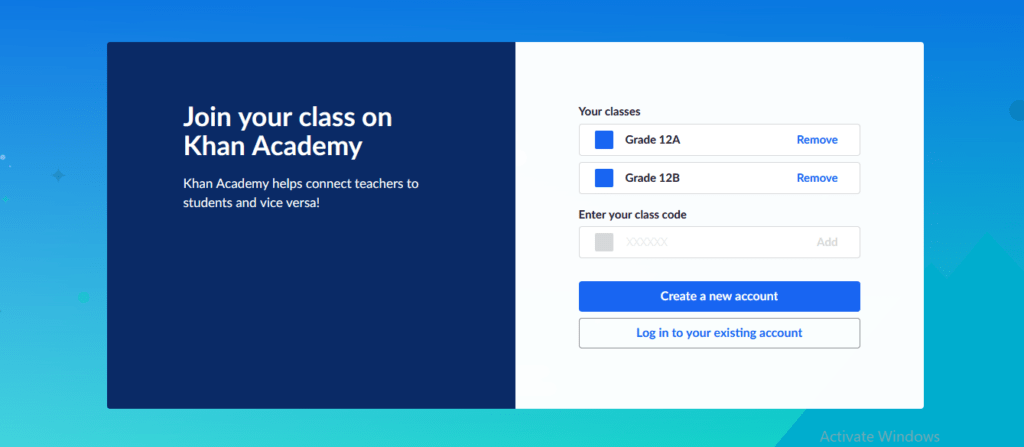
3- Press "Create a new account".
Enter your date of birth ,then sign up using you Google school mail" @alkenana-schools.org".
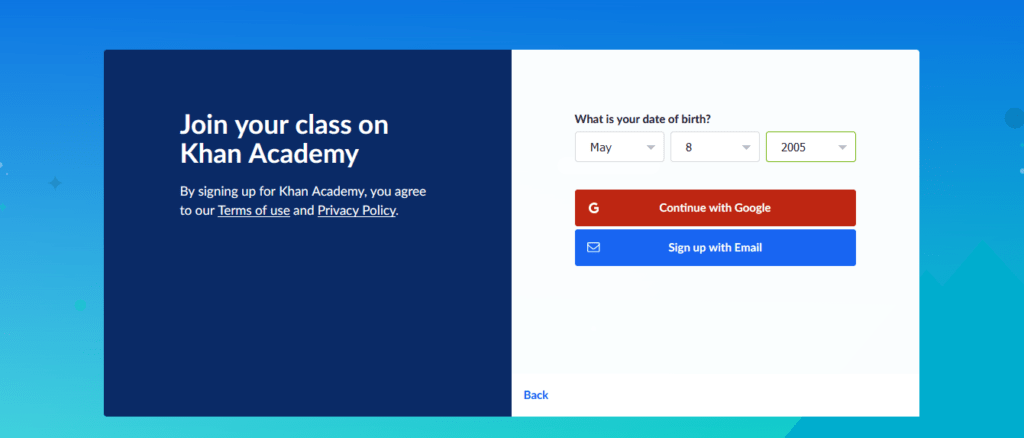
4-Enter your grade and subject .Now your`re ready to start learning!
- 26. Parent Portal - How to contact teacher/admin staff25.06.19
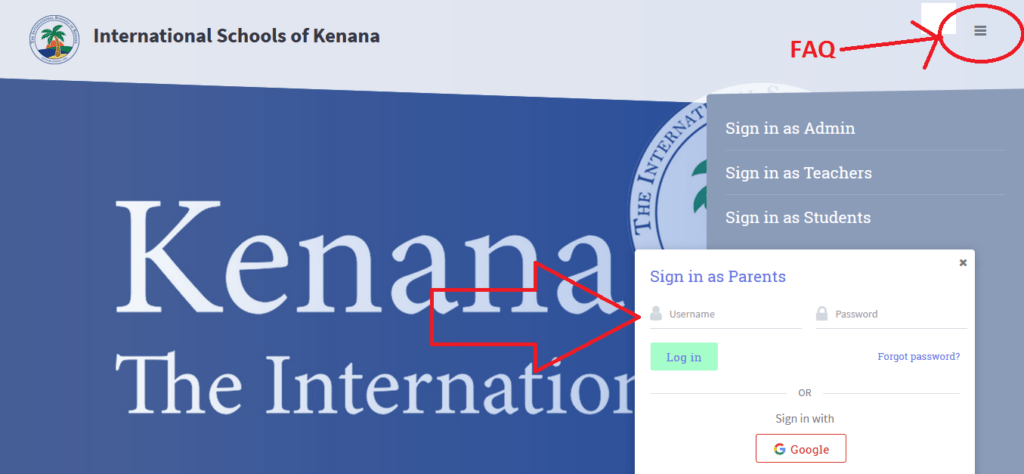
Step-1: Login to Parent Portal
Ever wondered it would take time going into school searching your child's teacher for any discussions? Well here is a simple solution that e-Kenana SLMS offers a feature to contact teachers/admin staff of your child.
Step-1: Login to Parent Portal
To login to your dedicated portal, you need credentials which is sent by the organization admin, if you haven't got your credentials please contact the organization admin staff.
Once you're invited to login to the portal you'll have to login to the portal using the link which is provided by the admin staff.
Step-2: Contact Teacher/Admin Staff 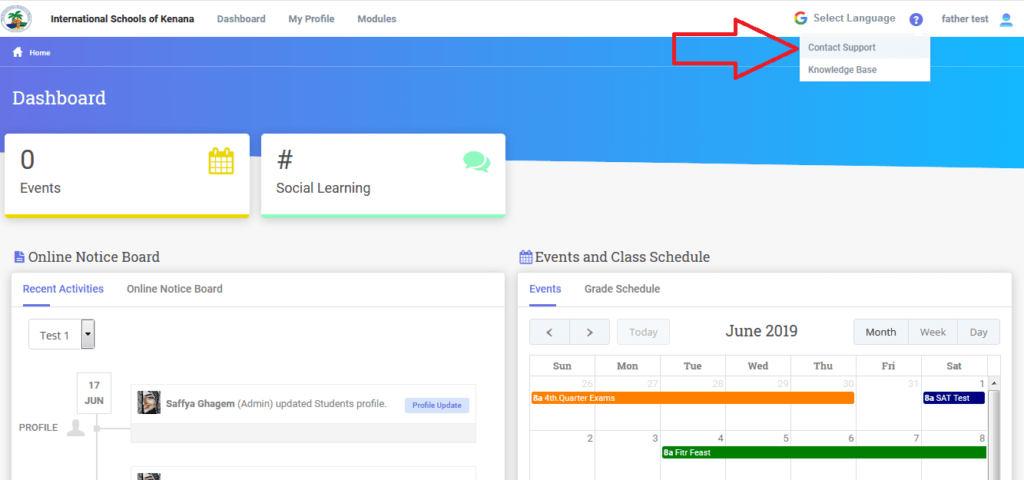
- 27. Attachment for Parents25.06.19
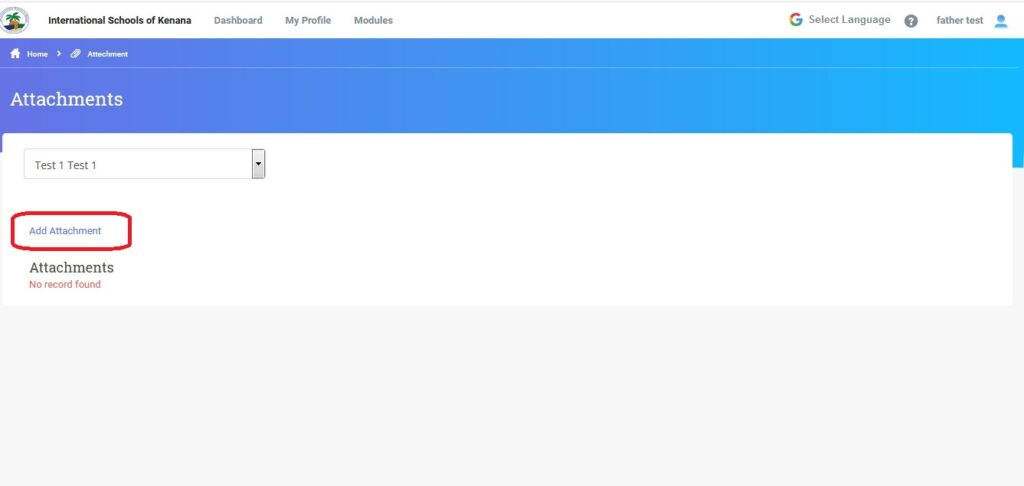
Parents can manage any attachments that are required for the student/teacher or an admin staff.

- 28. Attendance25.06.19
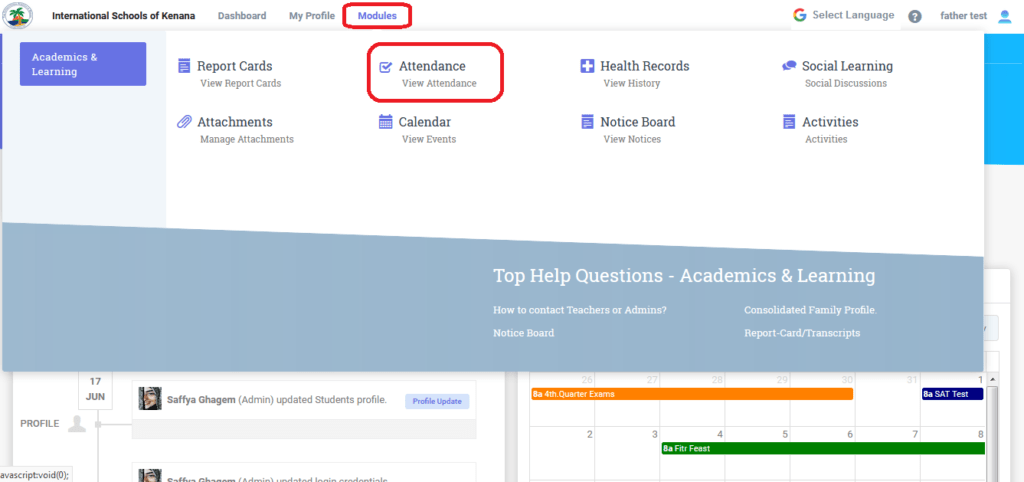
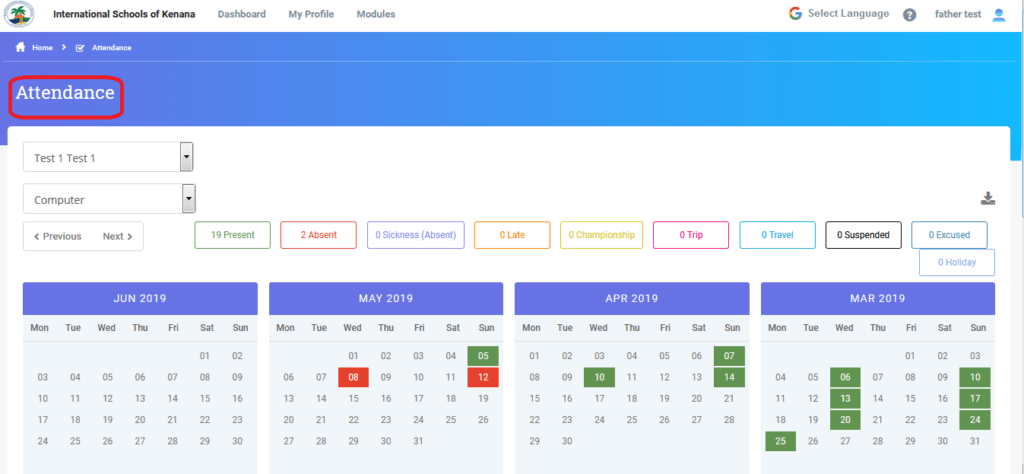
The parents can view the student attendance statistics through the attendance module. An example of the module is shown below.
- 29. Consolidated Family Profile25.06.19
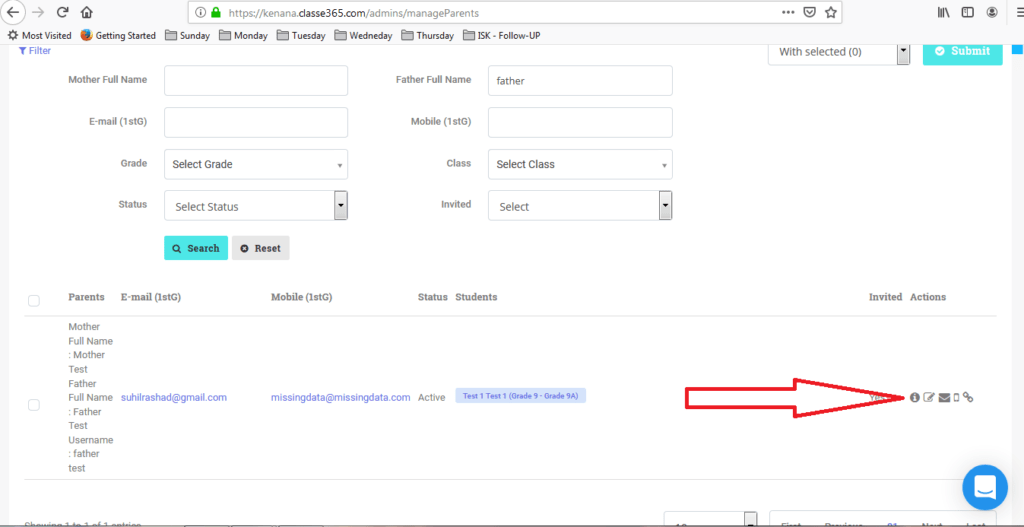
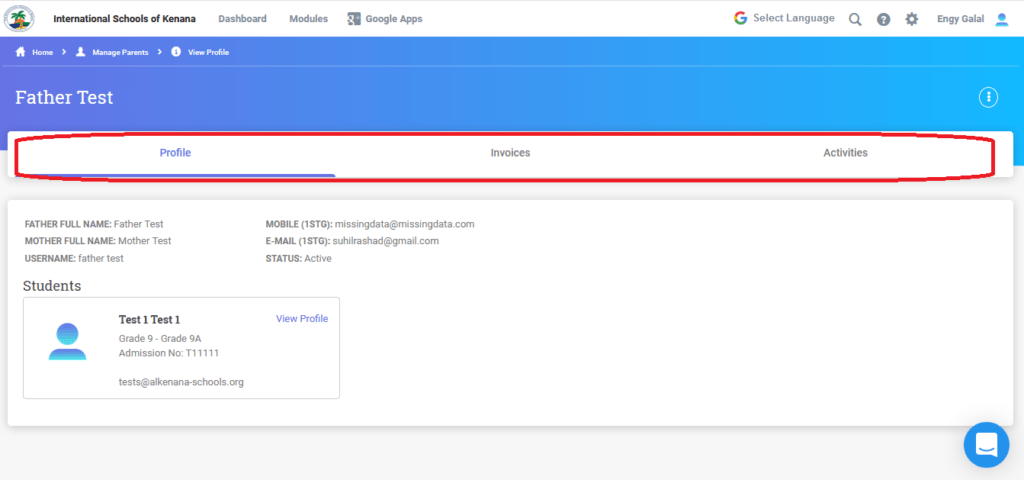
The below steps will showcase the consolidated family portal:
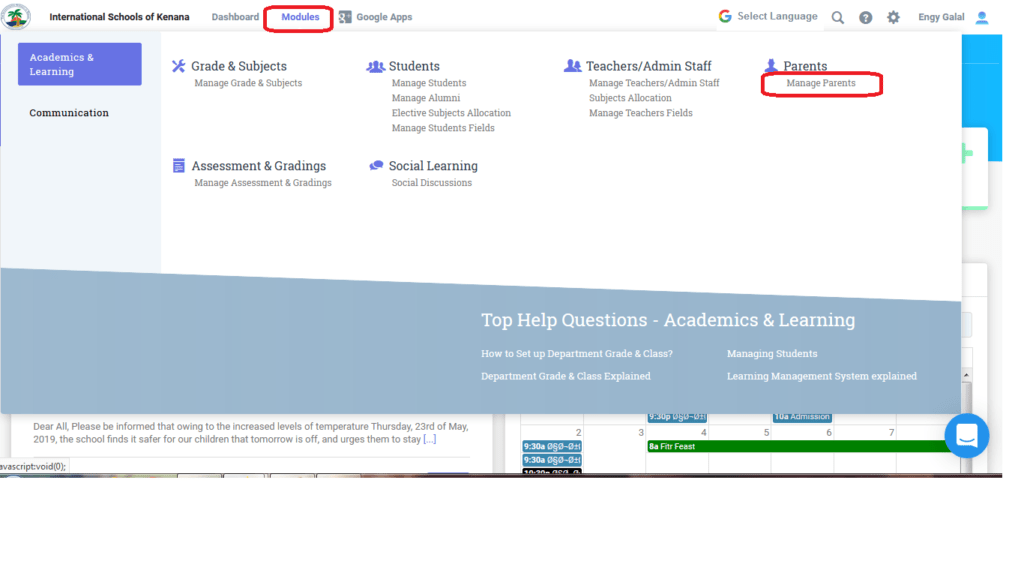
- Go to manage parents and then select "view profile" under the actions tab as shown below:
- Once the profile is selected, the user can see the complete family portal, an example is shown below.
- 30. Health Records25.06.19
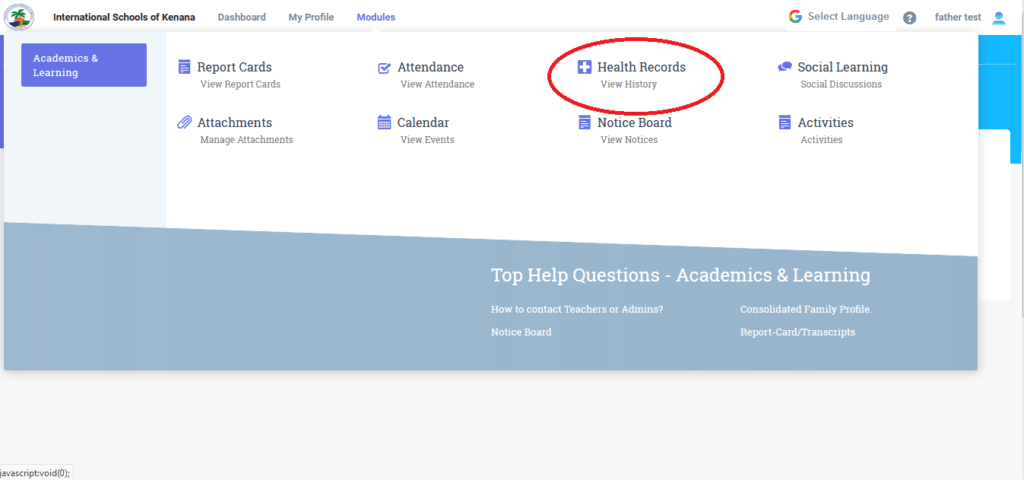
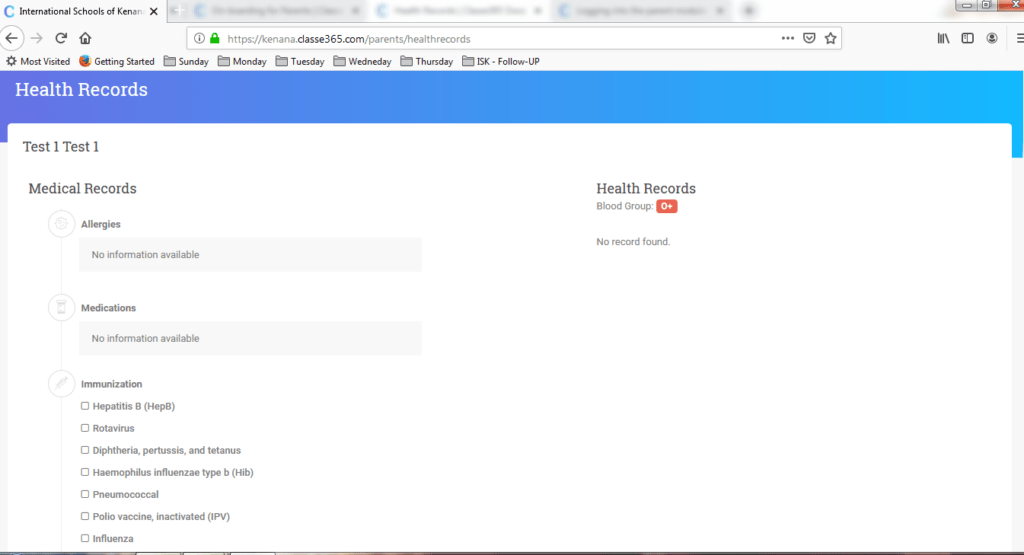
Parents can view the history of their children's health records.
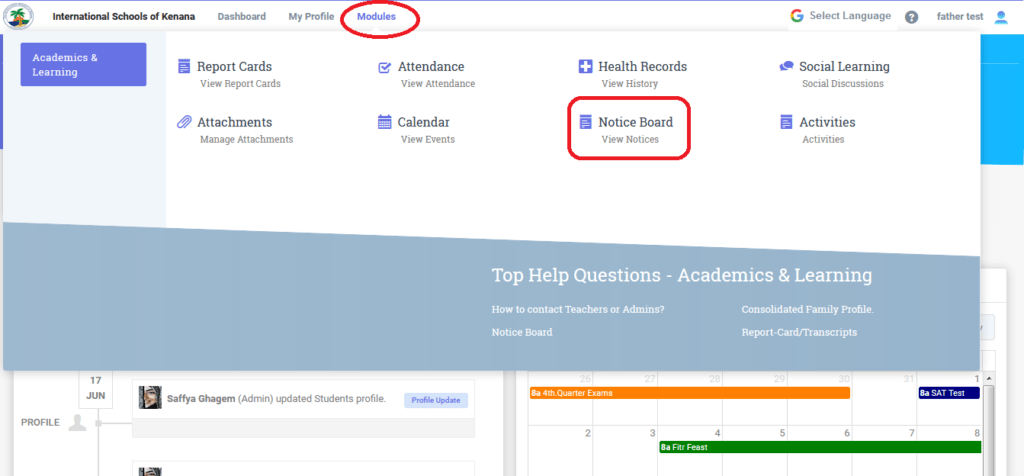
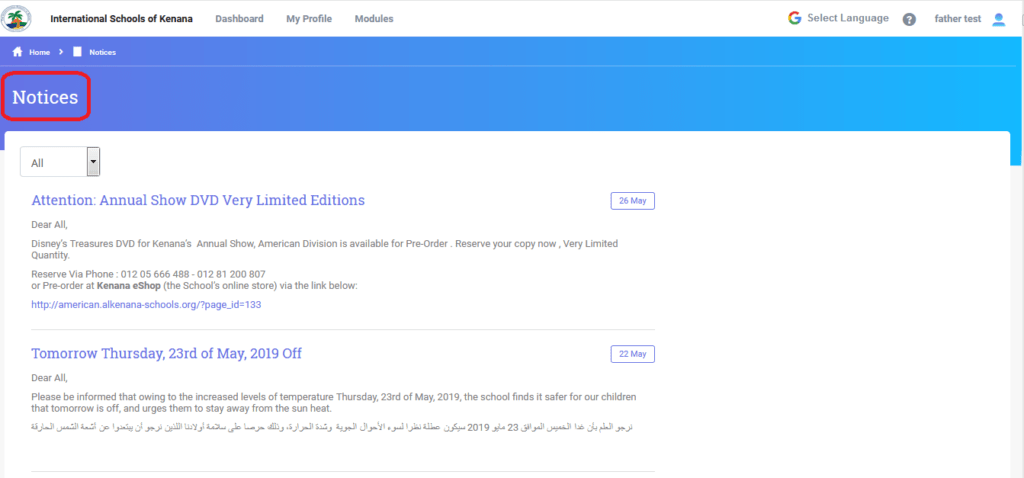
- 31. Notice Board for parents25.06.19
Parents can view all the notices yearly or filter it out on a monthly basis to view the notice board.
- 32. Report-Card/Transcripts26.06.19
The first thing on the dashboard is the report card, go to modules----> report card
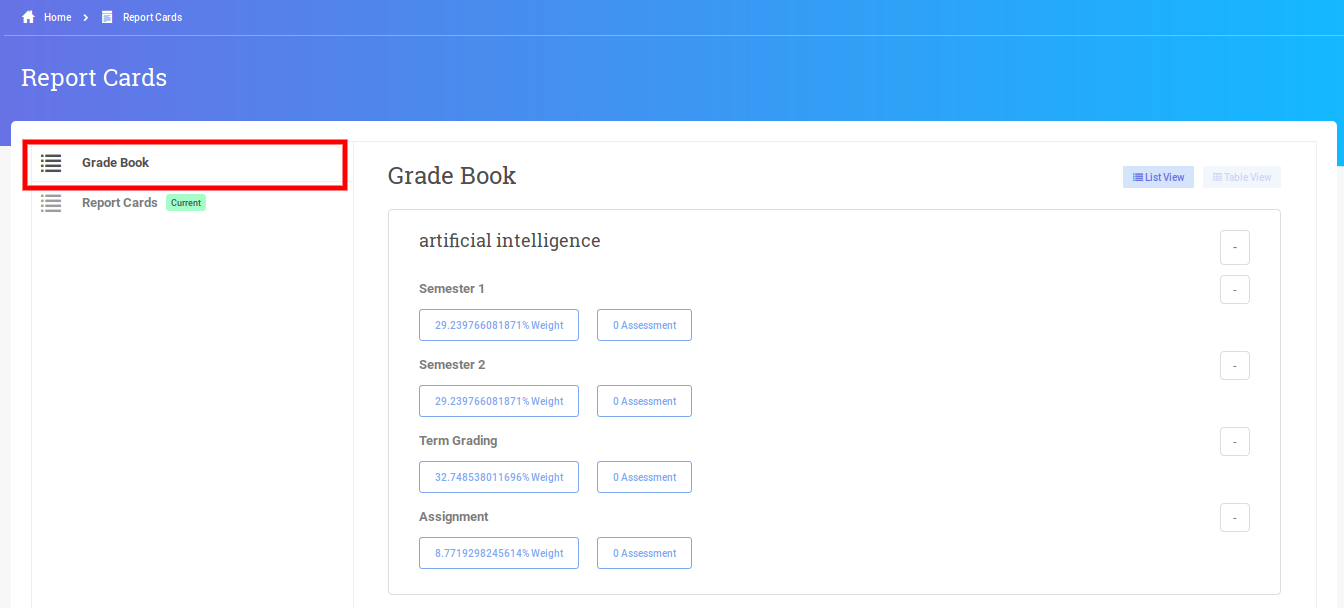
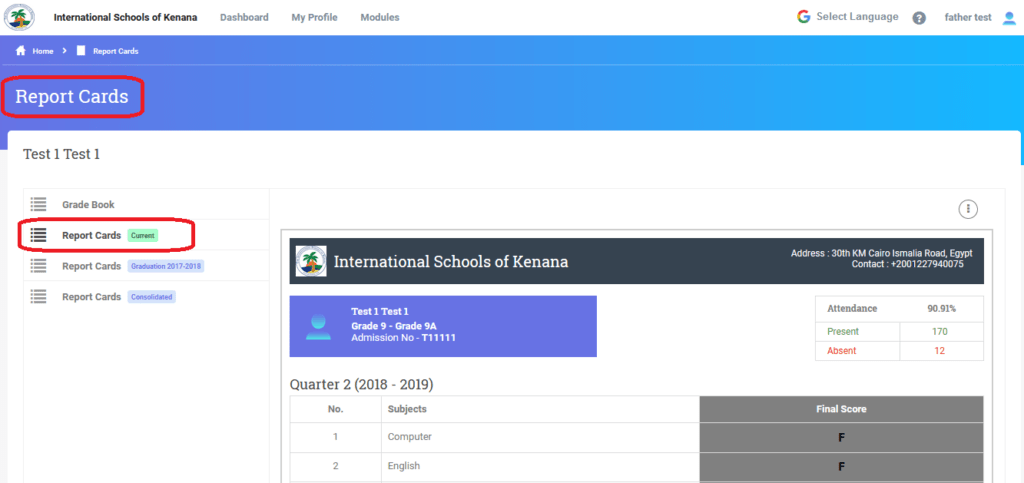
The report card module has 2 sections;1) Grade book
2) Report Card
1-Grade Book:
>> Grade book consists of all the grades for the assessment categories only.

2-Report card:
>> The report card gives more details about the student and the student's grading for all the assessment categories, The report card is the standard form and it also contains comments and signature blocks.
The Terminologies for Gradebooks/Report cards can be changed as per the requirement of the user from the "Settings for your <School> Tab" as shown below
e-help Kenana SLMS has multiple report card templates available but we understand every educational institution will have their own templates and hence we will accommodate the request to implement customised report card templates.
- 33. Logging into the parent module26.06.19
After logging into the Parent account, The Parent dashboard will be displayed which will show the Attendance, Health records, Social discussions, Report Card, Invoice, Notice boards and Events.
A snapshot of an example Parent Dashboard is shown below.
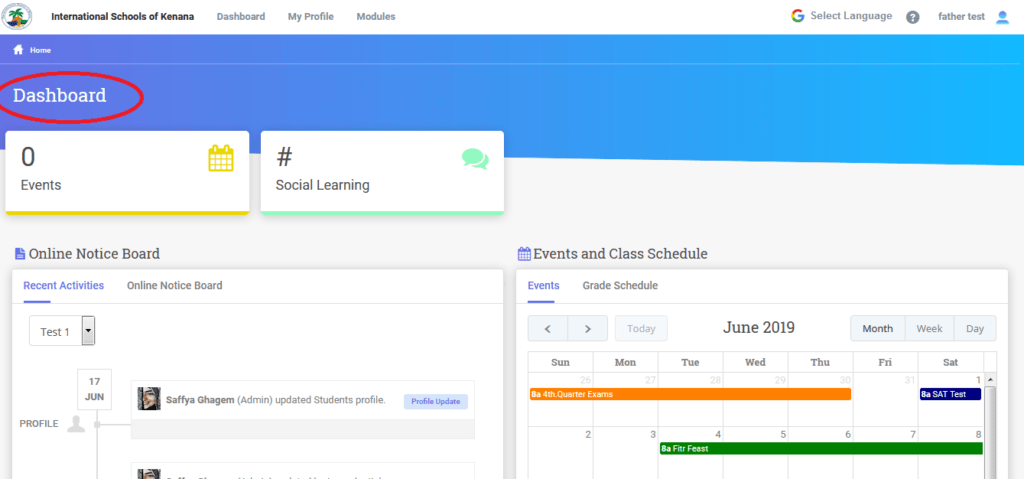
- 34. How to view the attachment07.07.19
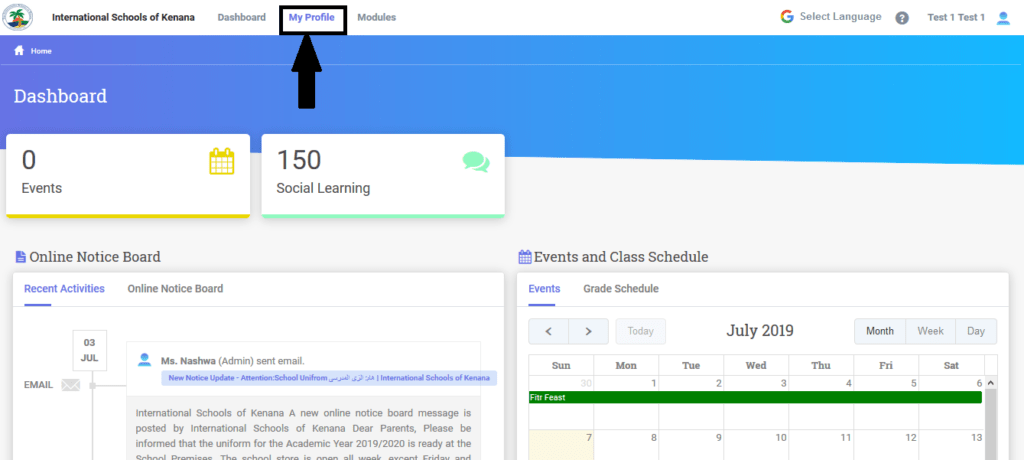
After logging into the student account, The student dashboard will be displayed which will show "My Profile" on which you will click .
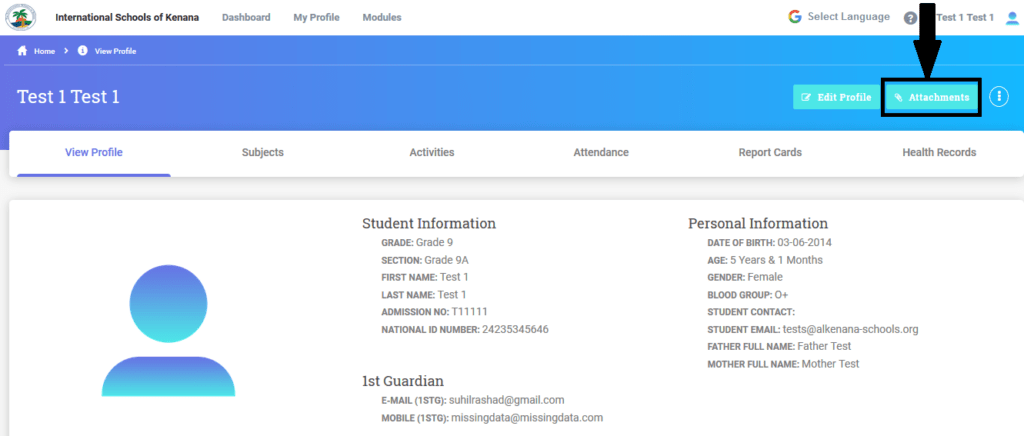
Click on the "Attachment " button.
You will be able to see all the attachments available for you . To view any attachment just click on "Download" icon as shown below.
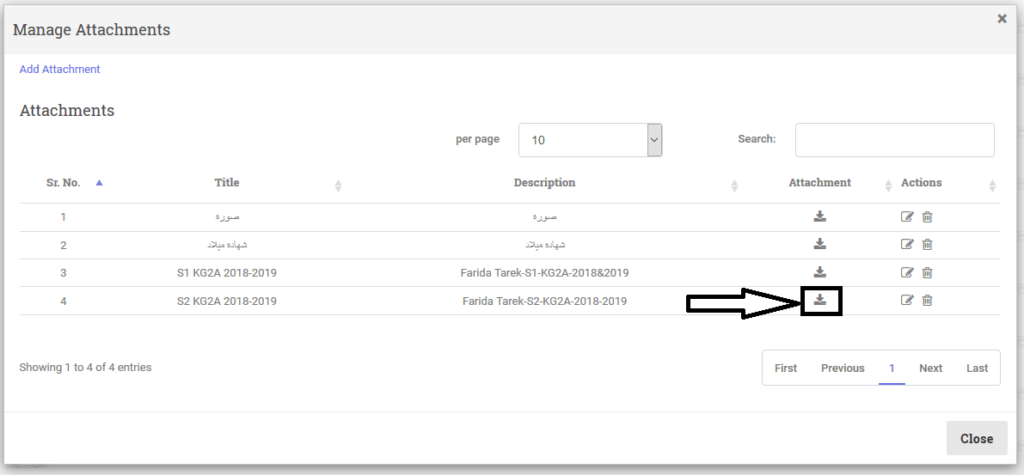
P.S : KG Stage certificate will be attached to each student profile.
- 35. Classe365’s Mobile App (New Interface)09.09.19
Presenting Classe365’s Mobile App 2.1!
We are excited and proud to announce the new Classe365 Mobile App! It’s the perfect complement to the online Classe365 web application, which enables you to effectively manage your school’s day-to-day requirements - from administration, learning, communication and much more.
The new Classe365 app has been redesigned to improve its native feel and overall performance.
Aside from the friendlier interface, we developed exciting new features to better equip you with the resources to efficiently engage and collaborate among st Teachers, Students and Parents.
-After you install the classe365 application and opening it,this what you will see.
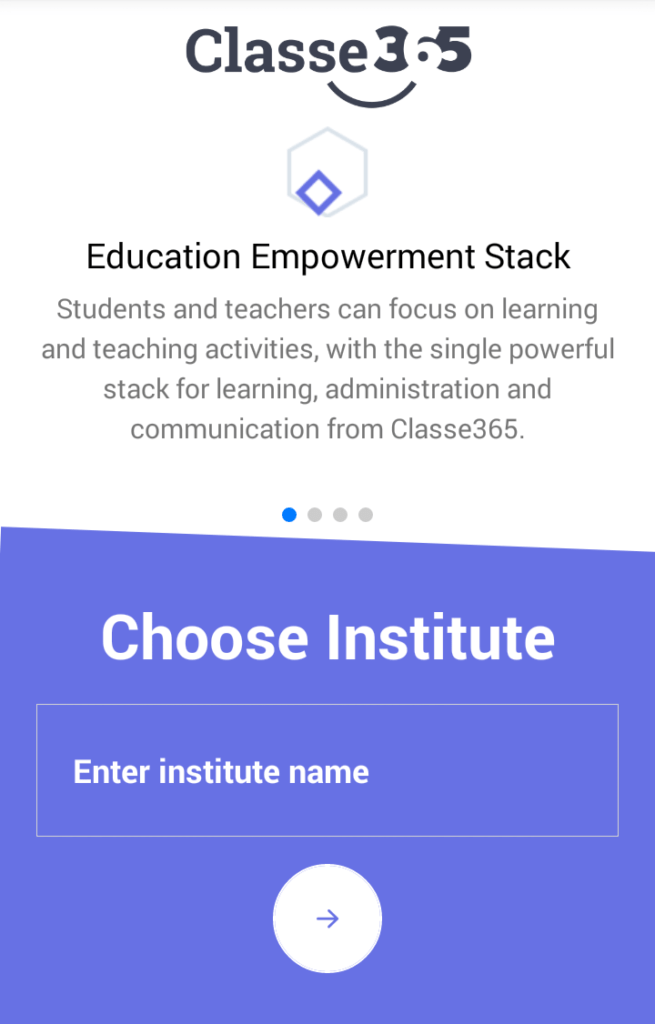
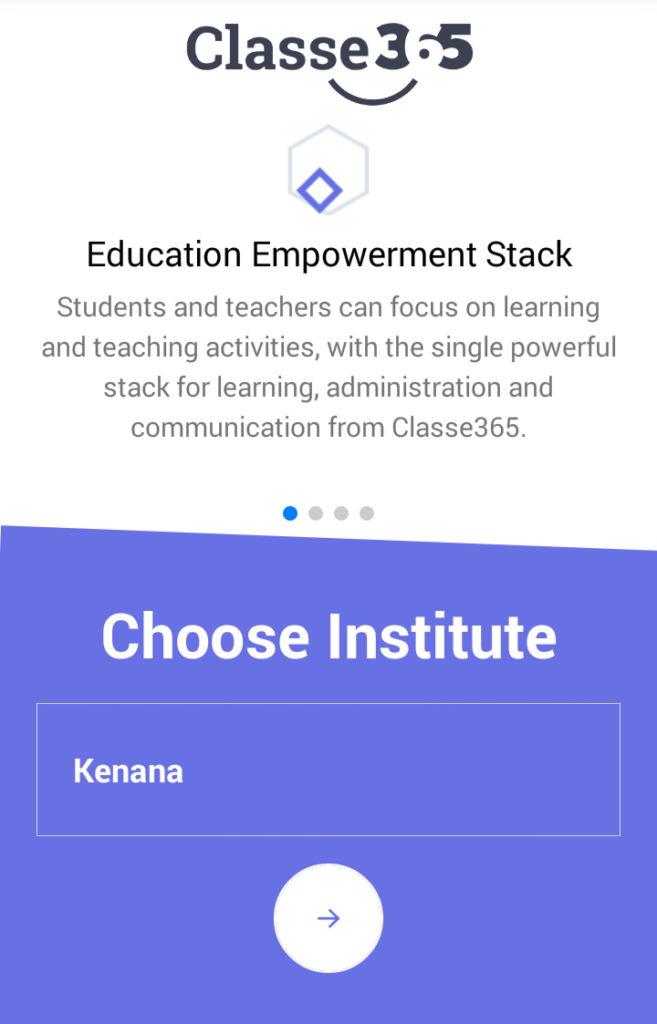
-Write"kenana"in the institute name.
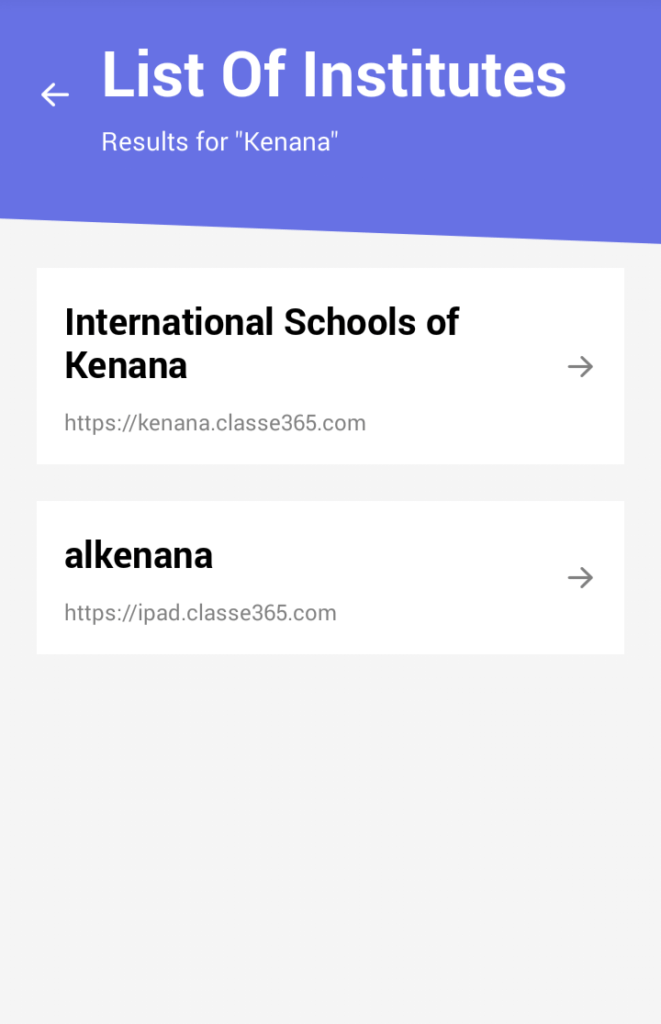
-Select "International Schools of Kenana".
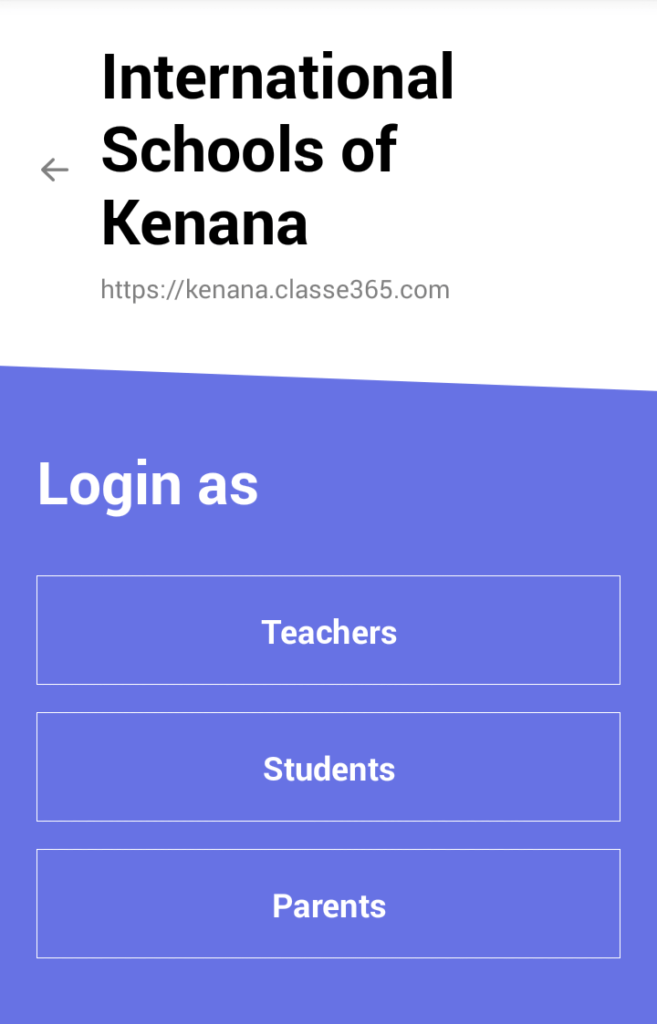
-You can sin in as "Teacher" Or "Student ","Parent".
Here is what to you can look forward to:
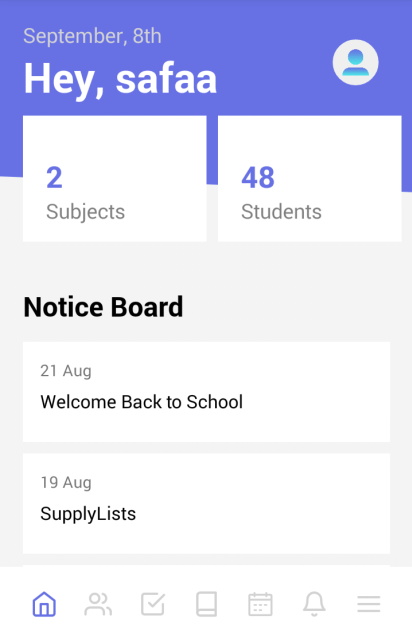
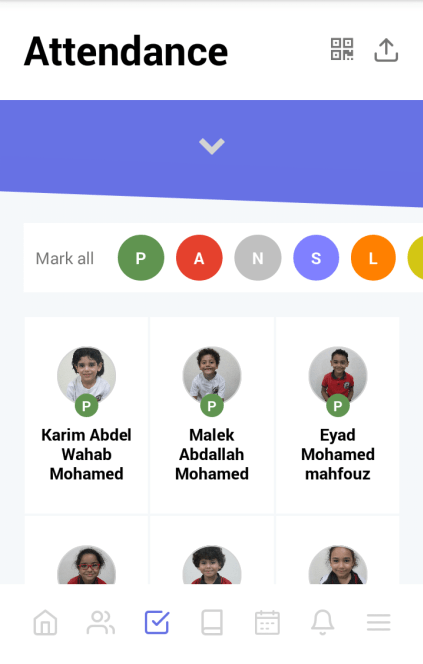
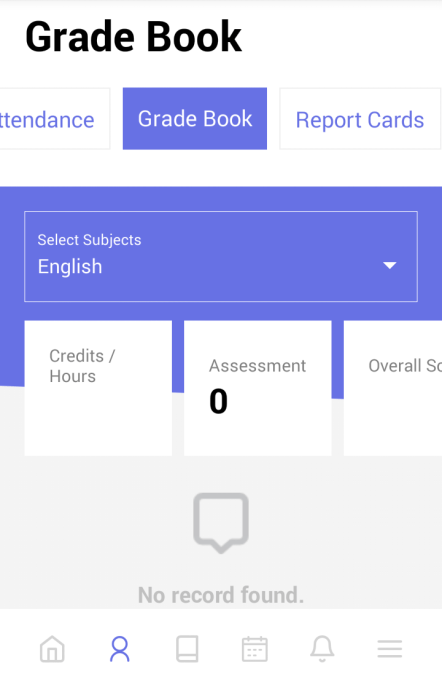
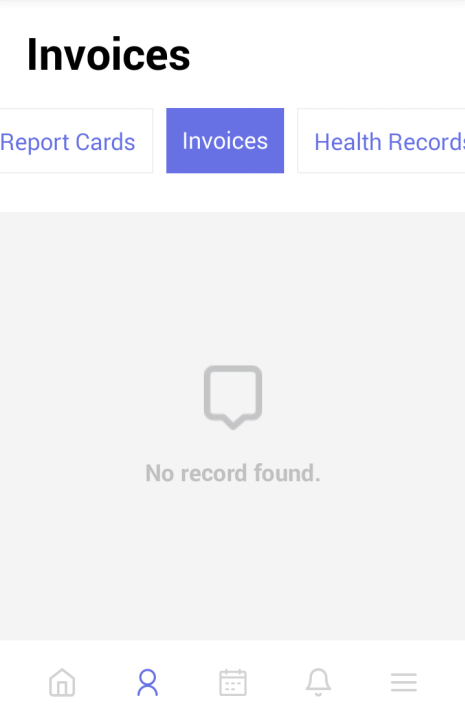
Our new interface is built on a technology called React Native. It offers faster mobile development, without sacrificing the end user's experience or application quality. It has also more efficient code sharing across iOS, Android, and the Web. This is our foundation to offer our customer even greater features on the mobile and tablet.
Fully Integrated LMS with Quizzes
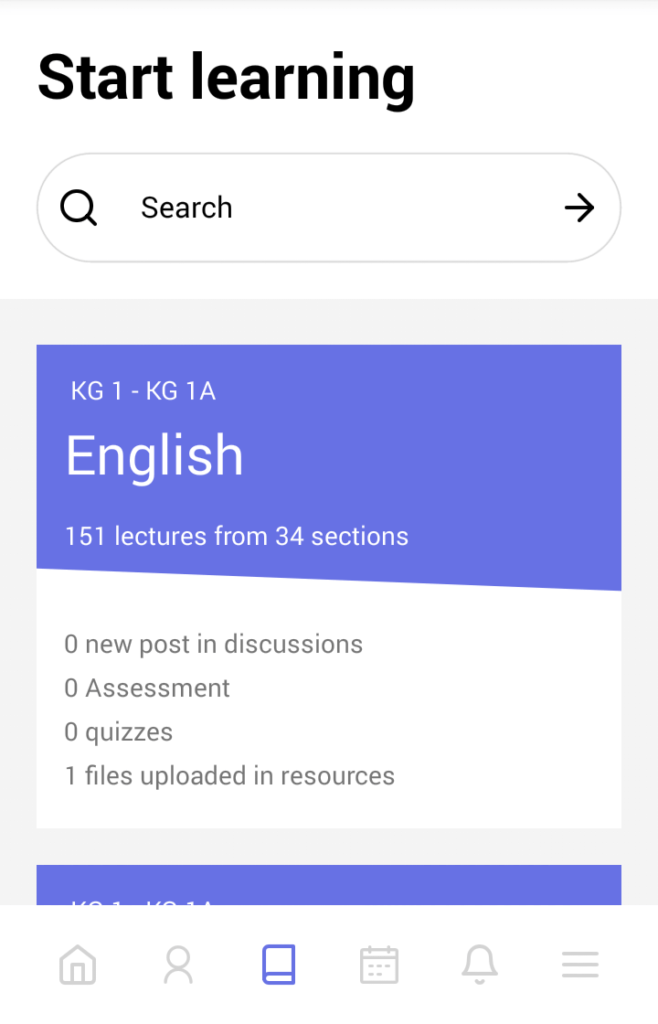
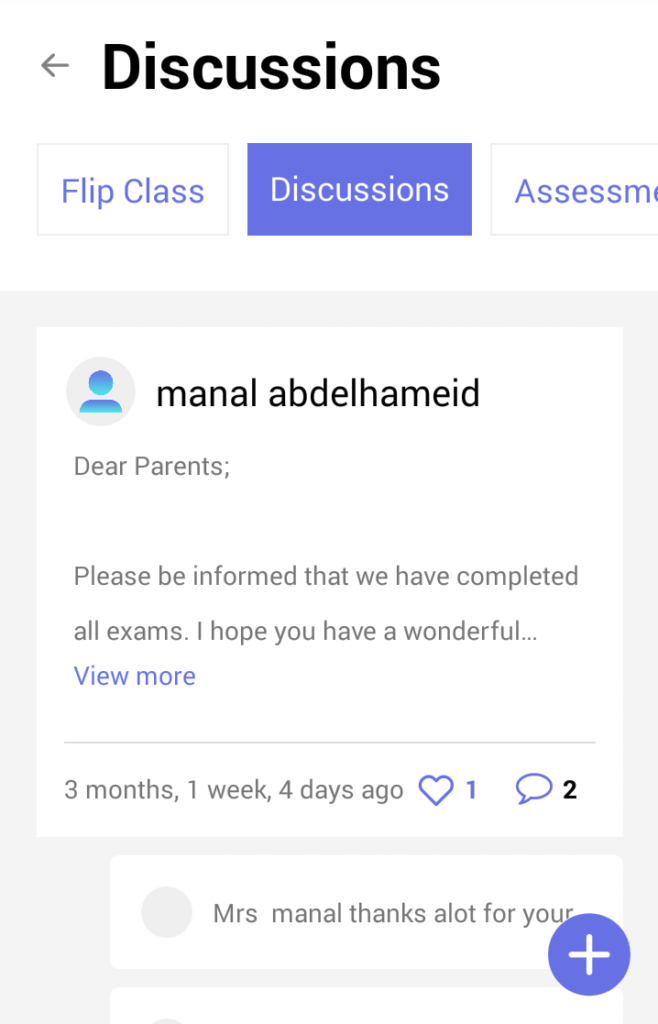
Students have direct access to the content of their assigned subjects. They can view recorded lectures, subject notes, research articles and view online quizzes. The LMS layout is also optimized for better mobile experience.
Simplified attendance tracking using Digital Student ID
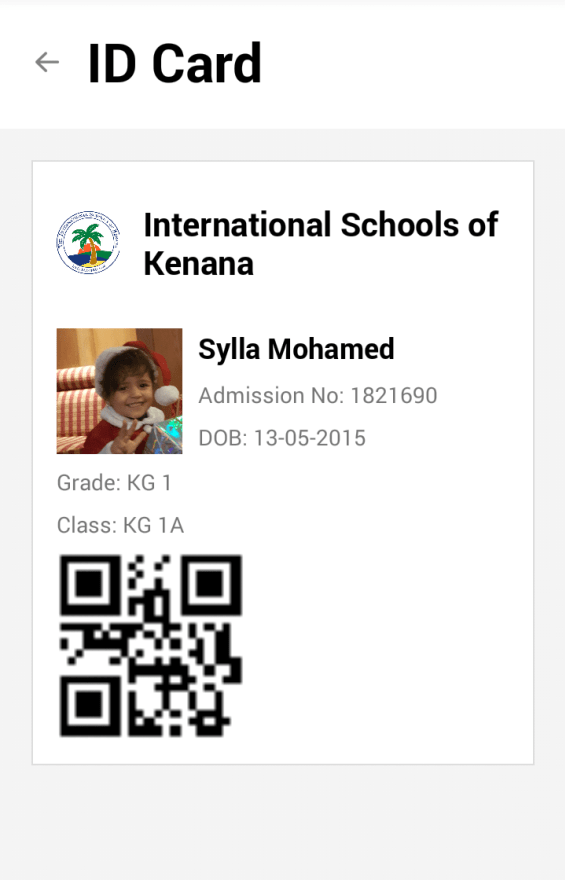
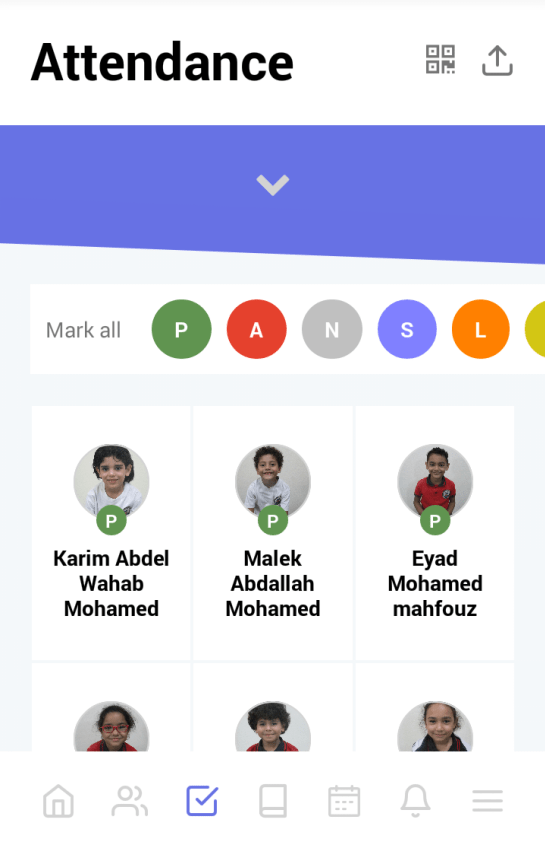
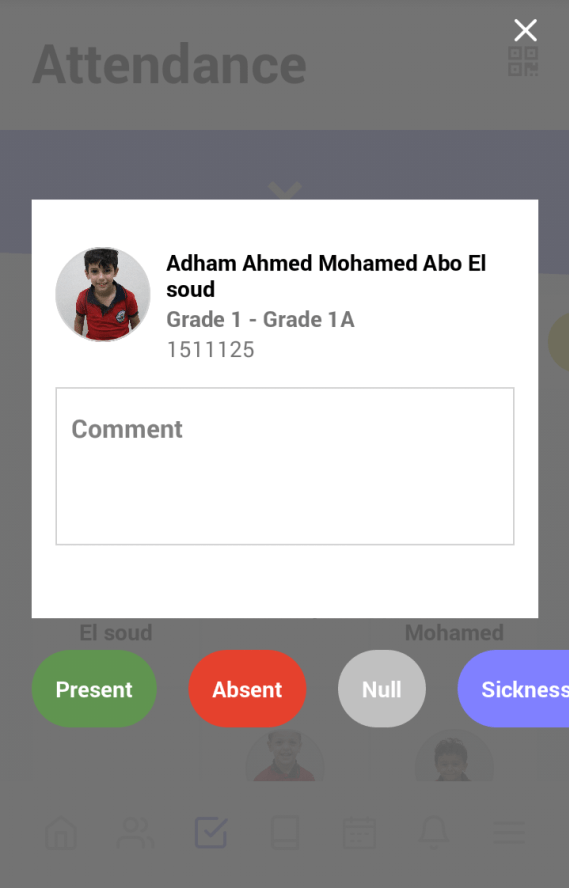
Teachers can use any mobile device to tag their students' daily attendance. They can also opt to scan student’s digital ID cards on their mobile devise for easier attendance tracking. The Digital ID card is now available from the student’s profile.
Enhanced Grade Book
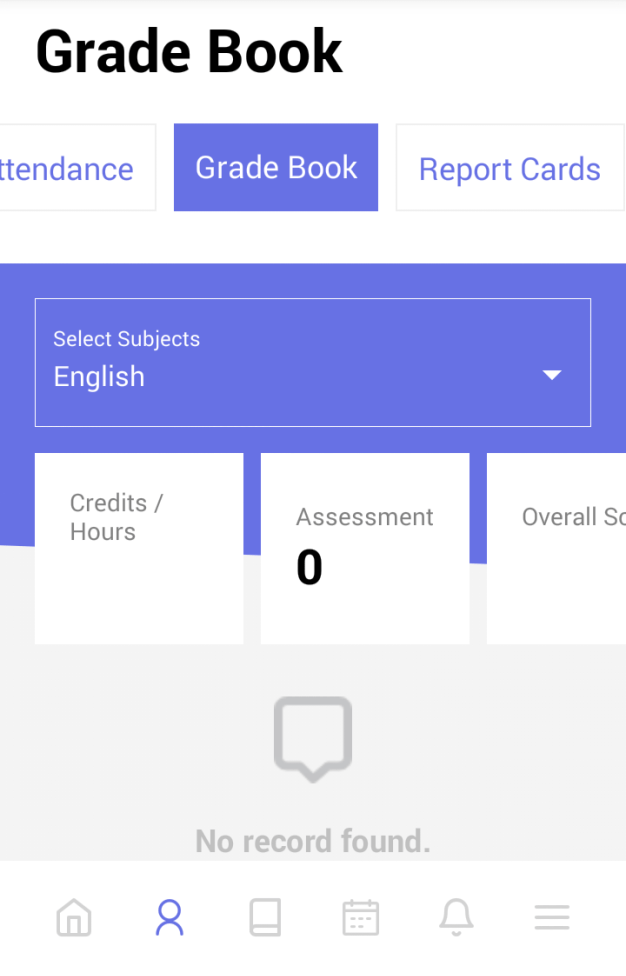
Grade book on the mobile app reflects all the enhancements that were performed on the recent web application upgrade. Parents will also be able to easily view details on assessments and report cards.
Improvements on notifications and social learning
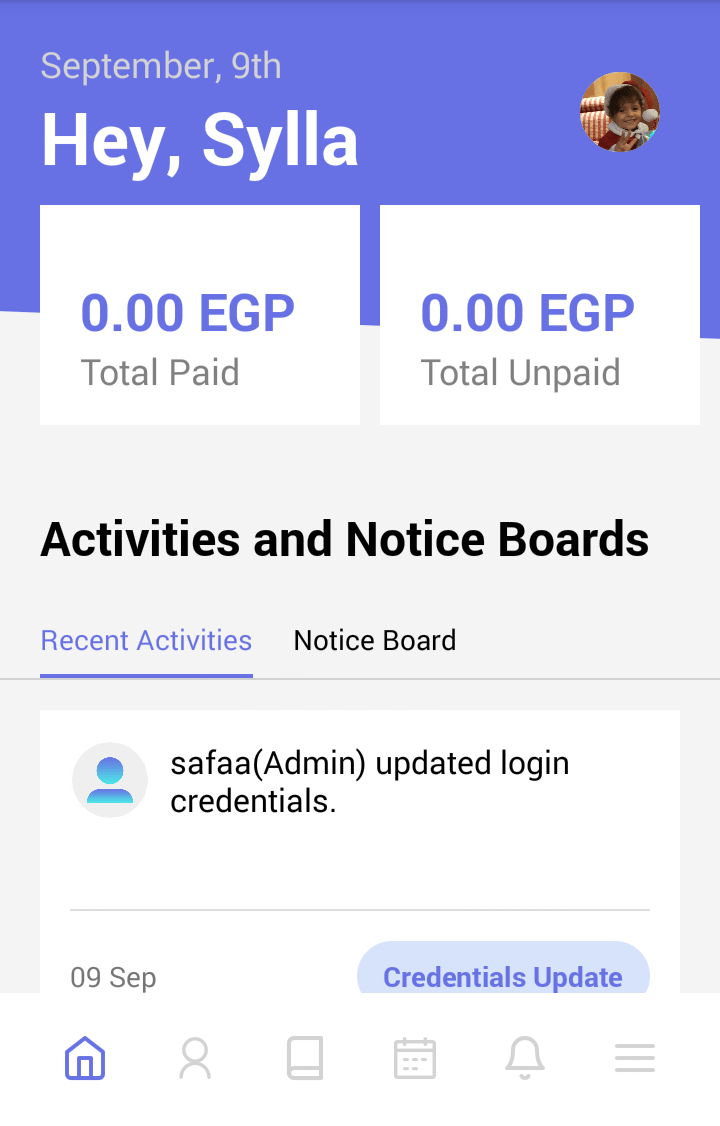
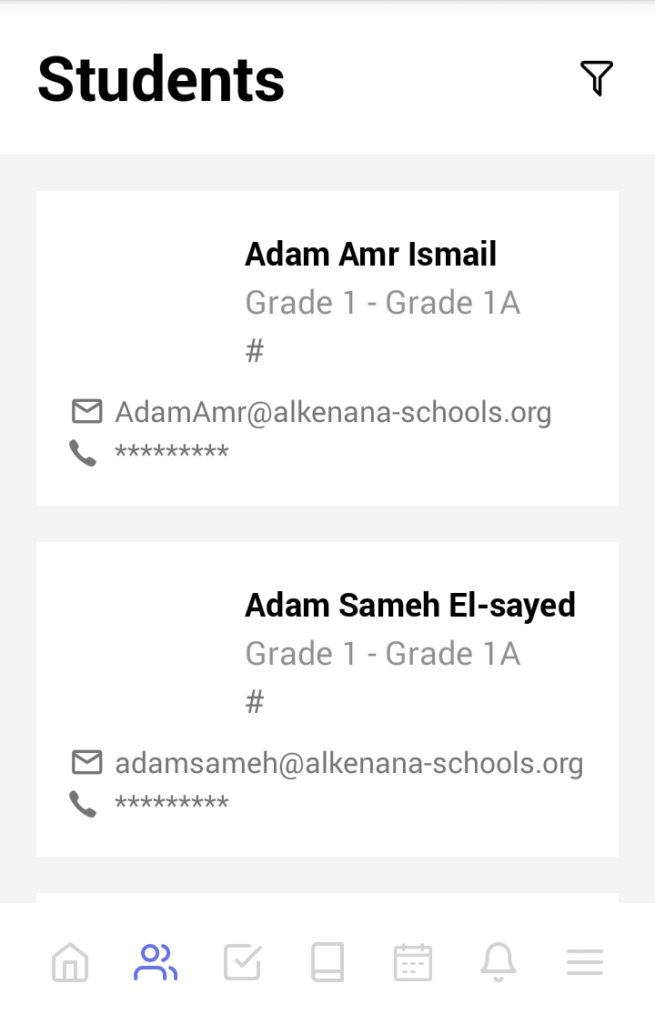
The new dashboard will provide quick summary of all notifications across invoices, events, notices and social learning posts. This enables teachers, students and parents to quickly view the latest updates from their profile.
Download or Update the Classe365 Mobile App from

or

Thanks!
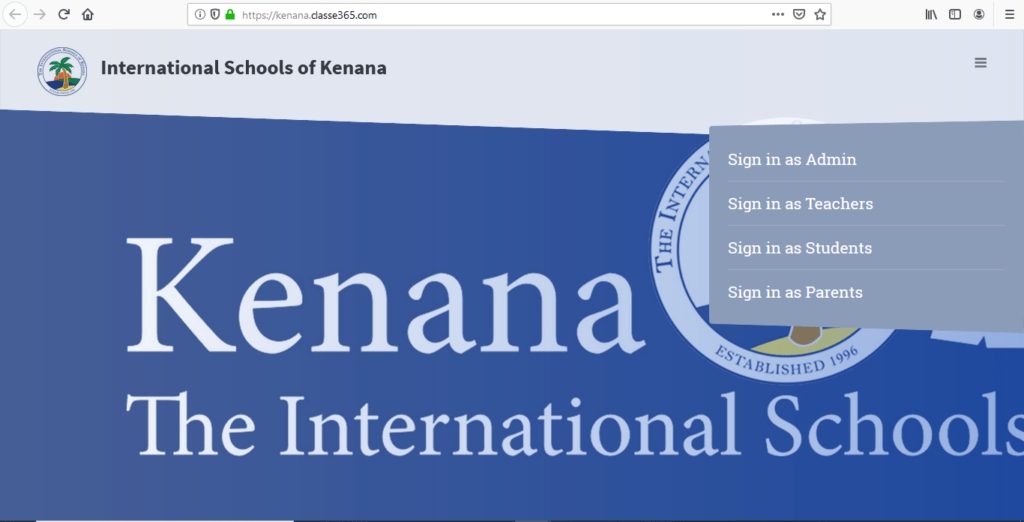
- 36. How To Reach SLMS?25.09.19
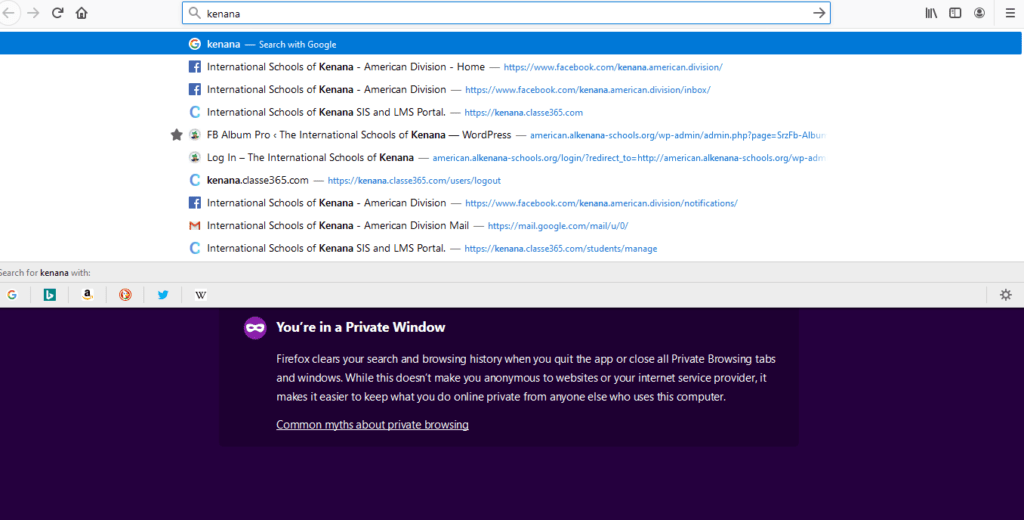
1-Search for kenana on your browser .
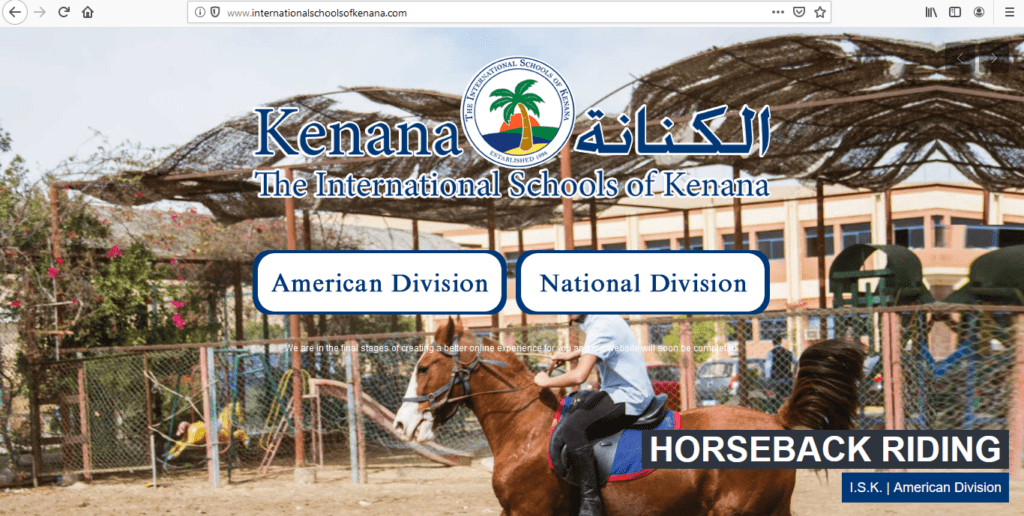 2-select "American Division"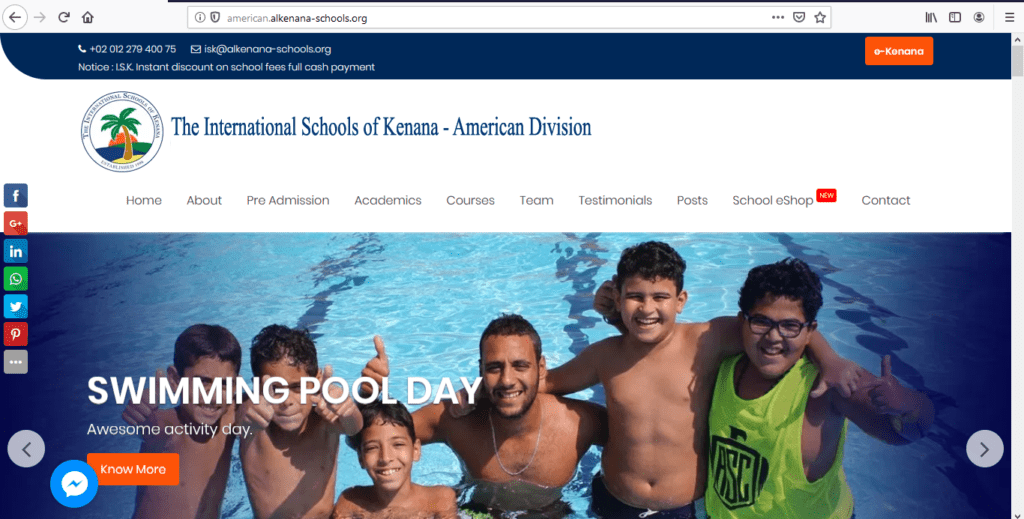
3-select "e-kenana".
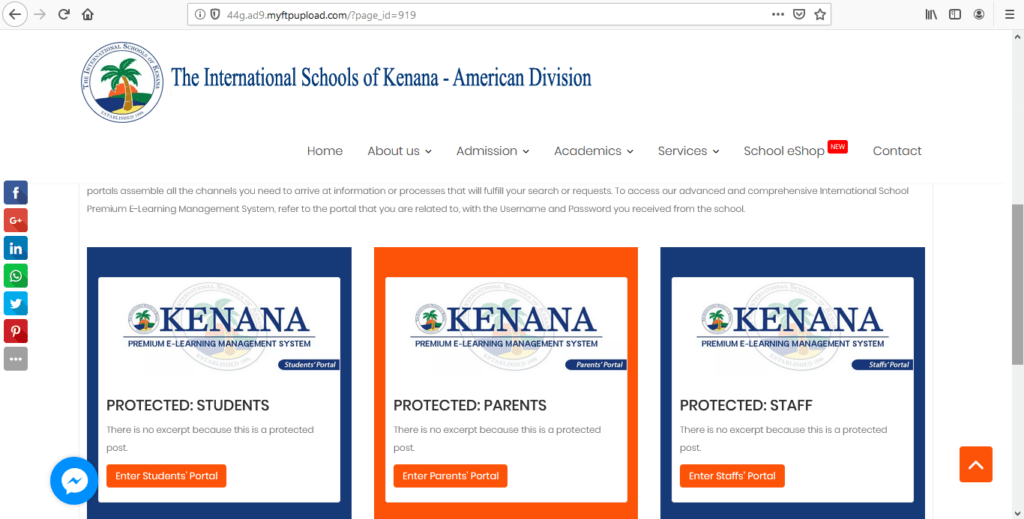
4-select the student or parent portal.
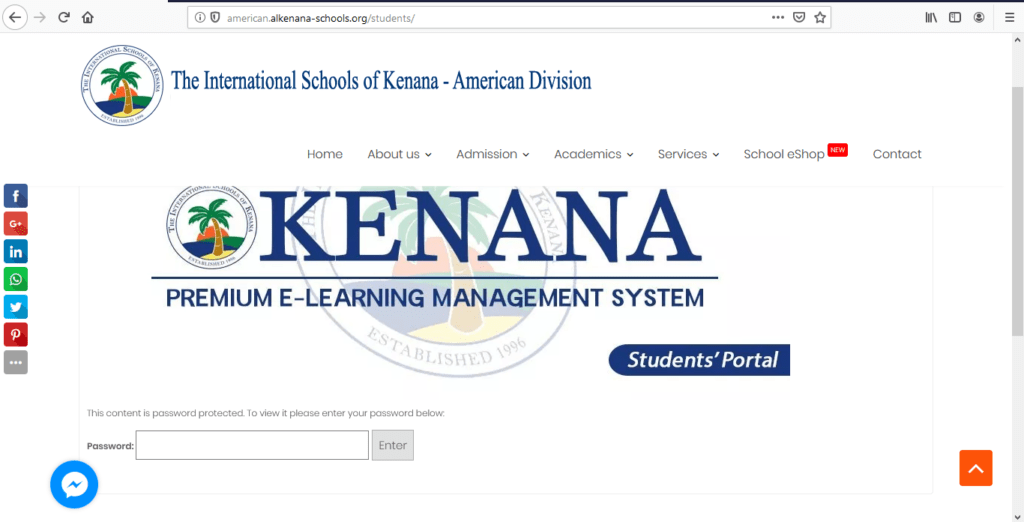
5-type the password"iskisk".
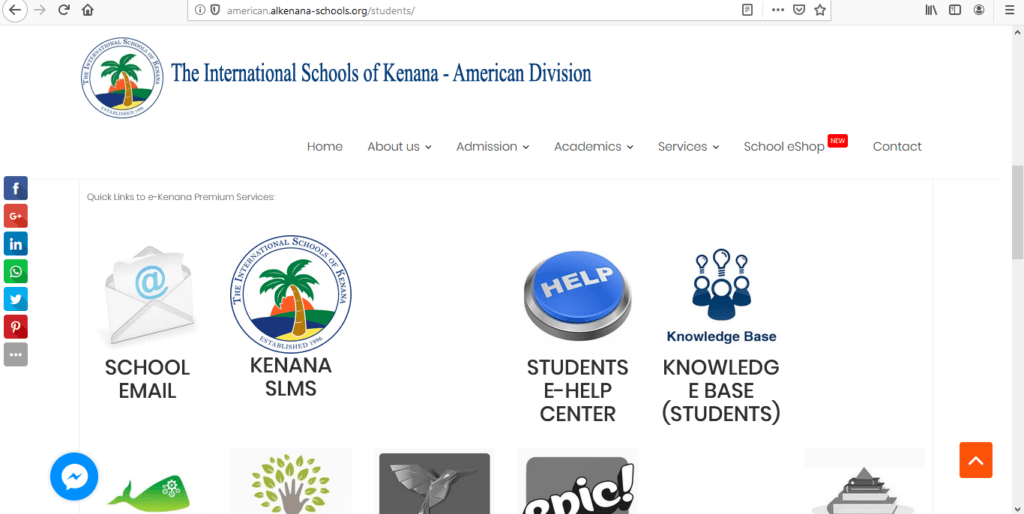
6-select "Kenana SLMS".
- 37. Parent Portal - How to contact teacher/admin staff26.06.19
Have you ever wondered about the time consumed when paying a visit to your child’s school to meet any teacher for any query? Well here is a simple solution that e-Kenana SLMS offers; which is a feature to contact teachers/admin staff of your child.
Step-1: Login to Parent Portal
To login to your authorized portal, you need credentials which is sent by the organization admin, if you haven't got your credentials please contact the organization admin staff.
Once you're invited to login to the portal you'll have to login to the portal using the link which is provided by the admin staff.
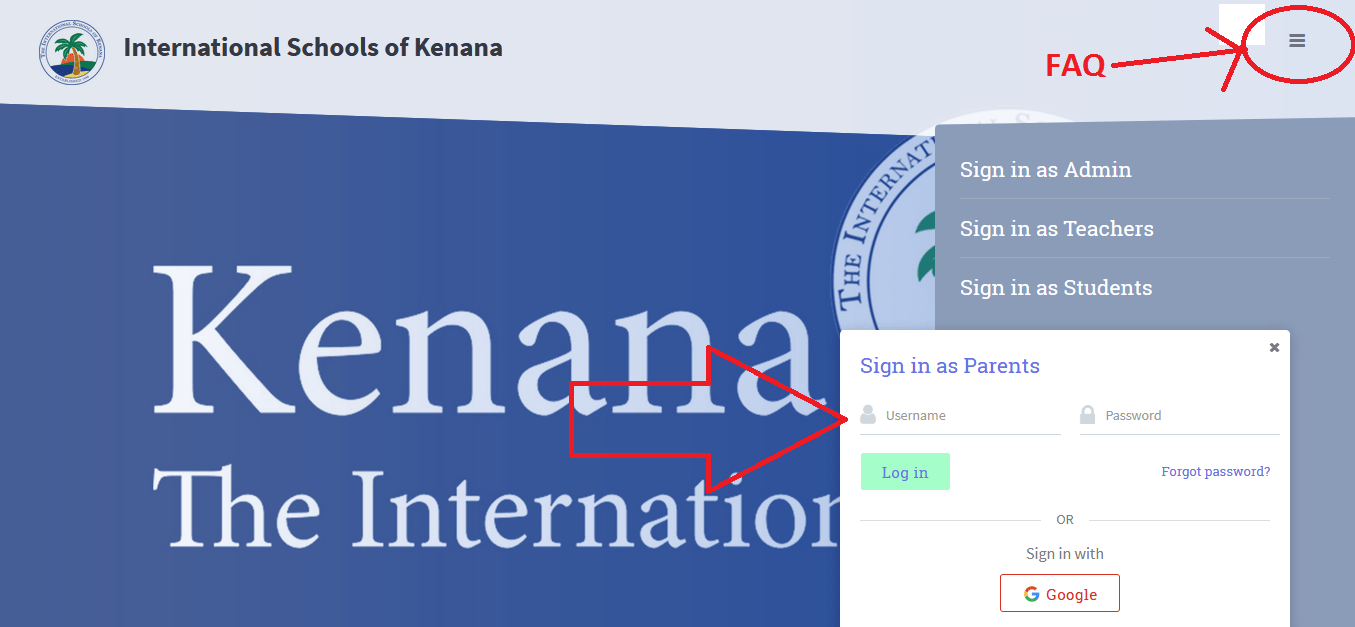
Step-2: Contact Teacher/Admin Staff
Go to Help > Contact Support > Select User > Email >

- 38. How To Navigate The LMS?17.10.19
1-using a browser:
-After login , this IS what you will see.
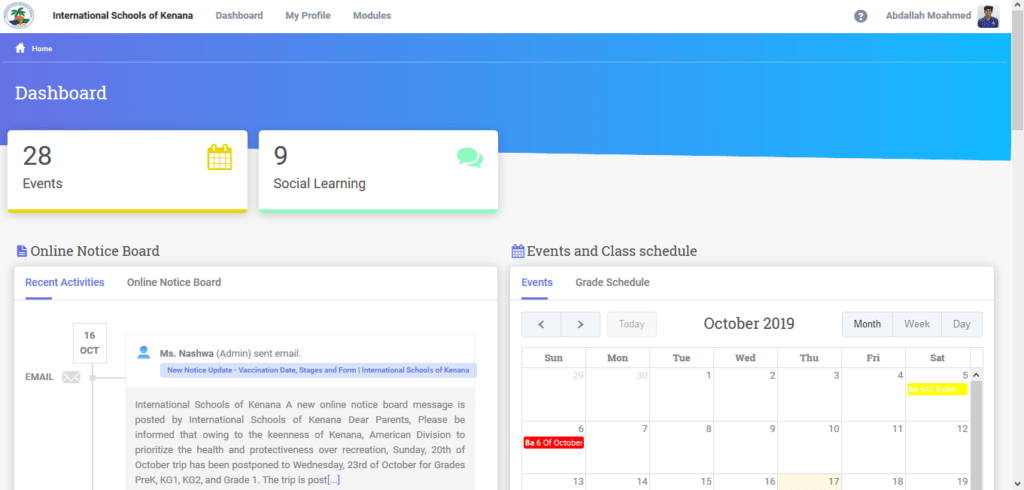
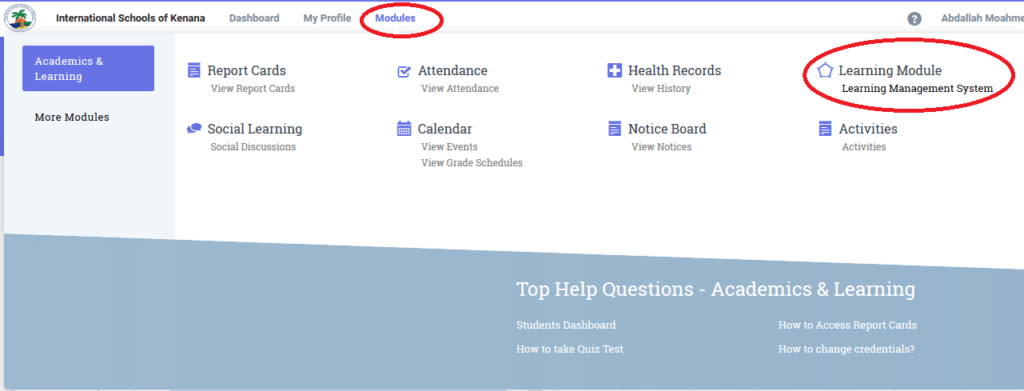
-Click on "module" ,then "learning management system ".
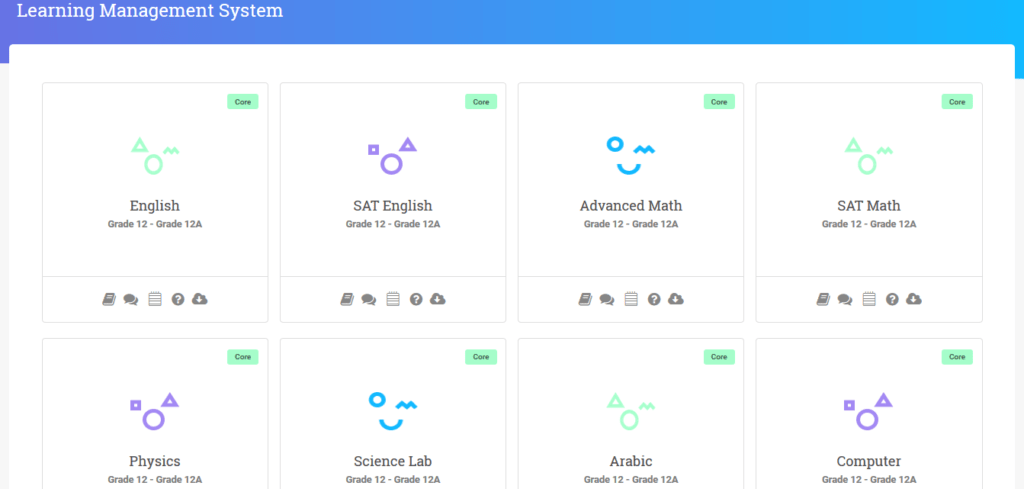
-Select a subject
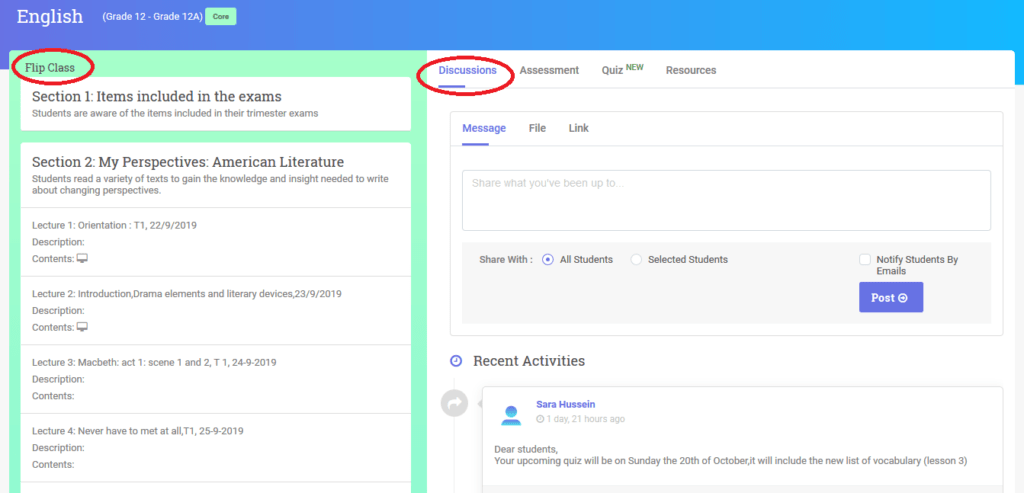
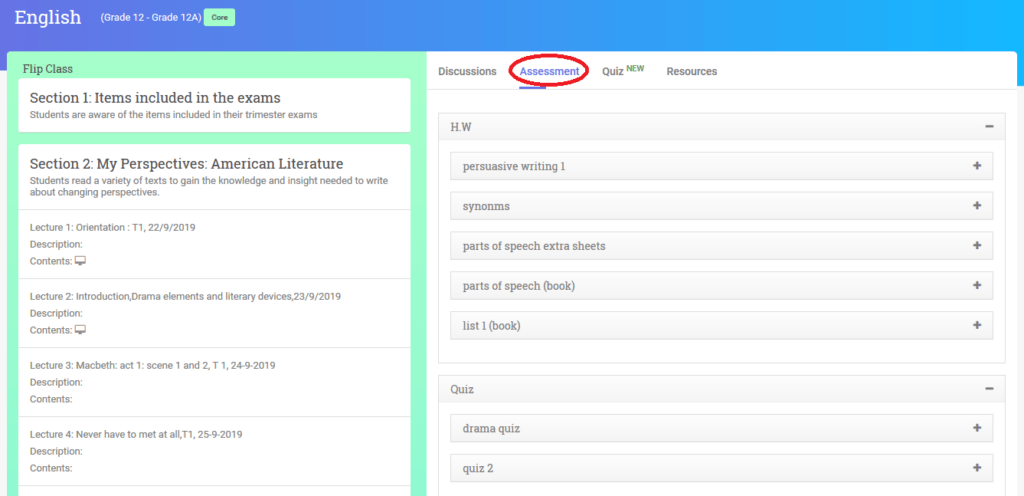
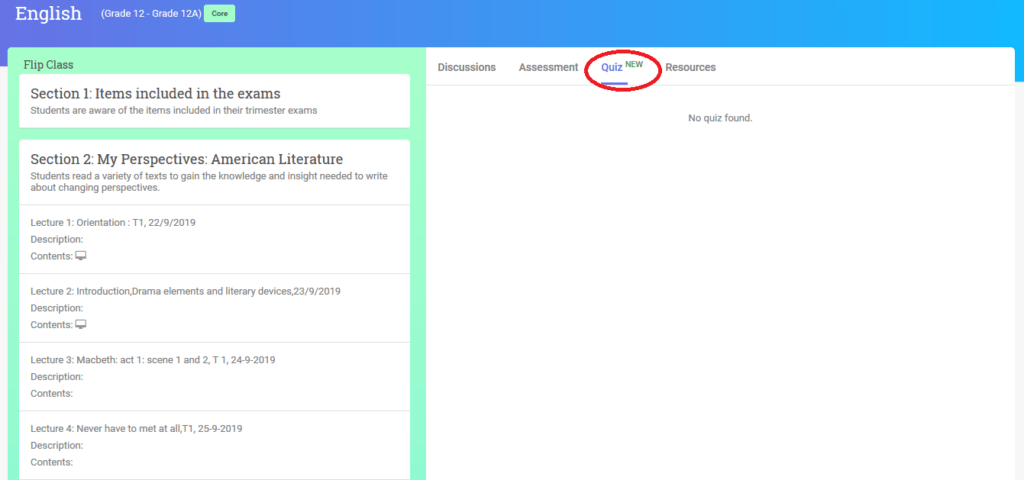
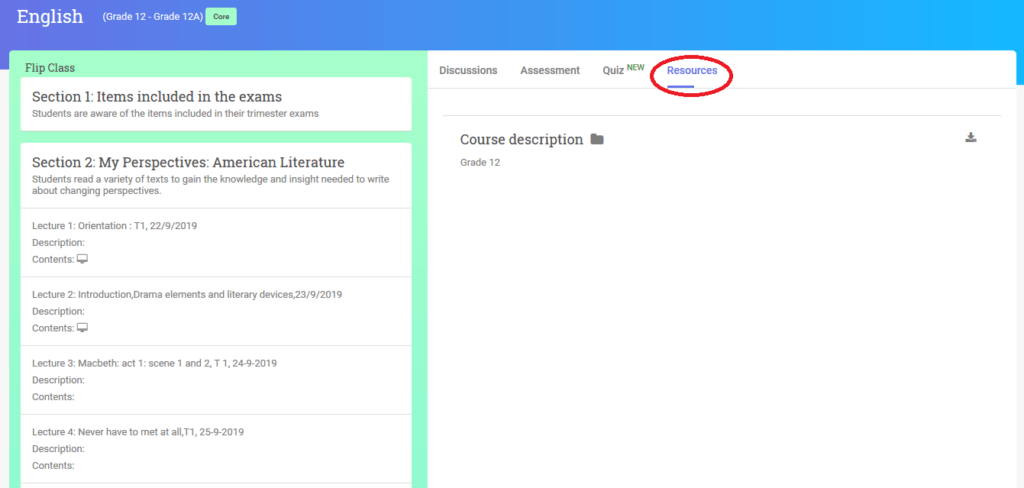
-You can see "Flip Class" , "Assessment" , "Quiz" and "Resources".
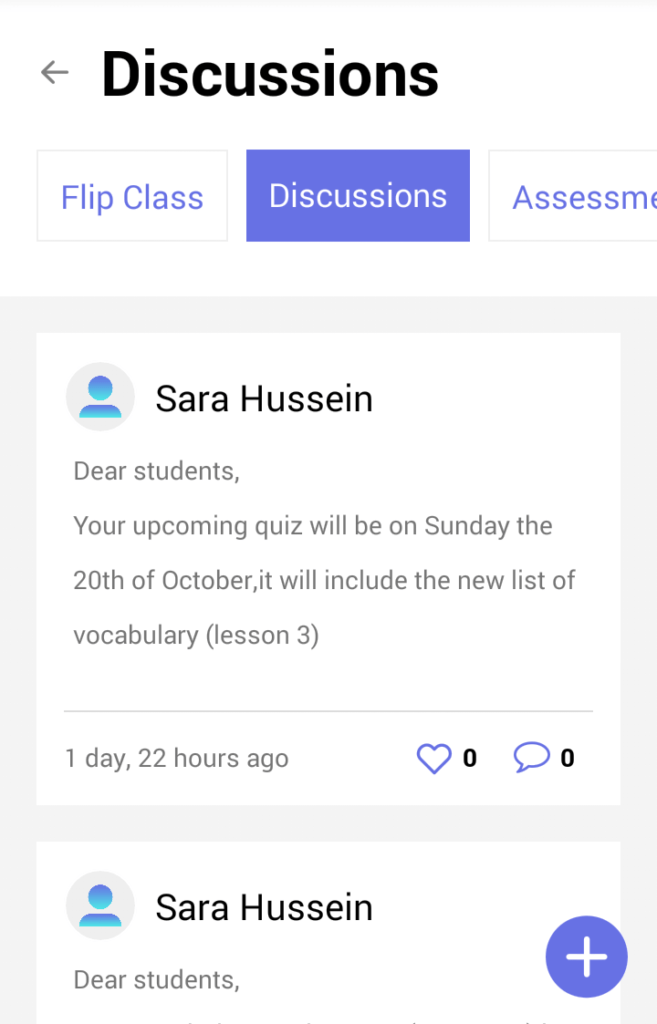
-"Flip Class" &"discussions".
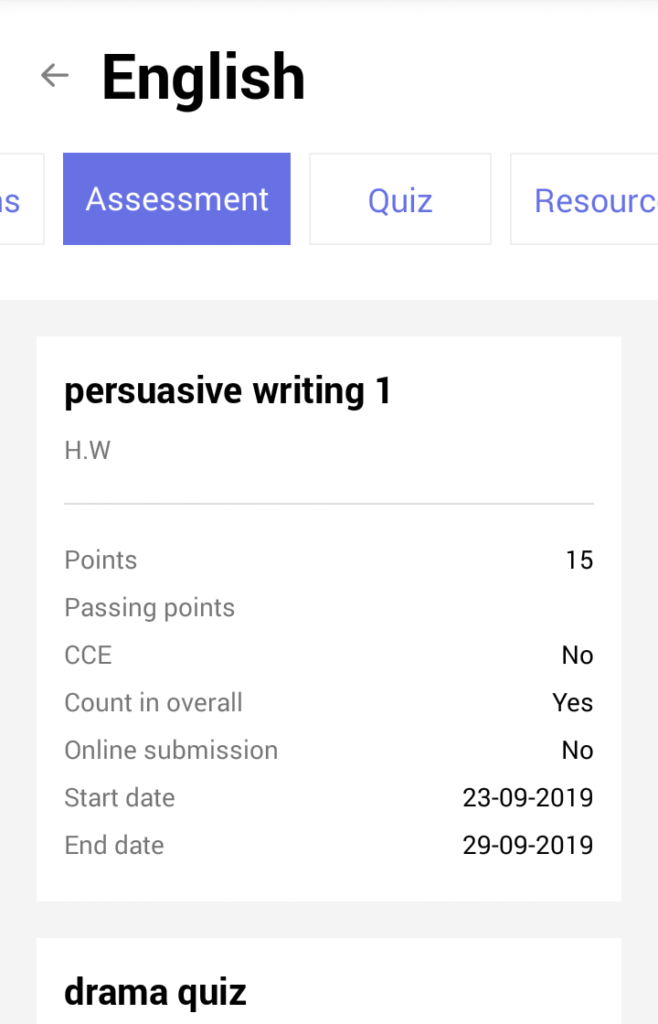
-"Assessment".
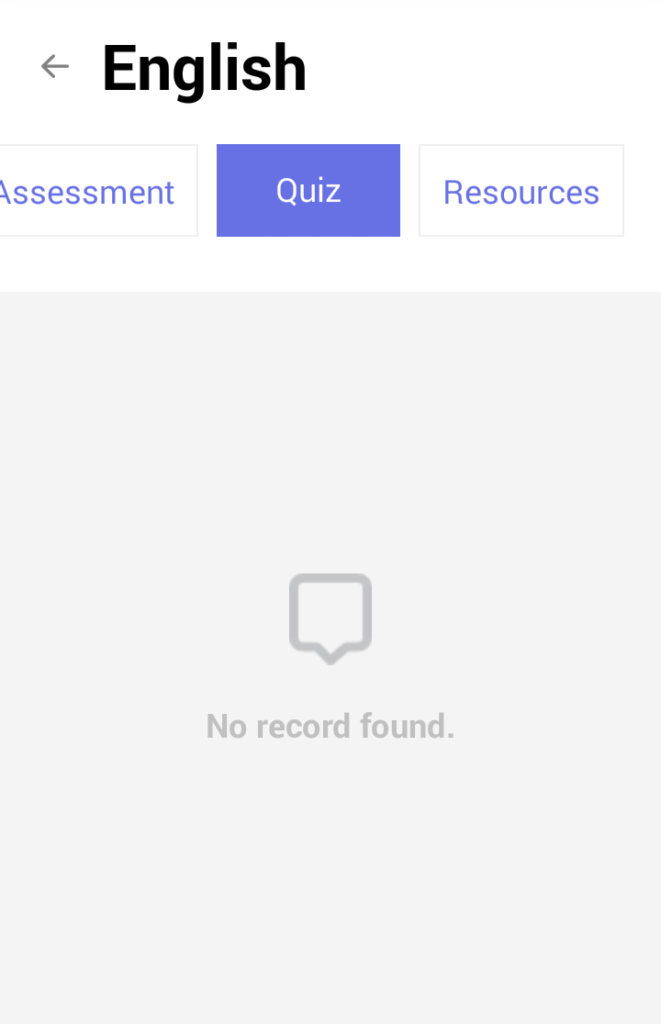
-"Quiz".
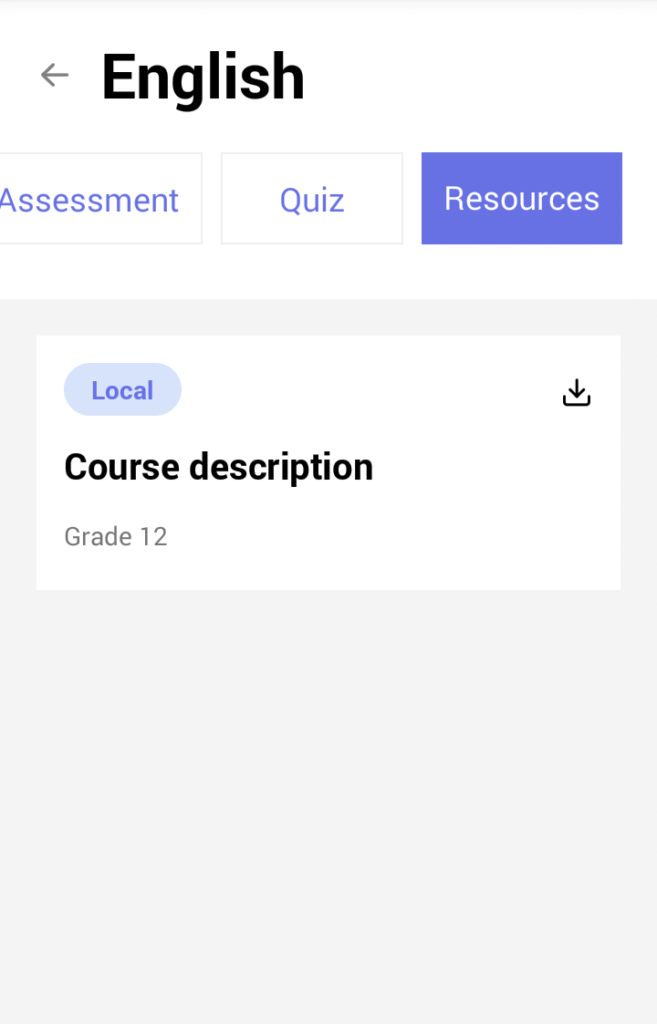
-"Resources".
2- Using the "Classe365" app.
-After login , this IS what you will see ,Click the icon below TO GET TO
"learning management system ".
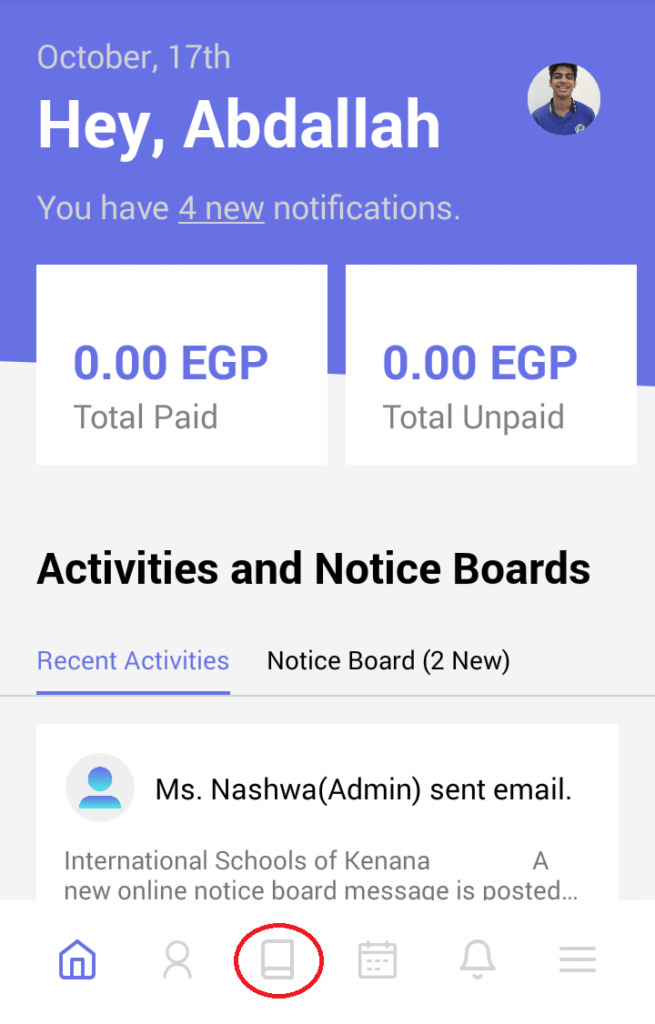
-"learning management system" HAS ANOTHER NAME ON THE APPLICATION WHICH IS :"START LEARNING".
-select a subject.
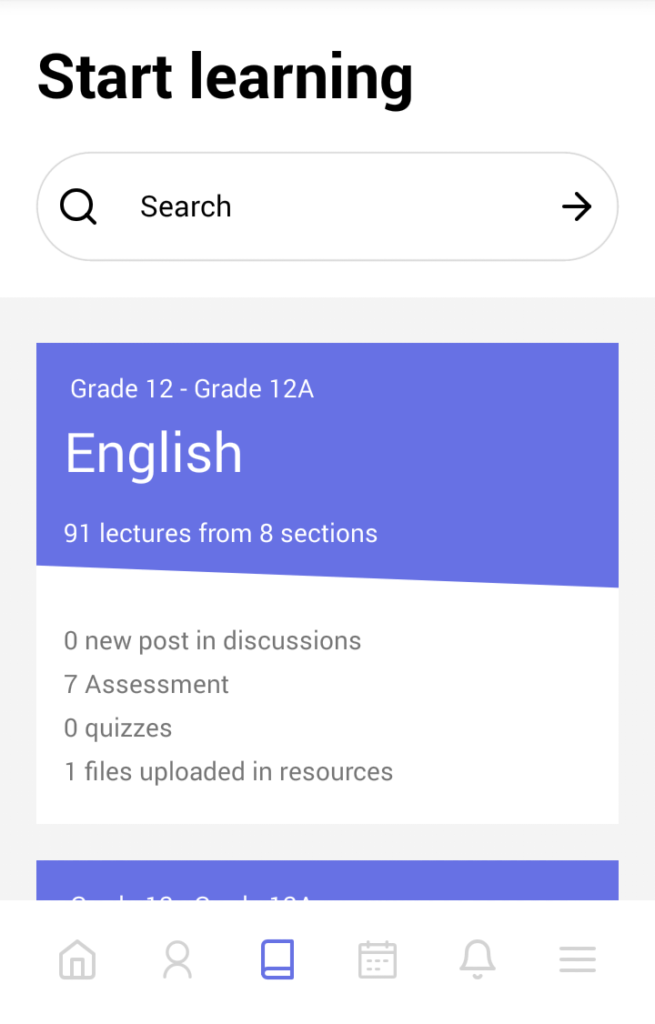
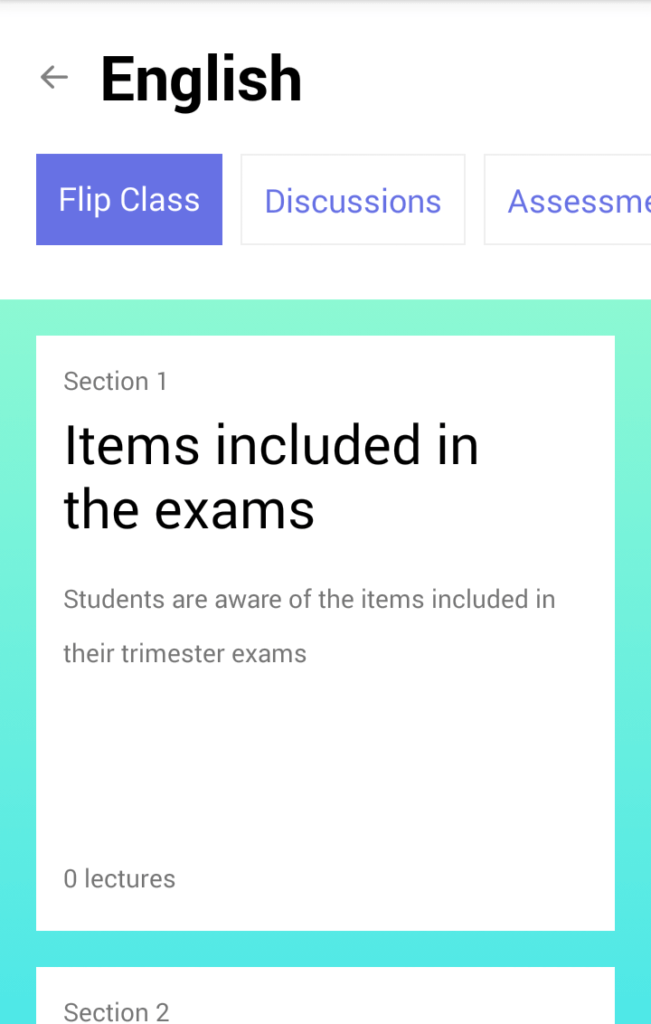
-You can see "Flip Class", "Assessment" , "Quiz" and "Resources".
-"Flip Class".
-"discussions".
-"Assessment".
-"Quiz".
-"Resources".
- 39. Using Epic! - Kids’ Books and Videos20.10.19
Epic steps:
1- Download App
2- Open app, you will see this.
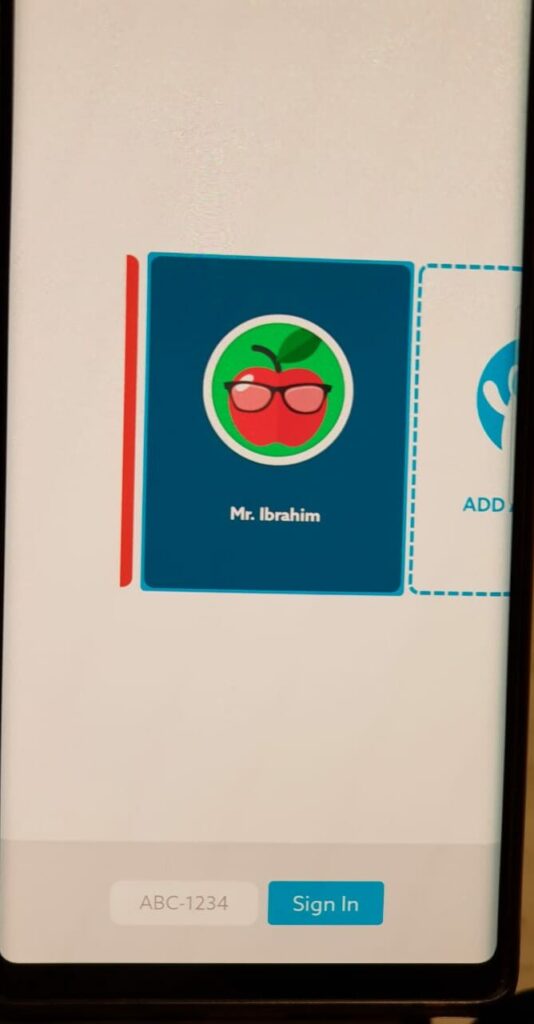
Enter class code down.
3- Press on Teacher's name.
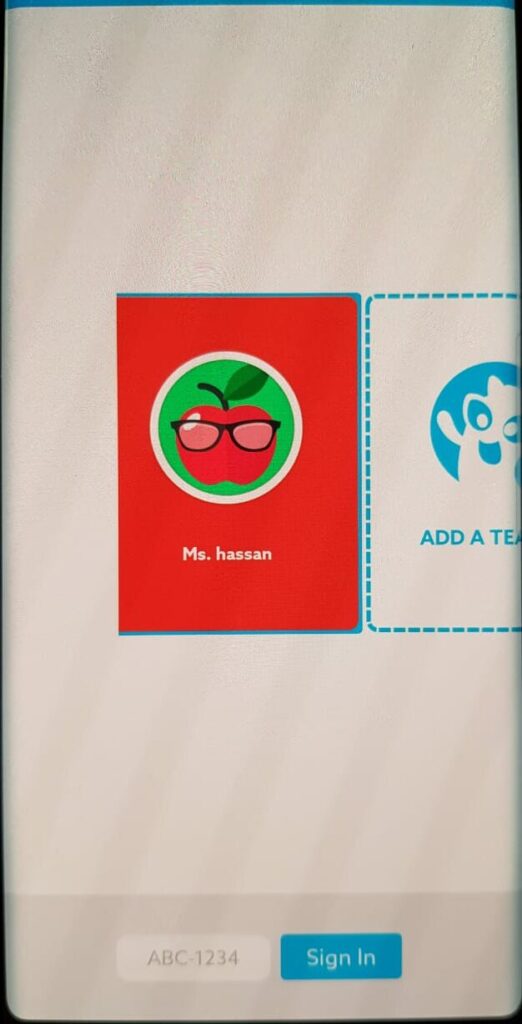
Enter pin number.
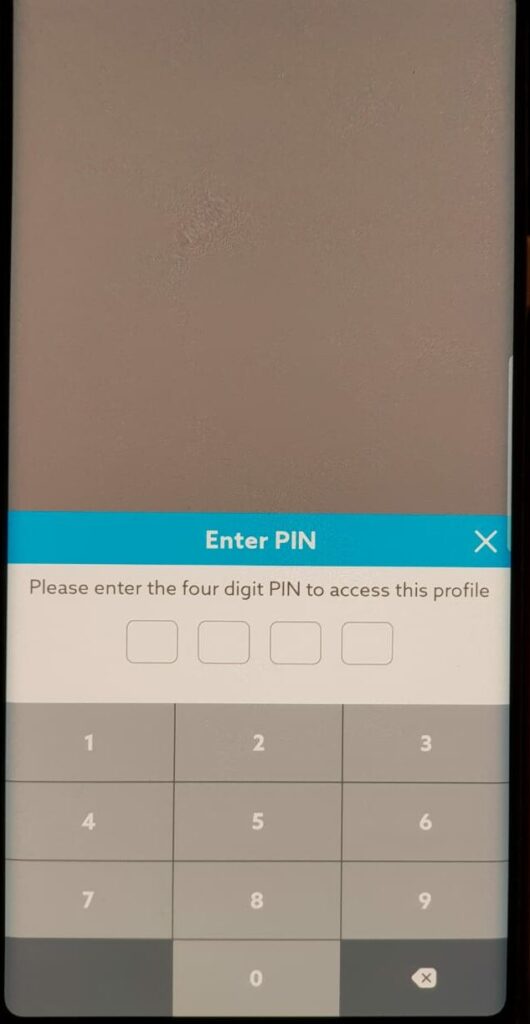
Then You will see this page.
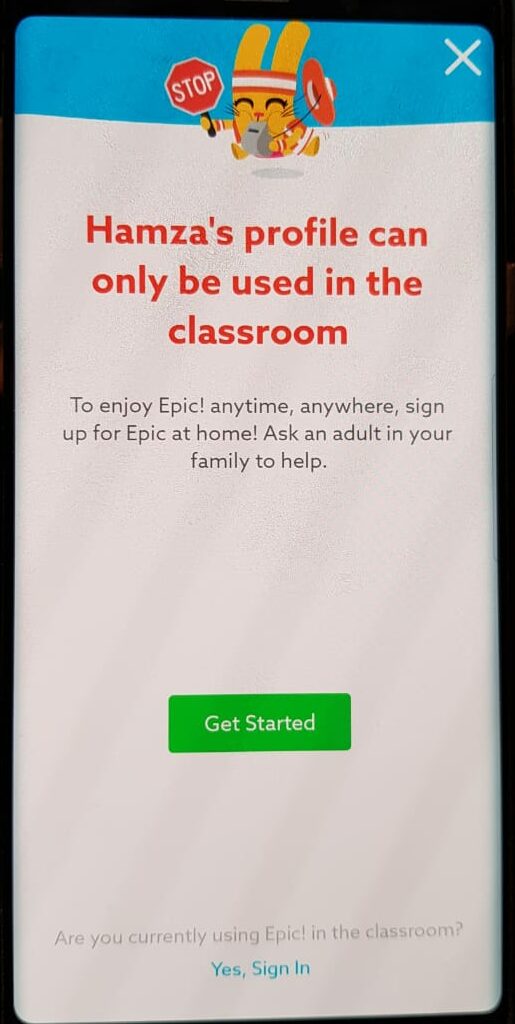
4- Press sign in on the bottom of the page.
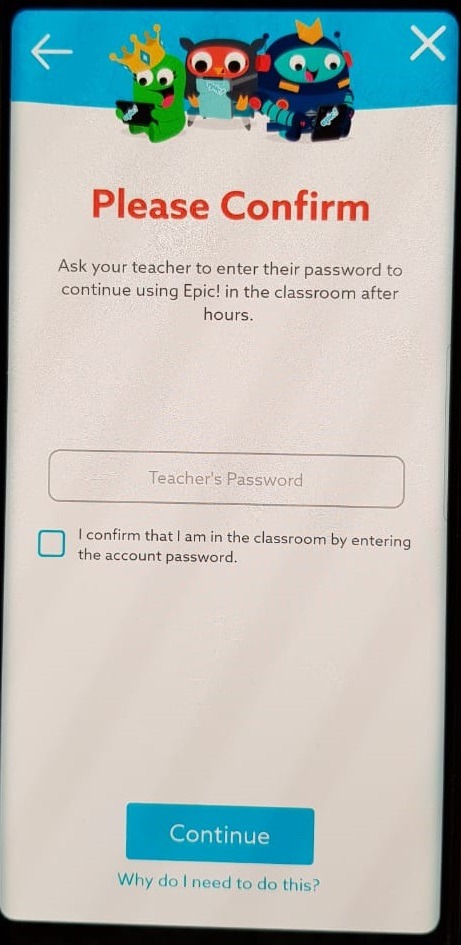
You will see this page.
5- Enter Teacher's Password : iskisk
6- Check the box.
7- Press continue.